Trust Center
Getting started with Trust Center
Set up a public security page that answers prospects' and customers' most common questions upfront, built from the frameworks, controls, and vendors you already maintain in Tidal Control. This article covers the editor, the sections your Trust Center has, and how to publish changes.
Opening the editor
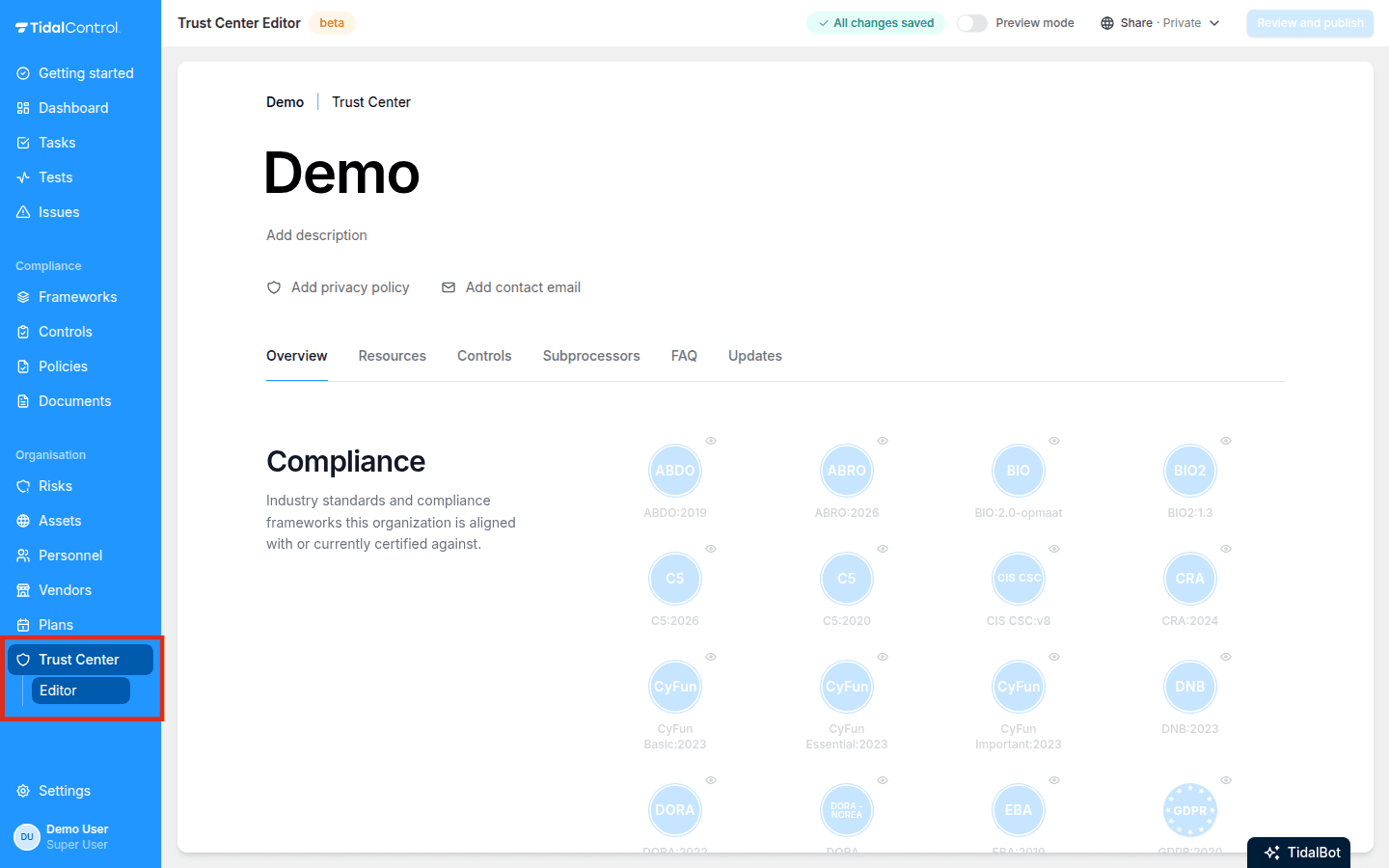
Go to Trust Center > Editor in the main menu.
The editor shows your actual Trust Center page. You edit it in place. Every section lets you easily pull in existing items, customise their details, or hide them.
The sections
A Trust Center has a fixed set of sections, in a fixed order. Visitors navigate them with the tabs at the top of the page.
| Section | What it shows | Source |
|---|---|---|
| Overview | Your title, description, logo, contact email, and privacy policy link | Trust Center editor |
| Compliance | Frameworks and certifications, with a Certified badge once you set a certification date | Tidal Frameworks |
| Resources | Documents and links, such as certificates, reports, and policies | Trust Center editor |
| Controls | Your security controls, optionally with a live effectiveness status | Tidal Controls |
| Subprocessors | The vendors that process data for you, with purpose and location | Tidal Vendors |
| FAQ | Questions and answers, with ready-made templates for common security questions | Trust Center editor |
| Updates | Announcements, such as a new certification or an incident advisory | Trust Center editor |
Content from the rest of Tidal Control
Tidal creates a Trust Center entry for every framework, control, and vendor in your organisation. Everything starts hidden: you decide per item what visitors get to see. Items added to the platform later show up automatically as new hidden entries.
You can give an item a different public name, category, or description. This helps when your internal naming isn't meant for outsiders.
Editing here never changes your internal data. Renaming, describing, showing, or hiding items on your Trust Center only affects the public page. Your controls, frameworks, and vendors in Tidal stay exactly as they are.
Controls can show a live effectiveness status on the public page. This status syncs from your controls monitoring every hour. The page stays current without manual updates.
Drafts and publishing
Every change in the editor is a draft. Visitors see the current version of your Trust Center until you publish.
The toolbar counts unsaved changes. Click Review and publish to see pending changes grouped by section and publish them at once. Click Discard to throw the draft away.
Preview
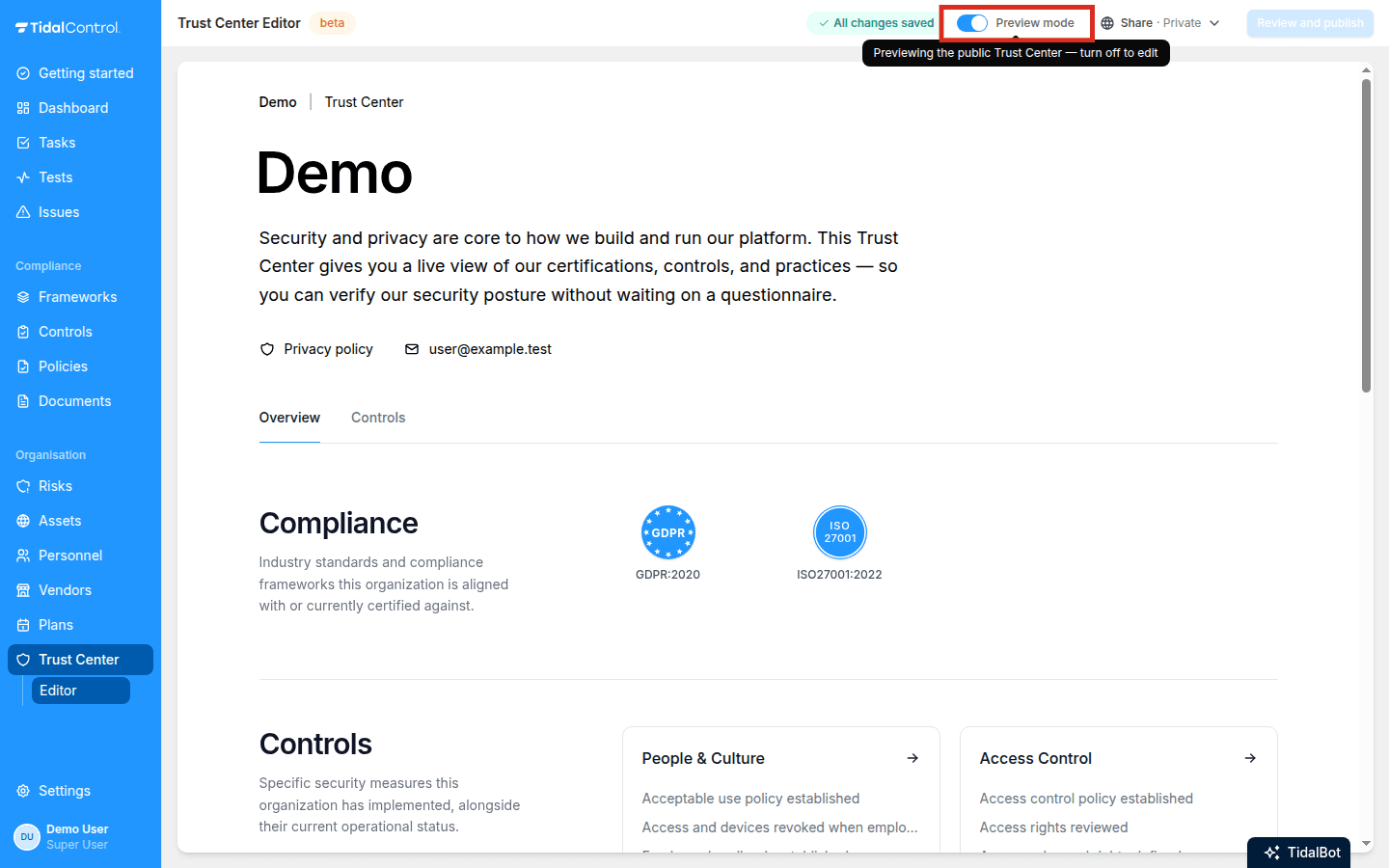
Use the Preview mode toggle in the toolbar to see the page exactly as visitors will: hidden items are filtered out and the editing controls disappear. Switch back to keep editing.
Custom domain
Your Trust Center includes a public URL based on your organisation name. You can also serve it on a custom domain you own, such as trust.yourcompany.com. This keeps visitors on your domain when they review your security posture.
What is the Trust Center?
Your Trust Center is a public web page that shows prospects and customers how you handle security: your certifications, controls, key documents, subprocessors, and answers to common questions. Share a single link. This answers most questions upfront and saves you from filling in a security questionnaire for every deal.
Next steps
Now that you know your way around the editor:
- Show the frameworks and controls you want prospects to see
- Upload your key documents to Resources
- Answer common security questions in the FAQ, starting from the templates
- Previous
- Troubleshooting & FAQ