Trust Center
Custom domain
This article walks through setting up a custom domain for your Trust Center: adding it, creating the required DNS records, and what to expect during ownership verification and HTTPS provisioning.
Serving your Trust Center on your own domain
Every Trust Center comes with a public Tidal Control URL based on your organisation name. You can also serve it on a hostname you own, such as trust.yourcompany.com. Visitors stay on your domain when they follow links from your website or security questionnaires.
Adding the domain
You must use a subdomain, such as trust.yourcompany.com. A root domain (yourcompany.com) cannot be used because the required record is a CNAME.
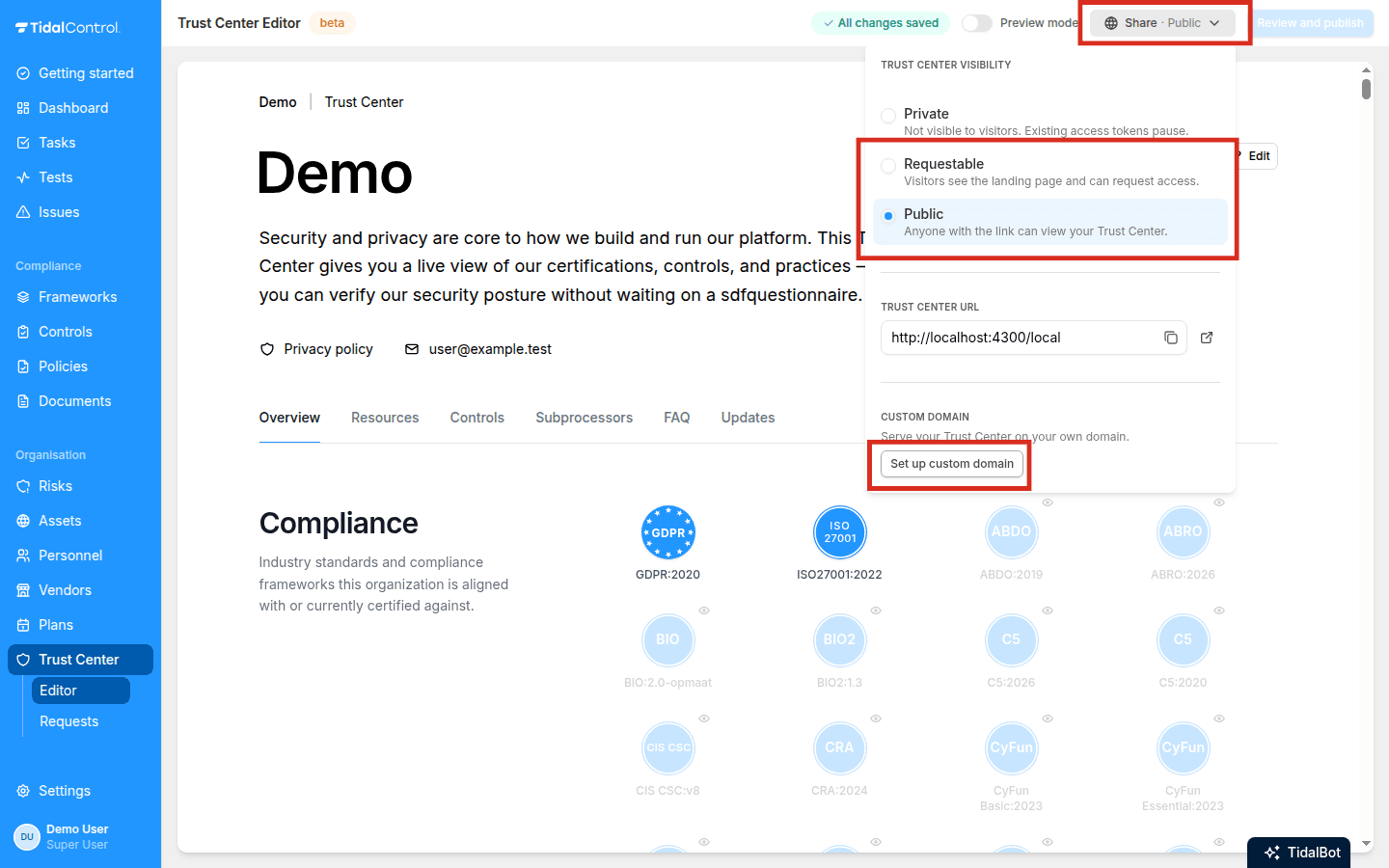
- Go to Trust Center > Editor in the main menu.
- Click the Share button in the toolbar.
- Under Custom domain, type the hostname you want to use and click Add domain.
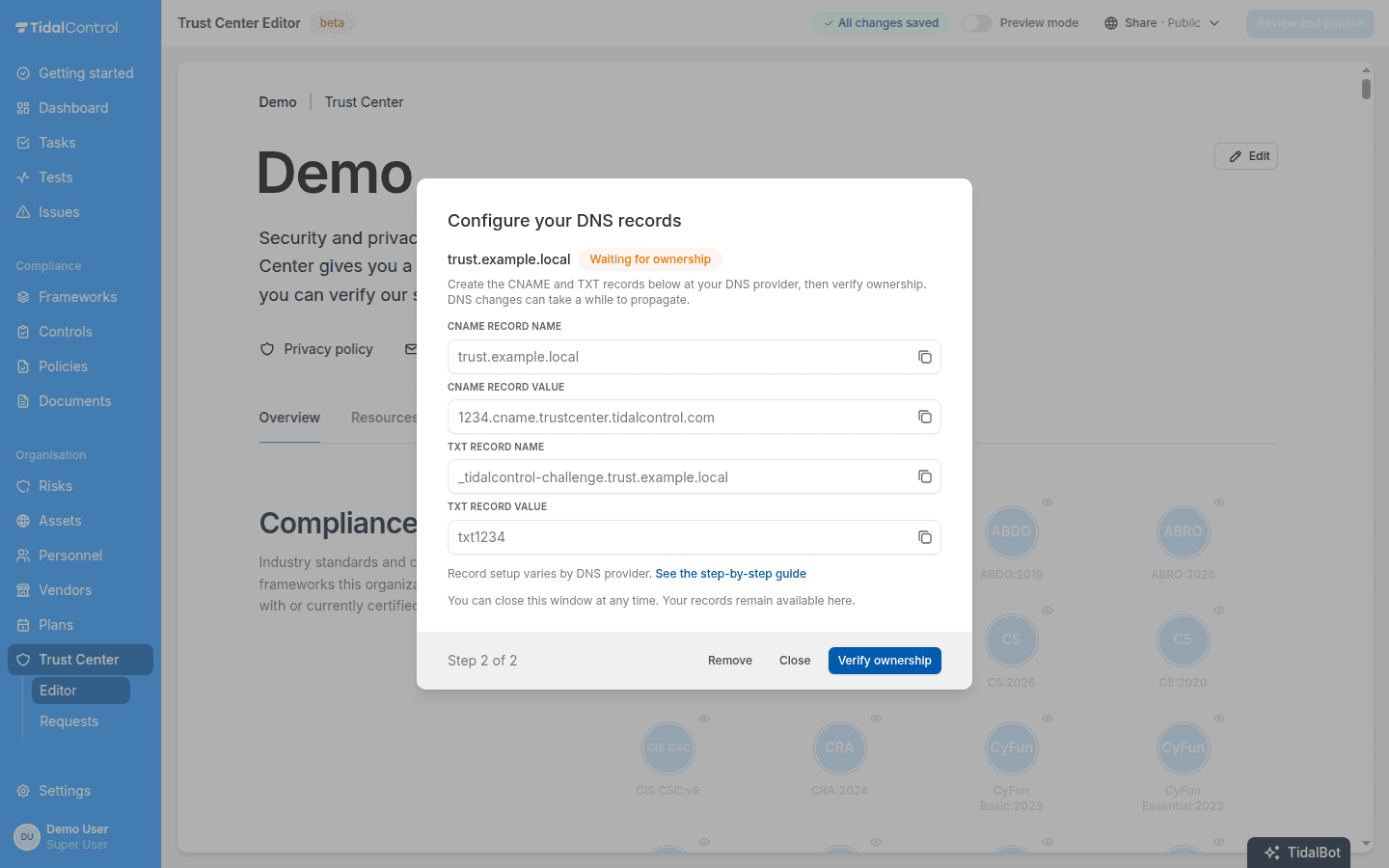
- Go to your DNS provider's settings and create the two records shown in the Custom domain panel.
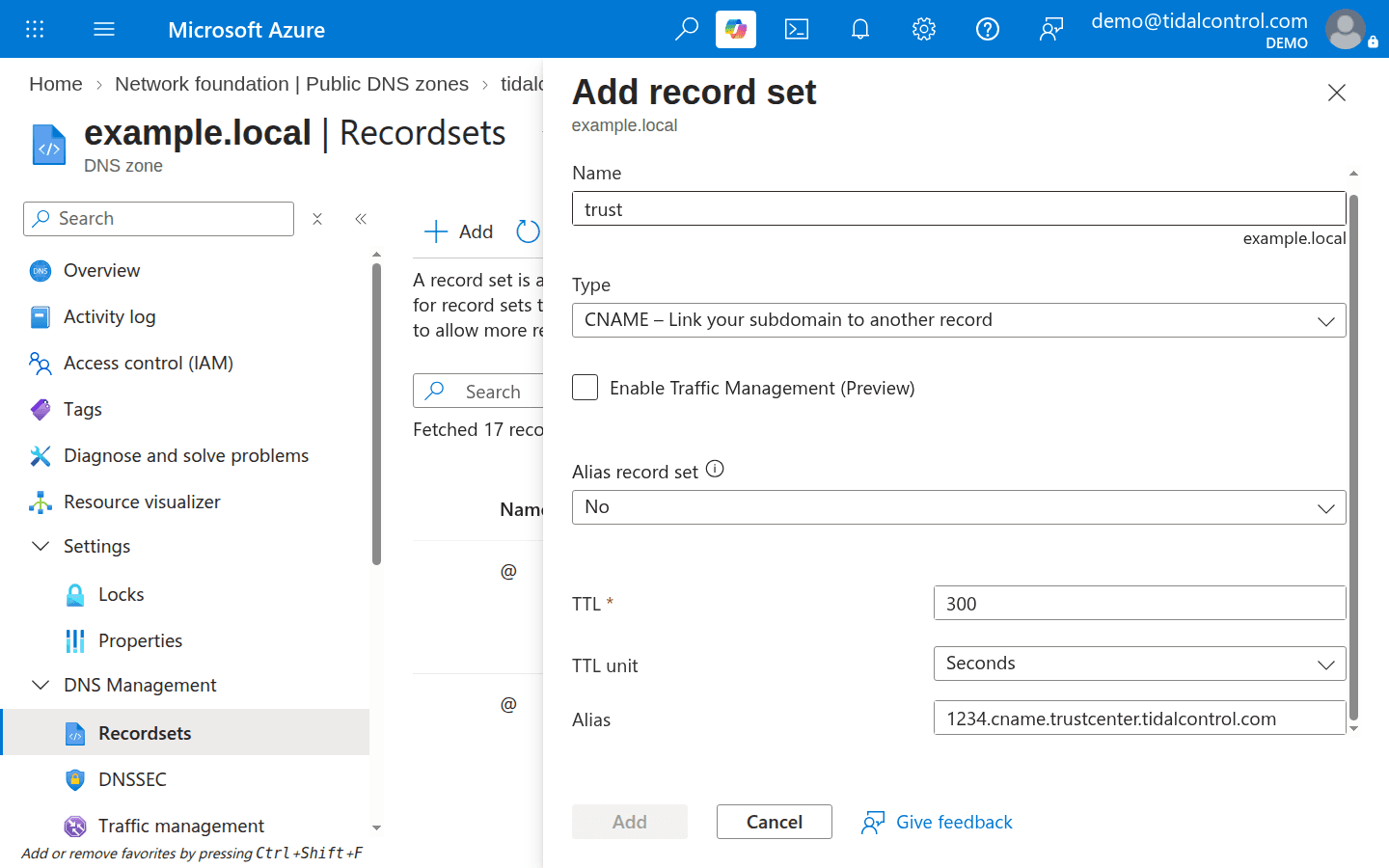
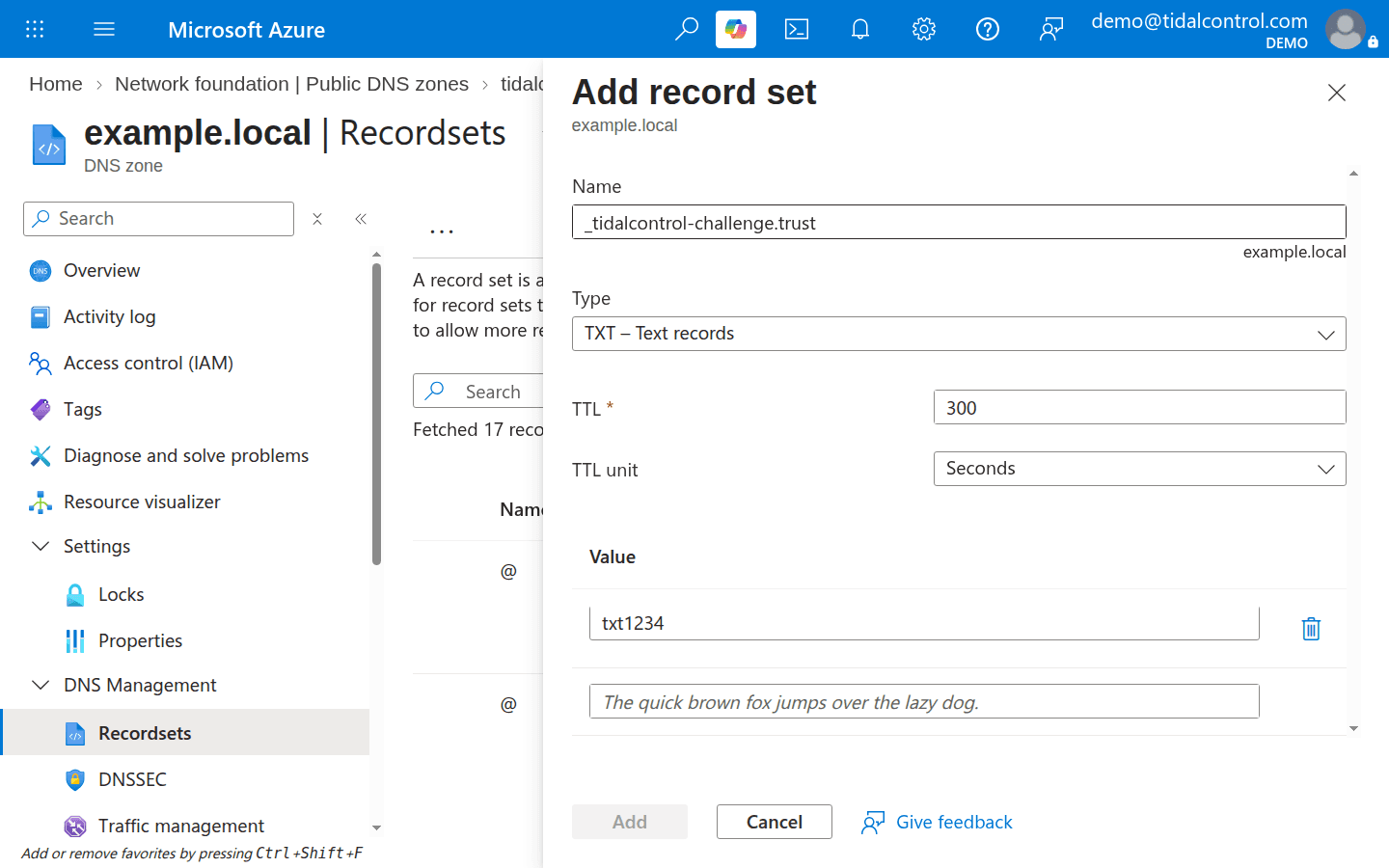
In Azure DNS, use Add record set in your DNS zone. The CNAME target goes in the Alias field:
In AWS Route 53, create both records with Quick create record in your hosted zone:
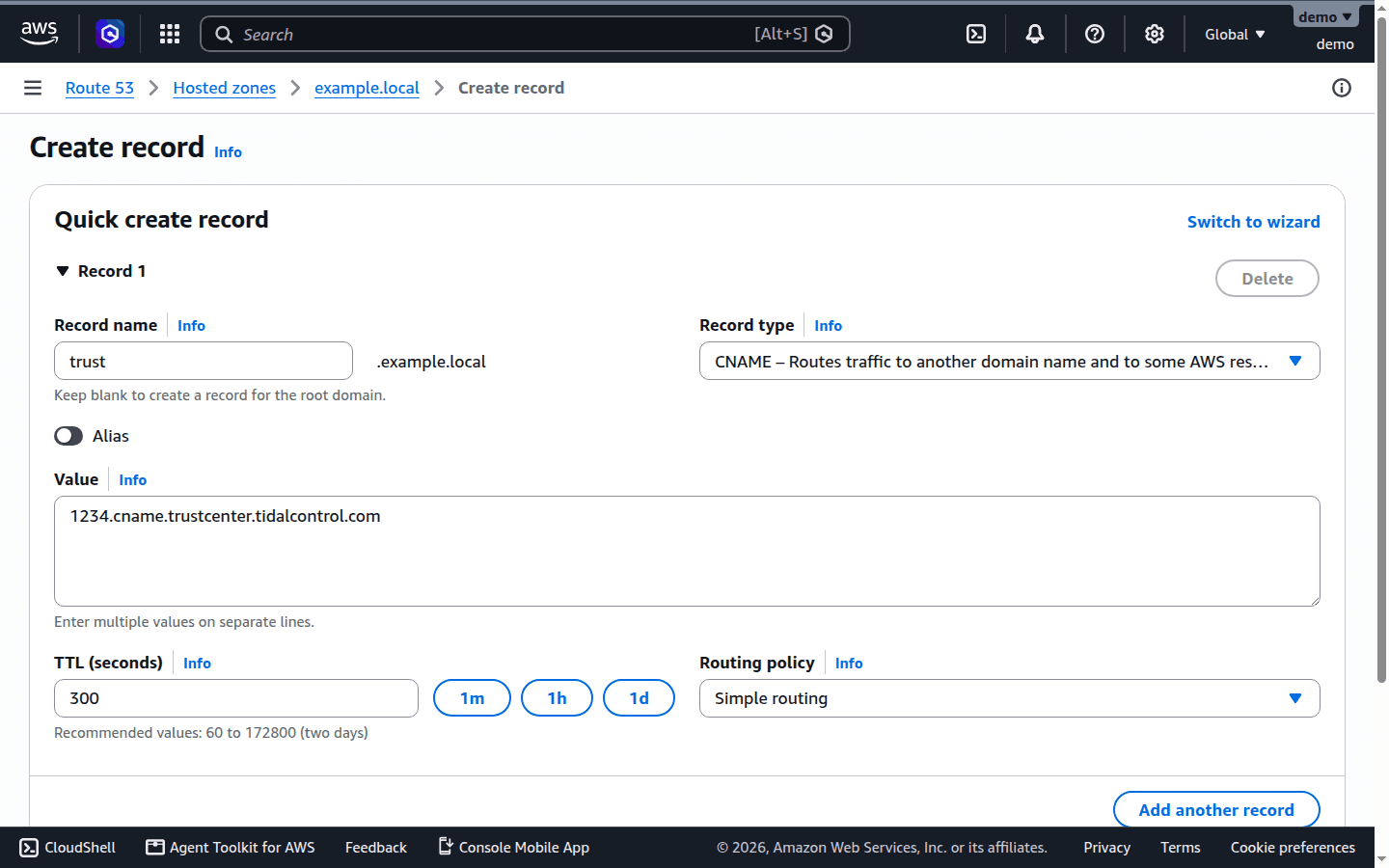
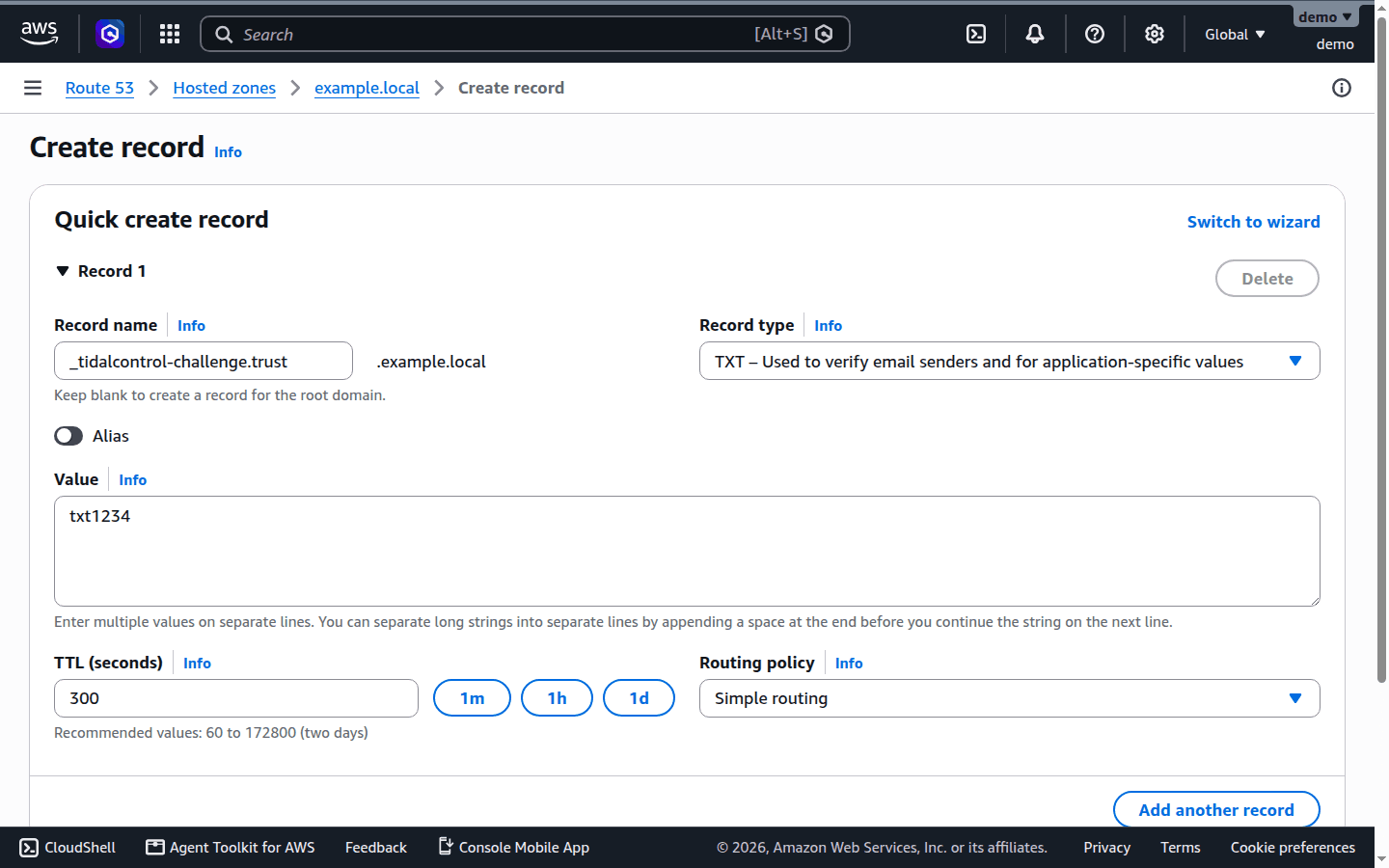
Once you create both records, come back to Tidal and click Verify ownership.
DNS changes can take up to 30 minutes to propagate. Once verified, the status moves to Provisioning.
CAA records
CAA records restrict which certificate authorities can issue certificates for your domain. If your root domain has no CAA records, skip this section.
If it has them, allow Let's Encrypt for your hostname. Otherwise, the certificate cannot be issued and the domain stays at Provisioning:
0 issue "letsencrypt.org"
0 issuewild "letsencrypt.org"
Removing a custom domain
An unactivated domain disappears immediately when removed. An active domain shows Removing while routing and HTTPS are cleaned up. Once it disappears from the panel, you can add a different domain. Remember to delete the CNAME and TXT records at your DNS provider.
- Previous
- Customising content
- Next
- Usage examples