Trust Center
Customising content
Your Trust Center editor has a section for every part of the page: branding, frameworks, resources, controls, subprocessors, FAQ, and updates, each customisable independently. This article walks through them one by one, starting with what they have in common.
Working with items
A few things work the same in every section:
- Show and hide. Every item has a Show/Hide action. Hidden items stay in the editor, but visitors never see them. Frameworks, controls, and subprocessors start hidden, so nothing goes public by accident.
- Remove. Only items you created yourself (resources, FAQs, and updates) can be removed. Items that mirror platform data can only be hidden.
- Categories. Resources, controls, FAQs, and updates are grouped by category. Pick a suggestion or type your own; items without a category appear under General.
- Bulk actions. Move a single item with Move to another category, or use the actions on a category heading to Show all, Hide all, or move every item in that category at once.
On the public page, lists longer than five items collapse automatically, and visitors expand them with a show-more button.
Trust Center details
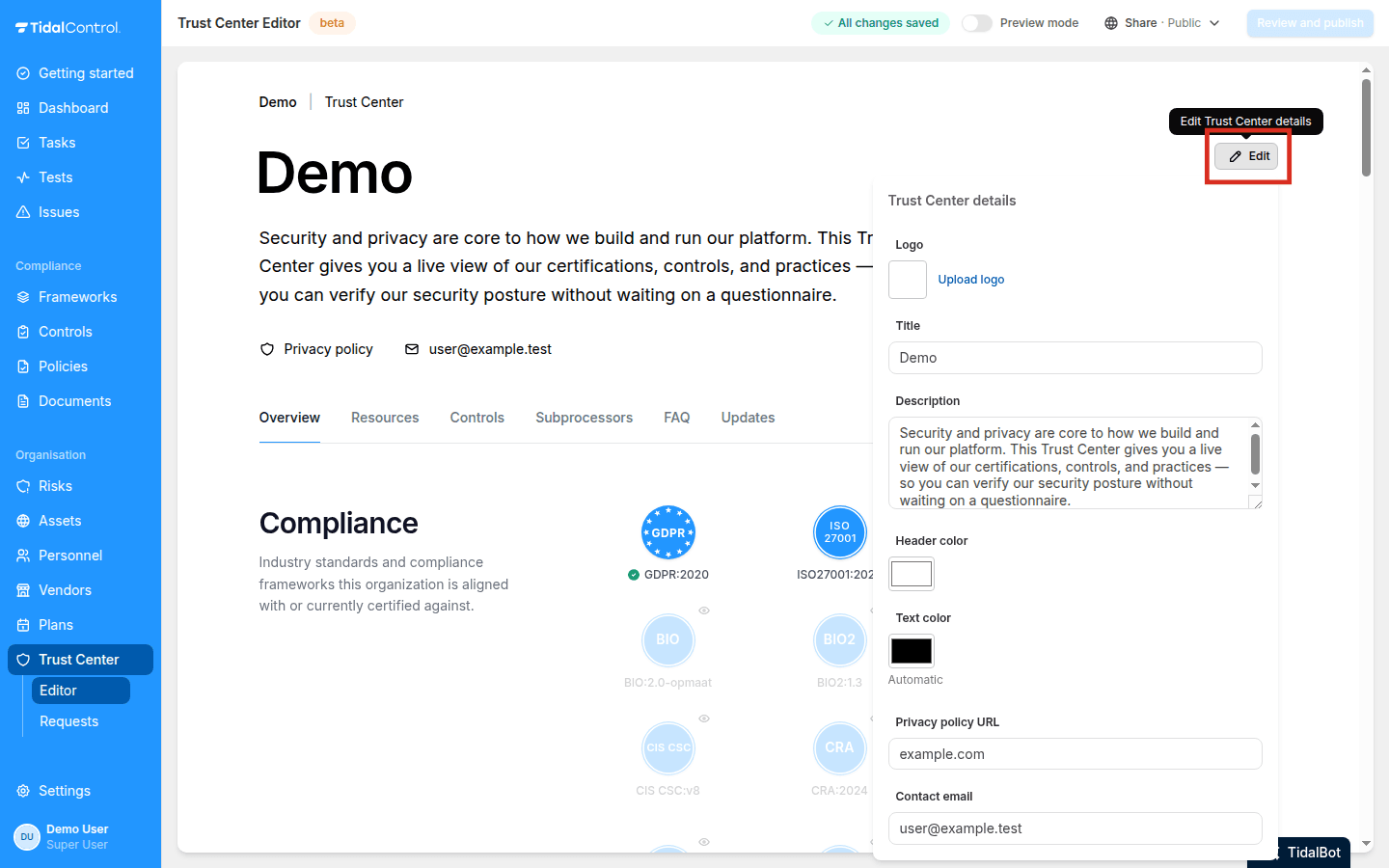
Click Edit Trust Center details in the header of the page:
- Logo - a PNG, JPEG, GIF, WebP, or static SVG image of at most 2 MB. It appears in the header and doubles as the favicon of the public page. If you cannot upload a logo stored in OneDrive, iCloud Drive, Google Drive, or Dropbox, download it to your device and try again.
- Title - defaults to your organisation name.
- Description - the introduction text under the title.
- Header color - the background color of the header, picked with a color picker.
- Text color - defaults to Automatic, which picks a readable color for your header color. After choosing your own, click Use automatic to switch back.
- Privacy policy URL - linked from the page.
- Contact email - where visitors can reach you with questions.
Compliance
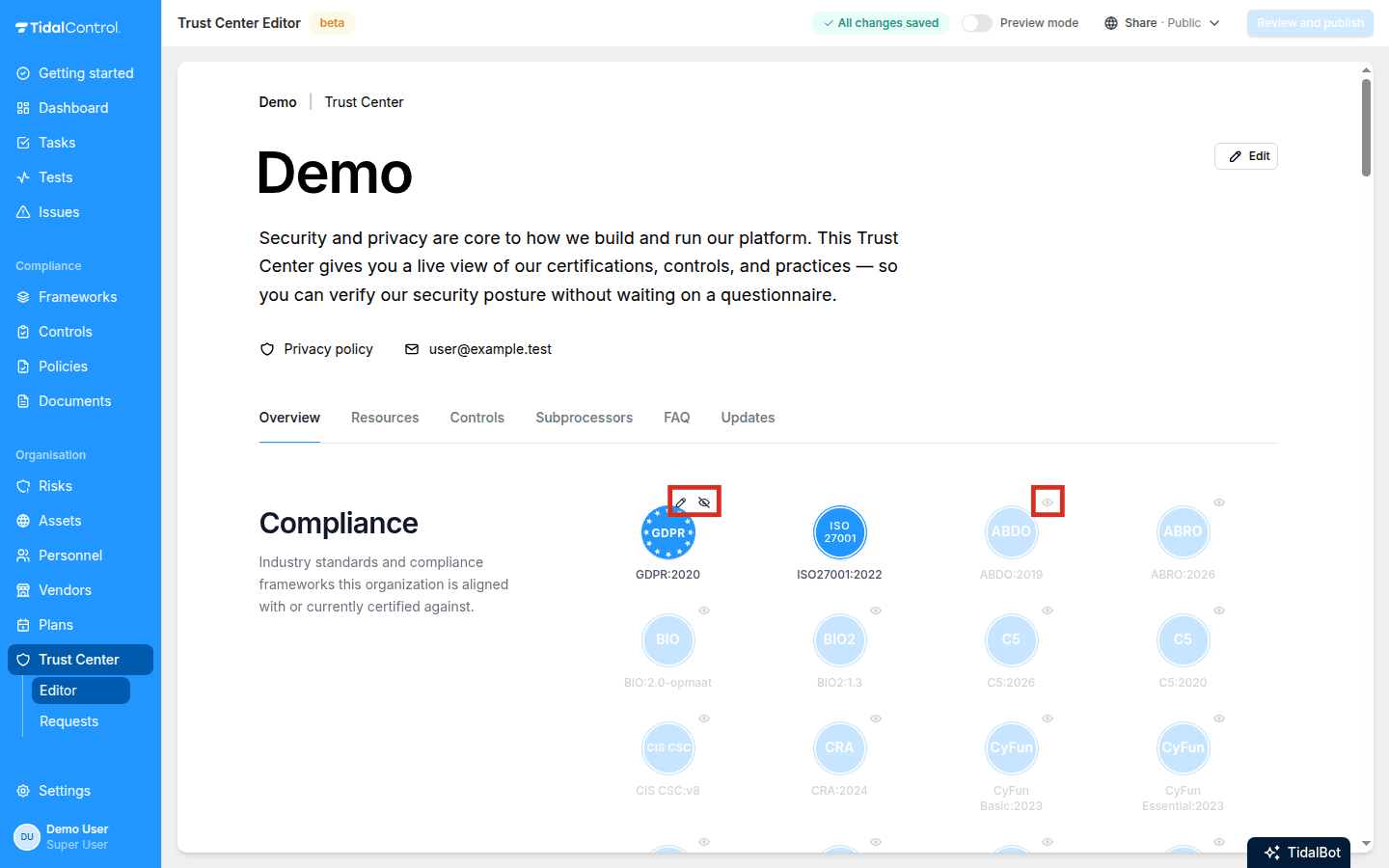
Every framework on your Frameworks page has a tile here, and all of them start hidden. Click a tile to reveal its actions:
- To show a framework, click the eye.
- To edit a framework, click the pencil.
- To hide a framework, click the crossed-out eye.
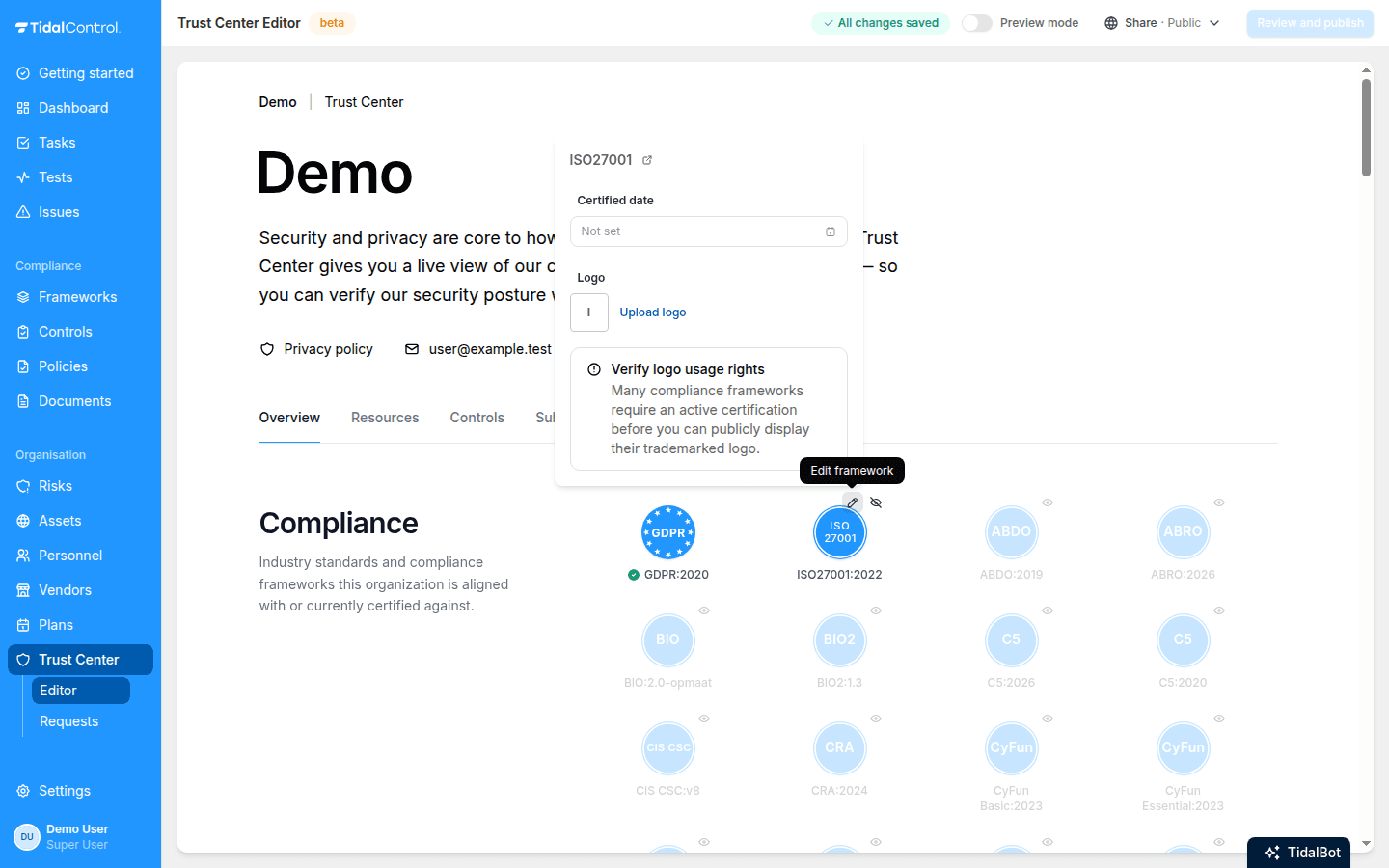
Edit a framework to set:
- Certified date - set it once you're certified, and the tile shows a green Certified check.
- Logo - upload the logo of your certification, such as your certification body's mark. Make sure you have the rights to display it: many logos require an active certification. Frameworks such as ISO standards, GDPR, and NIS2 come with default tile art, so a logo is optional.
Resources
Click Add resource. A resource is either a Document or a Link:
- Document - a PDF of at most 25 MB. Upload a file, or use the search field under or pick approved document to reuse a document that is already approved in Tidal.
- Link - a URL to something hosted elsewhere, such as a status page or a public report.
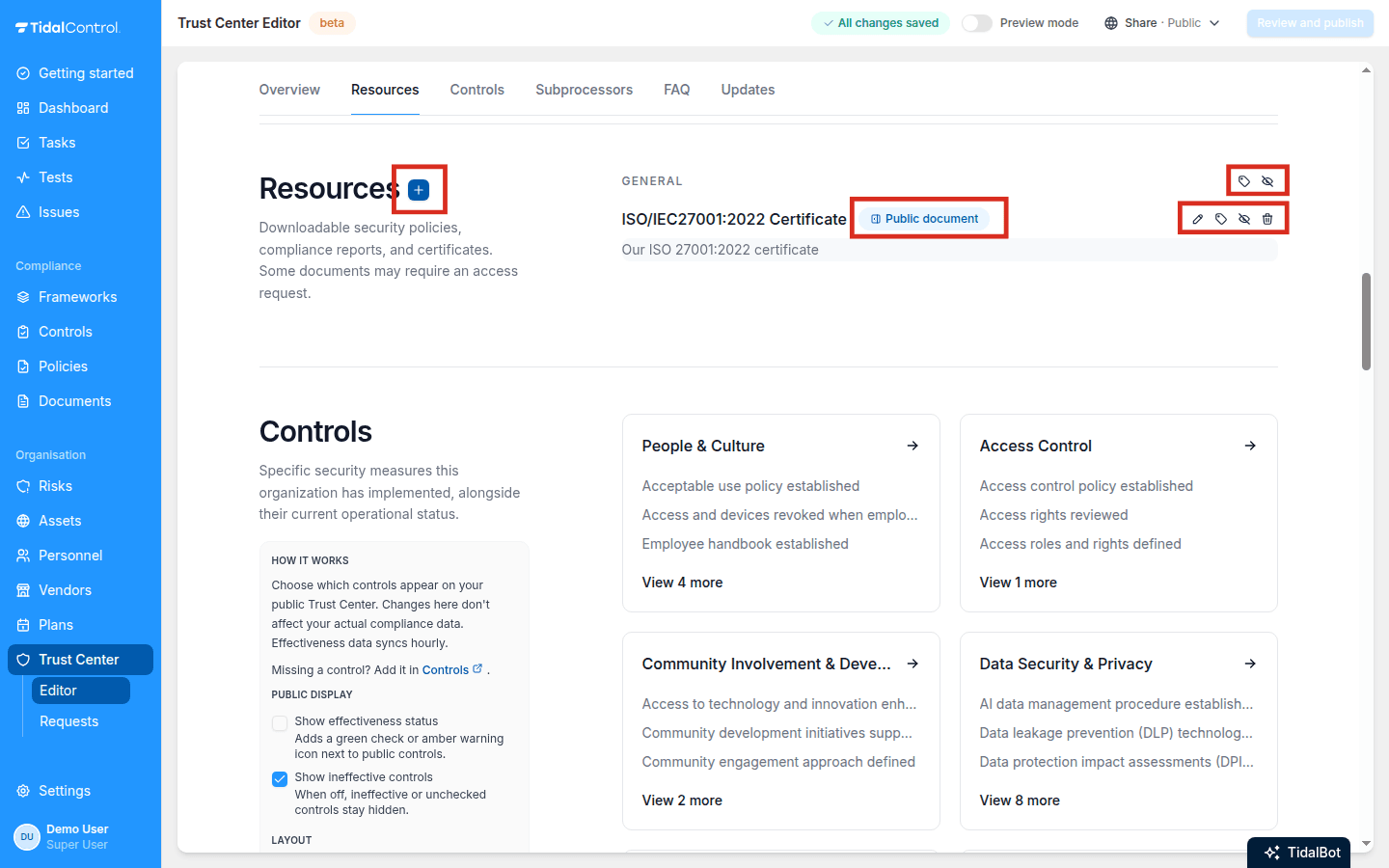
- To check visibility, look at the badge next to a document's name.
- To edit a resource, click the pencil. This lets you change its name, description, file or link, and visibility.
- To move a resource, click the tag.
- To hide a resource, click the crossed-out eye. Click the eye to show a hidden resource again.
- To remove a resource, click the trash.
- To apply bulk actions, use the tag and eye on a category heading. You can move every resource in a category at once (Move all resources in this category), or show or hide them all (Show all, Hide all).
Give each resource a display name, a description, and a category. Tidal suggests categories such as Security Documentation, Policies, Audit Reports, Certifications, and Security Questionnaires.
Each document also has its own visibility:
| Visibility | What it means |
|---|---|
| Public | Anyone viewing your Trust Center can download it. |
| Private | Visitors need an approved access request to download it. |
Changes affect access that was already granted. Hiding a resource closes download links that were already issued, and replacing a document changes what approved requesters download from that moment on.
Controls
Controls mirror your Controls page. Per control you can edit the public name, category, and description, so you can describe a control for outsiders without touching your internal wording. Use the reset action to restore the name, category, and description of the catalog control. You can't create controls here; add missing ones in Controls first.
The Public display panel applies to the whole section:
- Show effectiveness status - adds a green check or amber warning icon next to each public control. The status syncs hourly from your controls monitoring.
- Show ineffective controls - when off, ineffective or unchecked controls stay hidden.
Under Layout you choose how visitors see the section:
- List - all controls in a flat list under category headings.
- Category cards - one card per category; visitors open a panel to see its controls.
Subprocessors
Vendors are your internal records; subprocessors are the vendors you publish because they process customer data. Every vendor on your Vendors page has a hidden entry here.
Per subprocessor you can edit the public name and description, and set a location and a type. For type, Tidal suggests options such as Cloud Infrastructure, Data Hosting, and Payment Processing. Use the reset action to restore the catalog vendor's name and description. You can't create subprocessors here; add missing vendors in Vendors first.
FAQ
Click Add FAQ. The question field searches ready-made templates: pick one to fill in the question, answer, and category, or keep typing to write your own. The templates cover the questions buyers ask most, including ISO 27001 certification, penetration testing, risk management, data residency, GDPR and DPAs, breach notification, access control, business continuity, subprocessor due diligence, and AI data usage.
Answers support Markdown, so you can use lists and links.
Templates describe a typical practice, not yours. The penetration testing template, for example, states that independent third-party tests happen at least annually. Edit every claim to match what your organisation actually does before you publish.
Updates
Click Add update to announce changes: the title field searches six templates, covering a new certification, a completed penetration test, a new subprocessor notice, an upcoming security feature, a "not impacted" advisory for a published vulnerability, and a policy update. Templates contain placeholders like [Vendor Name] for you to fill in.
Every update has a title, a body, a category, and a published date you can adjust. The body supports Markdown and is capped at 800 characters, so keep it to the point.
- Next
- Custom domain