Personnel
Importing people from an integration
Import personnel straight from Google Workspace or Microsoft Entra ID instead of adding everyone by hand. This article covers what a Super User needs to connect first, how to run an import, and how to review its result.
Before you start
Importing personnel reads the user directory of a connected integration, so a Super User must first connect Google Workspace or Microsoft Azure under Settings > Integrations. See the Google Workspace and Azure integration guides for the required credentials.
The import button itself is also only visible to Super Users.
Starting an import
- Go to Personnel via the main menu and open the People tab.
- Click "Import from integration" next to the search bar.
- Select the connection you want to import from. Every connected Google Workspace or Azure connection is listed separately.
- Click "Fetch" to load the directory.
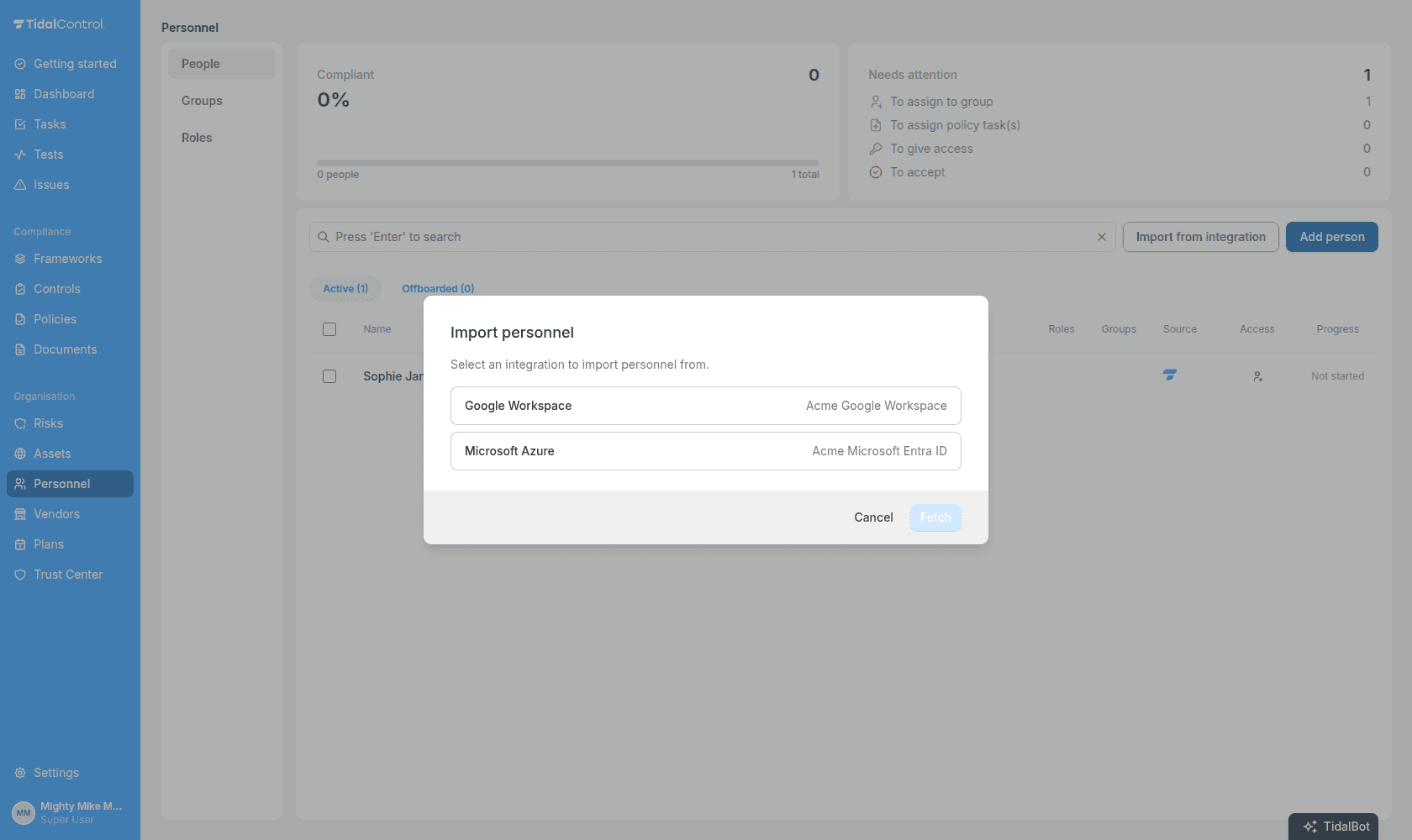
Tidal fetches the directory live, so what you see in the next step is the current state of your Google Workspace or Microsoft Entra ID tenant. Suspended or disabled accounts and accounts without an email address are left out automatically.
Reviewing the preview
The preview lists everyone found in the directory, with a summary of how many people are new and how many already exist in Tidal Control.
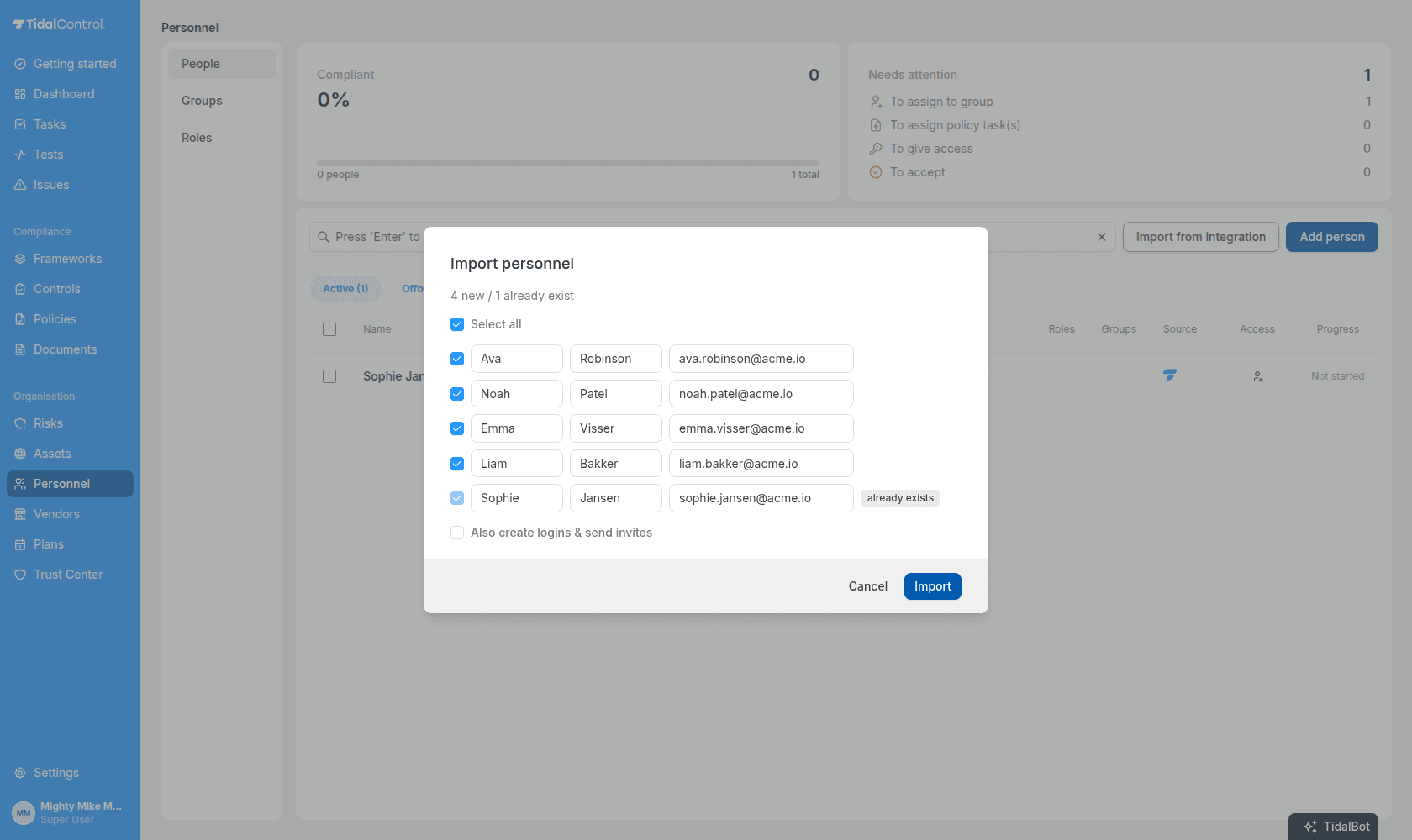
- Pick who to import. Use the checkboxes (or "Select all") to import a subset. First name, last name and email are editable before importing, and a last name and valid email are required.
- Rows are matched against the people already in Tidal Control by email address. A row that matches gets the "already exists" badge and is locked: it always stays part of the import, but only records the directory account on that person and changes nothing else about them.
- "Also create logins & send invites" (off by default) sends a Tidal Control invitation to everyone the import creates. People who already existed are not invited.
Click "Import" to run the import.
The result
The final step summarises what happened, for example "4 people imported, 1 identities added". If a row could not be imported, it is listed with the email address and the reason. Importing again later is safe: people who already exist are only linked to the directory, never duplicated or overwritten.
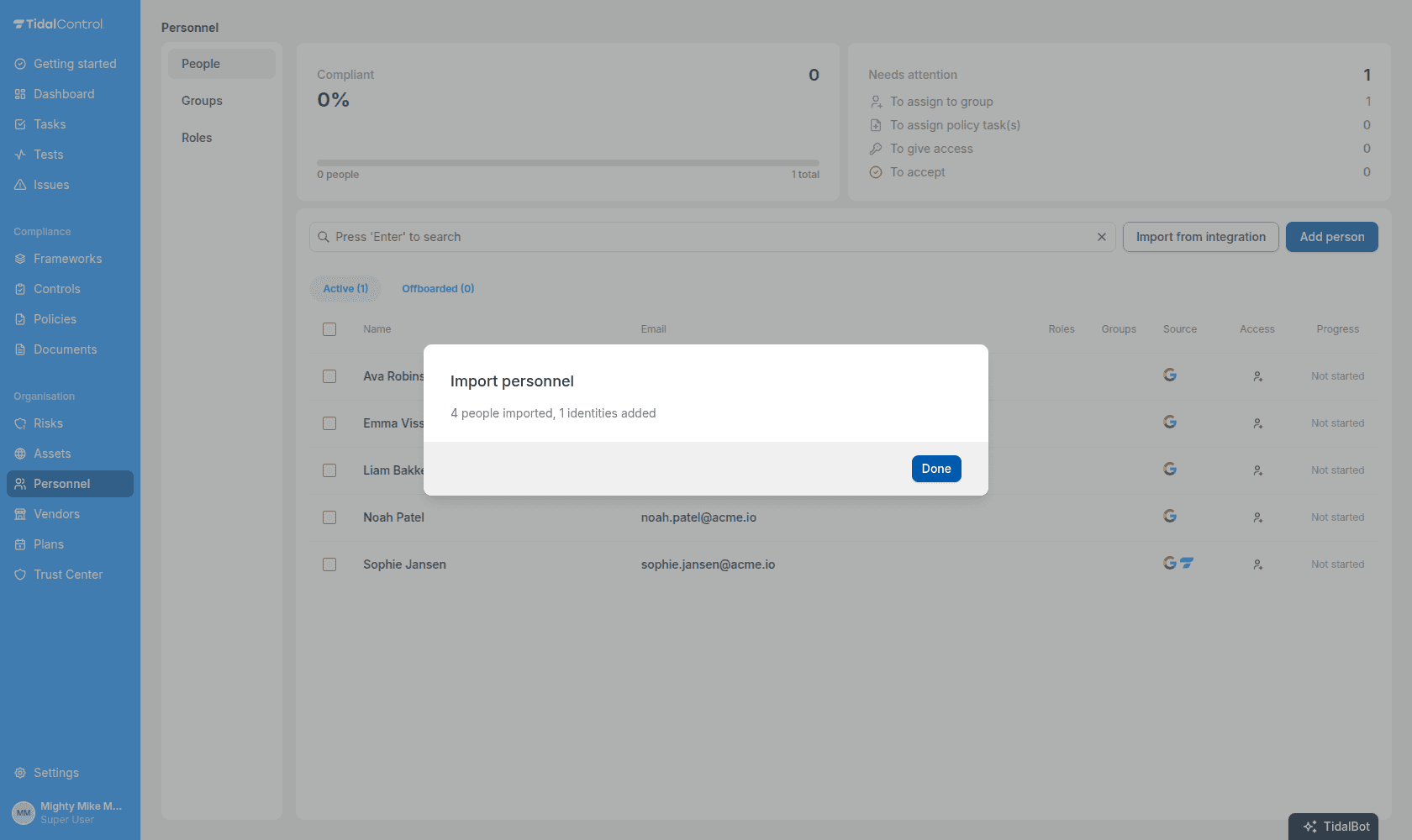
An import brings over the first name, last name and email address, and records which directory the person was found in. Group memberships and roles are not imported. One import run handles up to 1000 people; for a larger directory, run the import again to pick up the rest.
Seeing where a person came from
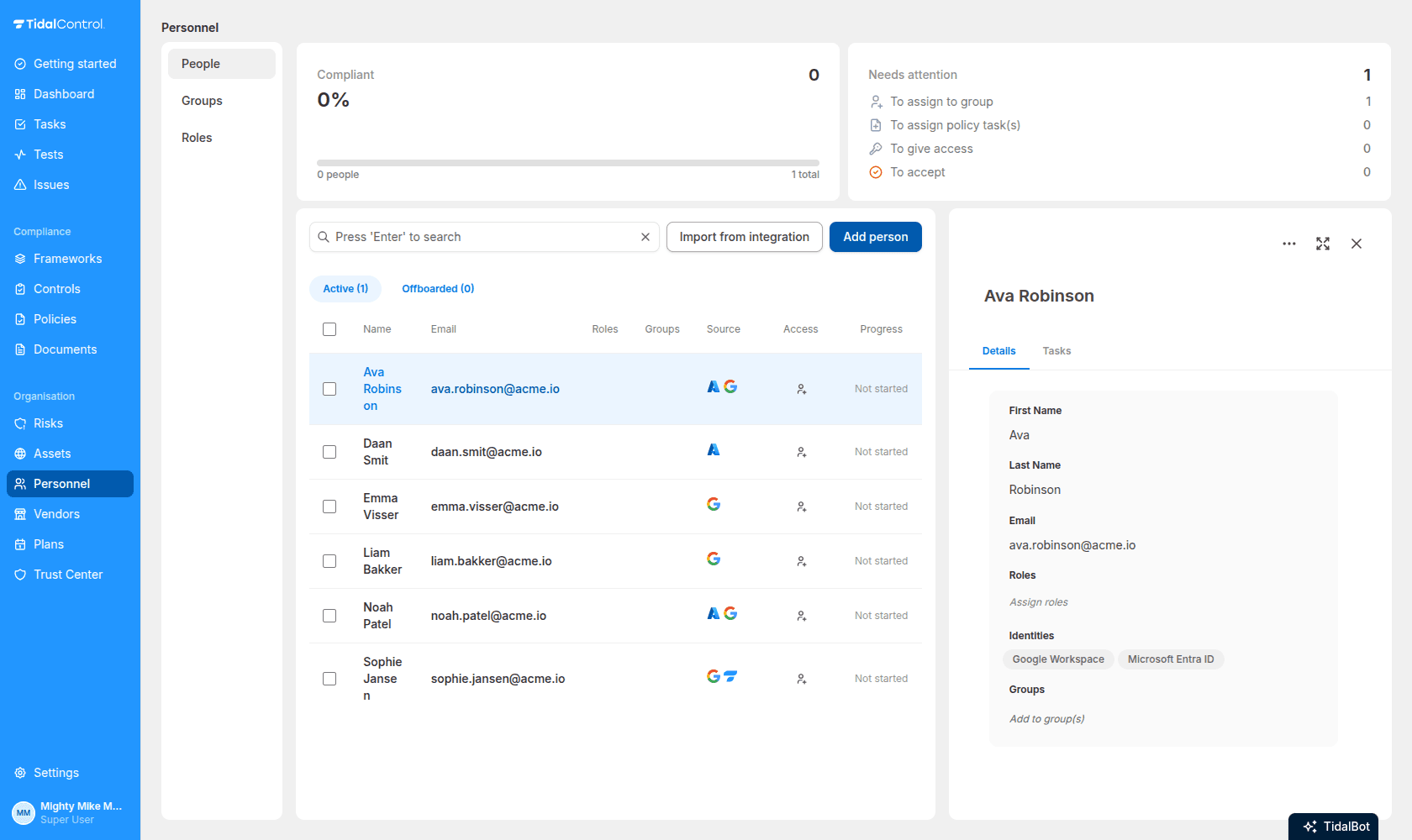
The people overview has a Source column showing the logo of every directory a person was found in: Google Workspace, Microsoft Entra ID, or Tidal Control for people who were added by hand. A person can have several identities at once, for example when they appear in both directories.
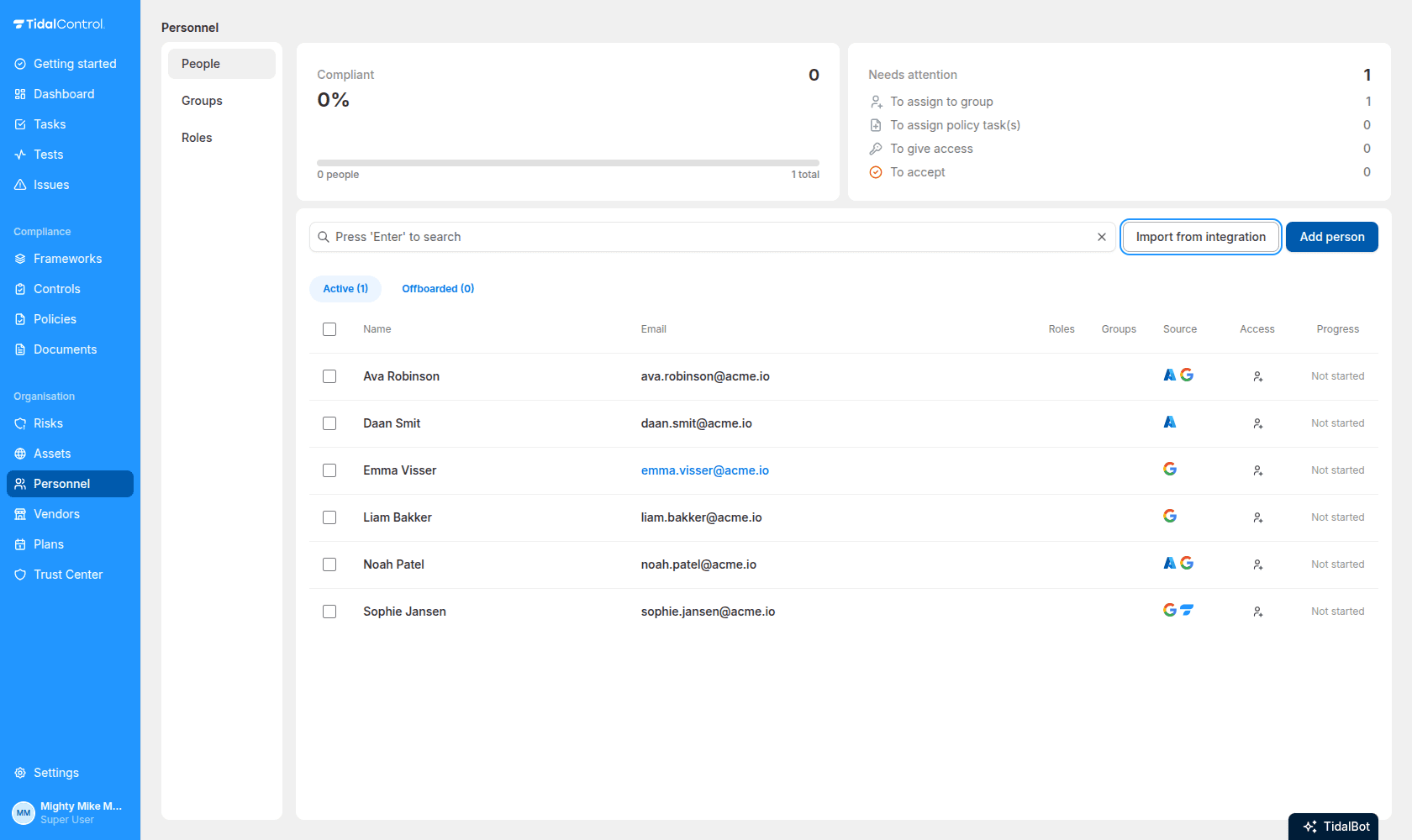
The person's detail panel shows the same information in the Identities field on the Details tab.
- Previous
- Managing people
- Next
- Portal access