Personnel
Portal access
Everyone in your organisation belongs in Personnel, whether or not they can open Tidal Control. Portal access is a field on their record. Pick a role and they get an account, leave it on No login and they stay a person without one. Someone with no login still holds policy checks and still counts in your reports.
Handing out access is Super User work. Everybody else uses Personnel as they always have, without the Portal access field and without the Access column, and with the email address on a record shown but locked. The address is the login, so whoever can change it can point an existing account at another mailbox.
Giving someone access
- Open Personnel from the main menu and find the person on the People tab.
- Click their name to open the detail panel, then go to the Details tab.
- Set Portal access to the role they need.
Tidal Control creates the account and emails an invitation to the address on their record. If that person already signs in, the field moves their existing account to the role you picked rather than creating a second one.
Somebody who has been offboarded cannot be given access. Reactivate them first and the account they had is enabled again.
The same field sits in the Add person dialog, where it starts on No login. Setting it there saves a step for someone who needs access from day one.
Add people before you decide who needs a login. Personnel is the register of your staff, and the policy checks it tracks do not depend on anyone being able to sign in.
Roles
A role is global: it decides what someone can do everywhere in Tidal Control.
| Role | What it grants |
|---|---|
| Basic User | Onboarding and their own submitted incidents. Enough to read and accept the policies assigned to them, and nothing else. |
| Read Only User | Views every control, asset and risk, plus dashboards and reports. Cannot change anything, execute tasks, or own an object. |
| Regular User | Everything Read Only can see, plus the work itself: run tests, upload evidence, and own controls and assets. |
| Super User | Everything a Regular User can do, plus administration: portal access for others, organisation settings, and integrations. |
Pick the role from what the person does day to day rather than from their seniority. Most staff who only need to accept policies are Basic Users. External auditors are the usual case for Read Only.
Super User grants full administrative access, including the ability to change anyone else's role. Keep the number small.
At least one Super User has to keep portal access. Tidal Control blocks the change when the last one would lose it, so moving them to another role, revoking their access, and offboarding them all fail with an explanatory message until you promote somebody else.
Changing someone's role
Open the person and set Portal access to the new role. The change applies immediately, and they do not need a new invitation because their account already exists.
If your organisation runs Strict Mode, a global role is only half the picture. See Strict Mode and granular access control for the object-level roles that decide what a Regular User actually sees.
Reading the Access column
The Access column on the People tab shows how each person signs in, so you can spot the accounts that need attention without opening them one by one. Super Users see it and nobody else does. The column only reports; the role itself is set from the person's Portal access field.
| What you see | What it means |
|---|---|
| No login | The person has no account. They hold policy checks but cannot open Tidal Control to complete them. |
| The role name | They sign in with a password at that role. |
| Signs in through SSO | Their account is managed by your identity provider. |
| Two-factor authentication enabled | They have set up an authenticator app on top of their password. |
| Signs in through SSO but still has a local password | Both routes work, so the password is a way around your identity provider. The label says whether that local password carries two-factor authentication. |
| Disabled | The account exists but cannot sign in. Offboarding someone disables their account, and an administrator can also disable one directly in Keycloak. |
The Needs attention tile at the top of the People tab counts the first case for you under To give access: people who have pending policy checks but no login. Whenever that count is above zero a banner above the table says the same thing, and that one everybody sees.
When you roll out single sign-on, remove the local passwords too. An account that keeps both leaves a route into Tidal Control that your identity provider does not govern.
Invitations
An invitation carries the activation link the person uses to set their password. It is valid for 7 days, after which you have to send a new one.
To send another, open the person and pick Resend invite from the actions menu at the top of the panel.
An invitation that never arrives is almost always one of three things: it went to spam, the email address on the record has a typo, or your mail filtering blocked it. Check them in that order. Correct the address on the Details tab if it is wrong, then resend.
Resetting a password
Open the person and pick Reset password from the same actions menu. They receive an email with a reset link. Use it when someone has forgotten their password, when you suspect it has been compromised, or when an activation email never reached them.
The option is absent when there is nothing to reset. An account that signs in through SSO and holds no local password has no password of its own, and a disabled account cannot sign in either way. People on SSO manage their credentials in your identity provider.
Revoking access
Setting Portal access back to No login deletes the account the person signs in with, after a confirmation dialog. They stay in personnel, keep their policy checks, and keep every control, task and piece of evidence they touched.
Revoking is not the same as offboarding, and the difference matters when someone leaves:
| Revoking access | Offboarding | |
|---|---|---|
| The account | Deleted | Kept, but disabled |
| The person | Stays in personnel | Marked offboarded |
| Use it when | Someone no longer needs a login but still works here | Someone has left the organisation |
Offboarding is the right choice for a departure, because the disabled account preserves the audit trail of who did what. Deleting the person is the step after that, and it is offered for a former colleague alone: it ends the record and takes their account with it. Both are in Managing people.
Revoking access cannot be undone. Granting access again creates a new account, and the person has to accept a fresh invitation and set a new password.
Managing your own account
Tidal Control authenticates through Keycloak, where each person manages their own credentials.
To get there, click your profile icon in the top-right corner and select My preferences. Keycloak opens in a new tab.
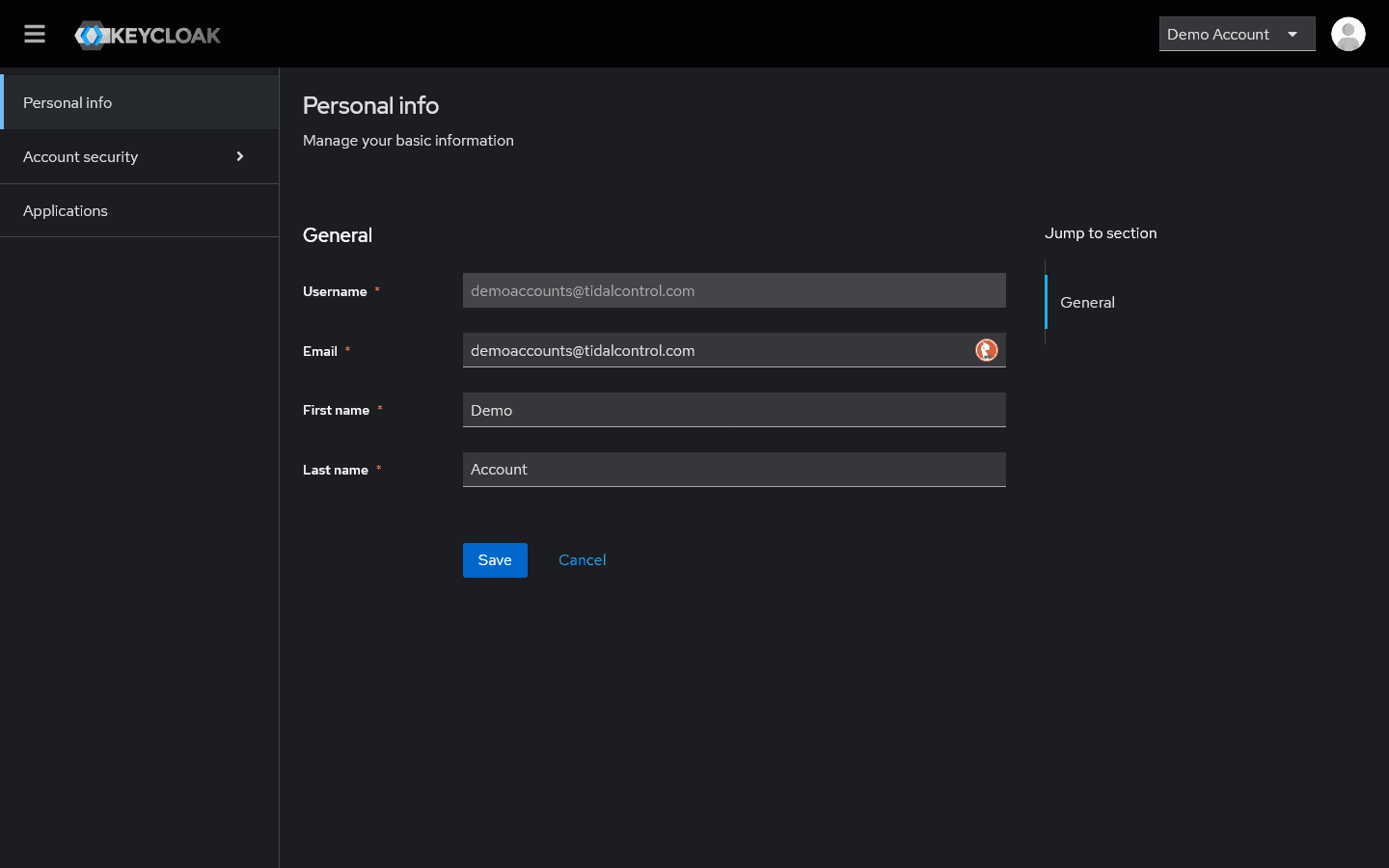
People can change their own email address and name. The username stays fixed, and nobody can change their own role.
Setting up two-factor authentication
- Go to Account Security in the Keycloak menu.
- Select "Signing in".
- Click "Set up Authenticator application".
- Scan the QR code with an authenticator app.
- Enter the verification code to activate it.
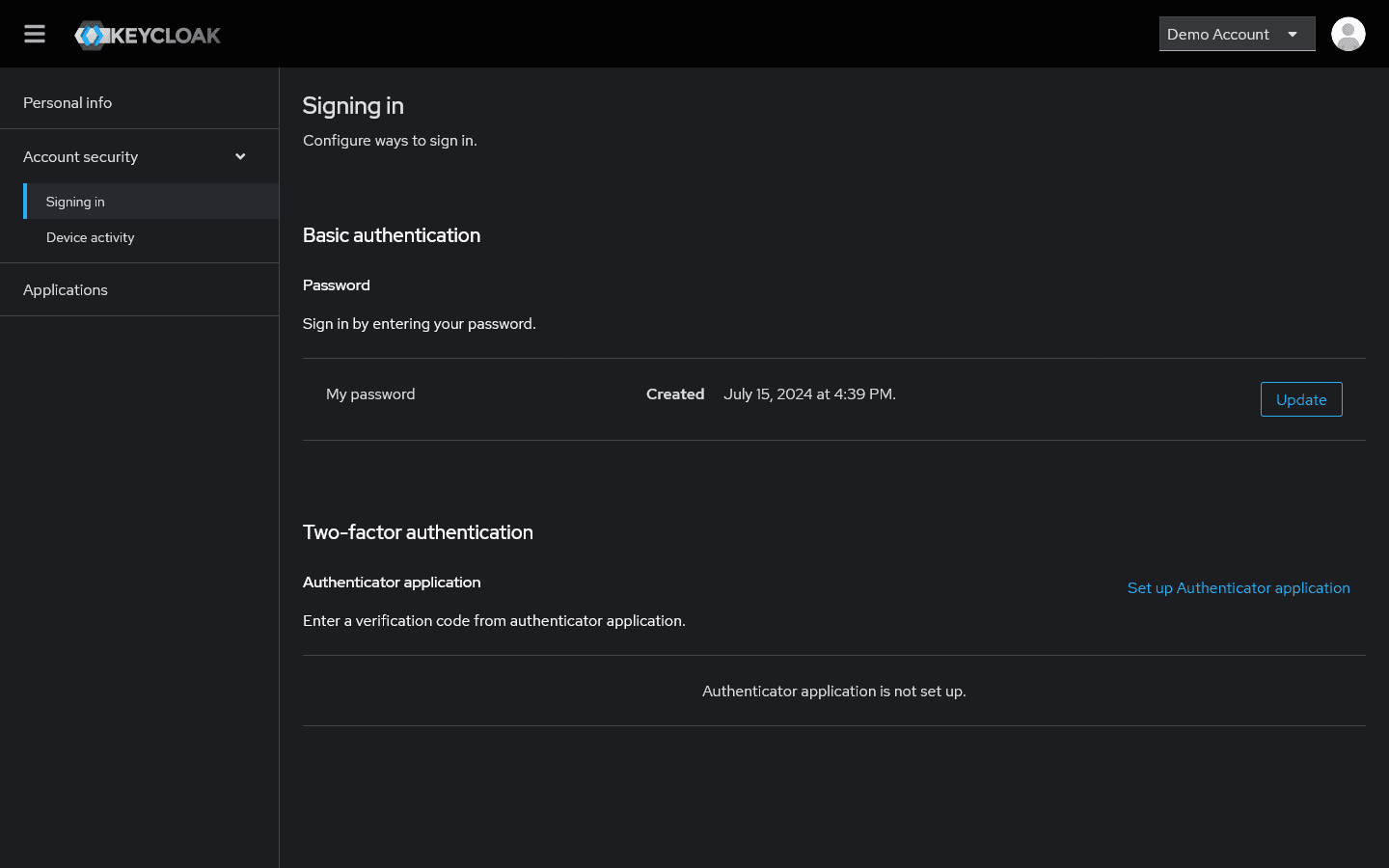
The same screen manages passwords, shows active sessions, and lists the applications linked to the account.
Send an email to support@tidalcontrol.com and we'll set it up for you. Additional licence costs apply to using single sign-on.
Onboarding and offboarding
Two moments deserve a fixed routine.
When someone joins, add them to Personnel, put them in the groups that carry their policies, and set Portal access to the role their job needs. Confirm the invitation arrived before you assign them any controls or assets.
When someone leaves, offboard them first so the account is disabled immediately. Then reassign their open tasks and anything they owned, because offboarding does not hand that work to anyone else.
Review the People tab on a schedule as well. The Access column makes the two things worth checking visible at a glance: accounts sitting at a higher role than the job now needs, and people carrying policy checks they cannot reach.
- Next
- Managing groups