Integrations
External issues
When you connect an issue tracker to Tidal Control, you can turn a Tidal task or issue into a work item in your own tooling, and keep its status in sync. This lets your first line keep working in their own issue tracker while your second line works in Tidal Control, with both sides aligned.
The workflow on this page (creating, linking and syncing external issues) works the same way for every supported issue tracker. Only the connection setup (authentication and, for some, which compliance tests run) differs per provider; see the provider's own page for that.
Supported issue trackers
| Integration | Compliance tests (→ Tidal) | External issues (Tidal →) | Setup |
|---|---|---|---|
| Azure DevOps | Yes | Yes | Azure DevOps |
| Jira Cloud | Yes | Yes | Jira Cloud |
| TOPdesk | Yes | Yes, incidents and changes | TOPdesk |
Support for additional issue trackers is planned.
Prerequisite: Configure the issue-tracker integration first (see the Setup links above). The external issue actions described below only appear once a compatible integration is connected, and creating work items requires the integration's write permission.
Creating an external issue
From any Tidal task or issue:
- Open the task (or issue)
- Click the external issue icon in the panel header (tooltip: "Add external issue")
- On the Create new tab, choose:
- Integration: the issue tracker to use
- Project / destination: where the work item is created (e.g. an Azure DevOps project, a Jira project)
- Issue type: the work item type (e.g. Issue, Bug, Task)
- Title / Description: pre-filled from the Tidal item; adjust if needed
- Assignee / Due date: optional
- Click
Create
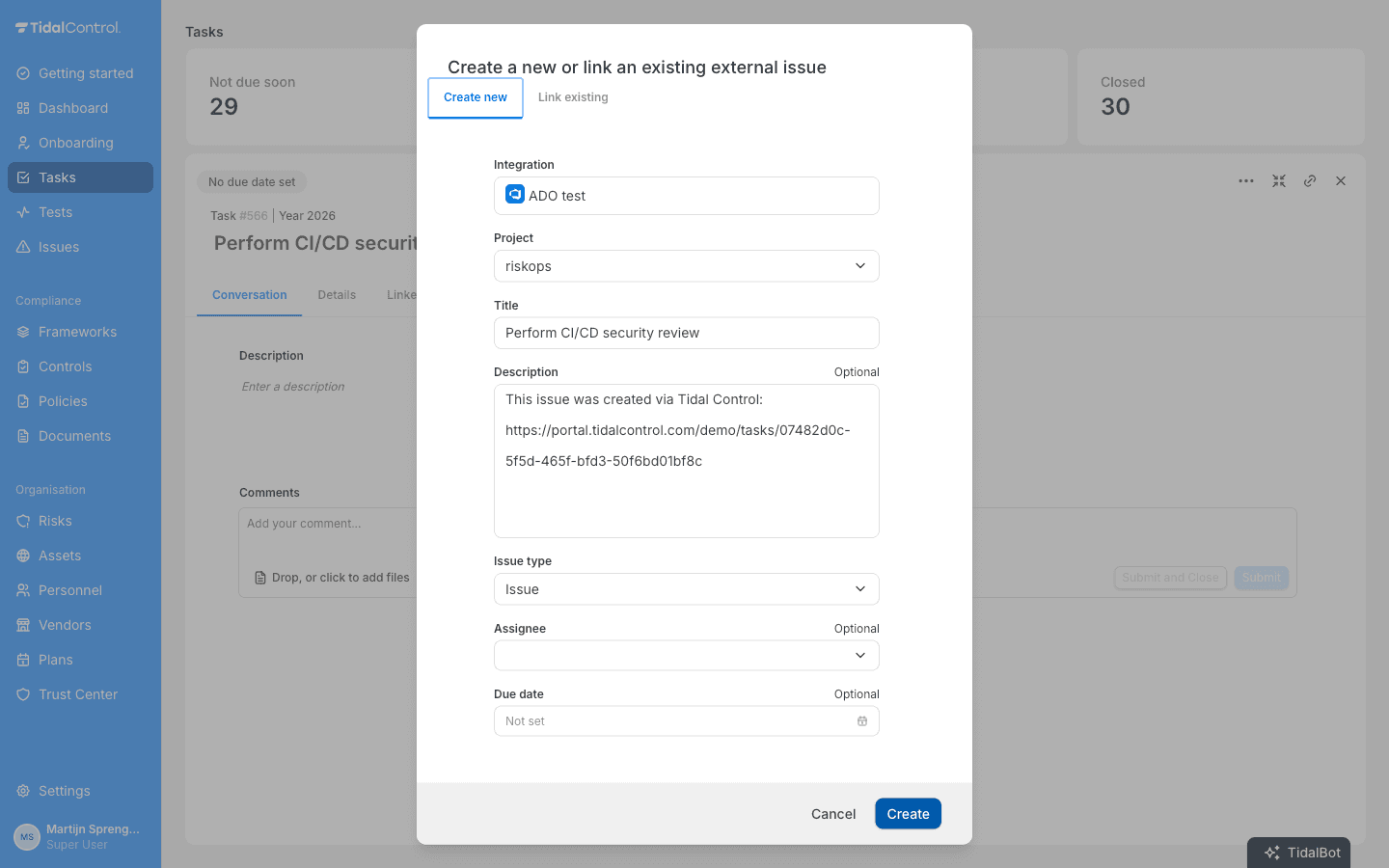
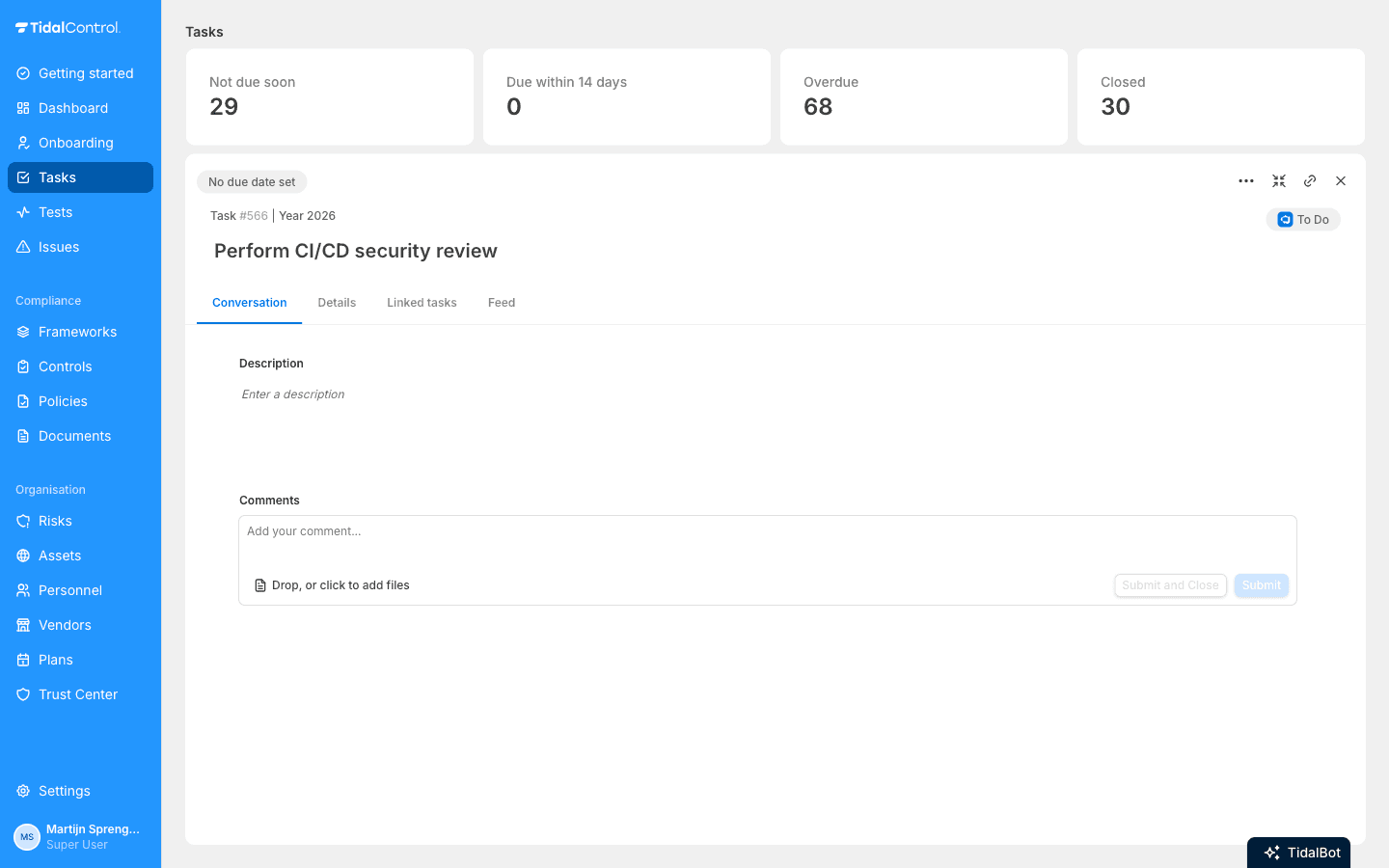
Tidal creates the work item in your issue tracker and links it to the task. A status badge on the Tidal task then reflects the work item, and the tracker's logo links straight to it.
Fields vary per provider. The exact fields in the dialog depend on the selected issue tracker. Azure DevOps and Jira use Project and Issue type. TOPdesk differs most: you first pick a Type, either an incident or a change, and then get TOPdesk's own fields (a site, category and subcategory for an incident; a change template and requester for a change). See TOPdesk for those. The overall flow is always the same.
Linking an existing issue
If the work item already exists in your issue tracker, use the Link existing tab in the same dialog. Select the integration and the destination, then pick the existing issue to connect it to the Tidal task or issue. No new work item is created.
Tracking status in the task overview
Once a task is linked to an external issue, Tidal keeps the work item's status in sync (issue tracker → Tidal). The status is refreshed on the same recurring schedule as the compliance tests, so the overview reflects the current state in your issue tracker.
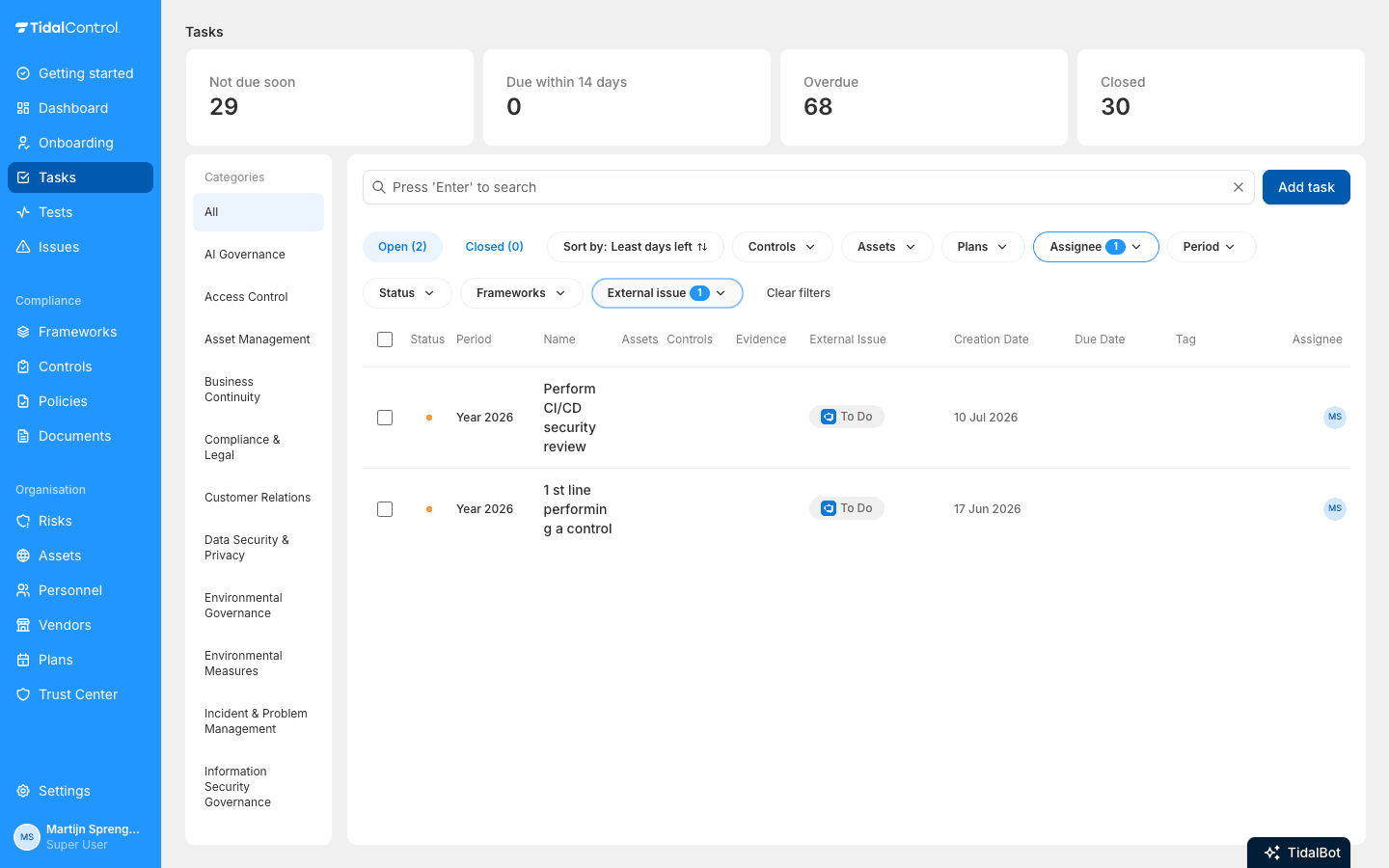
In the Tasks overview an External Issue column shows the synced status (for example To Do) next to the tracker's logo. Click the status badge to open the work item in the issue tracker.
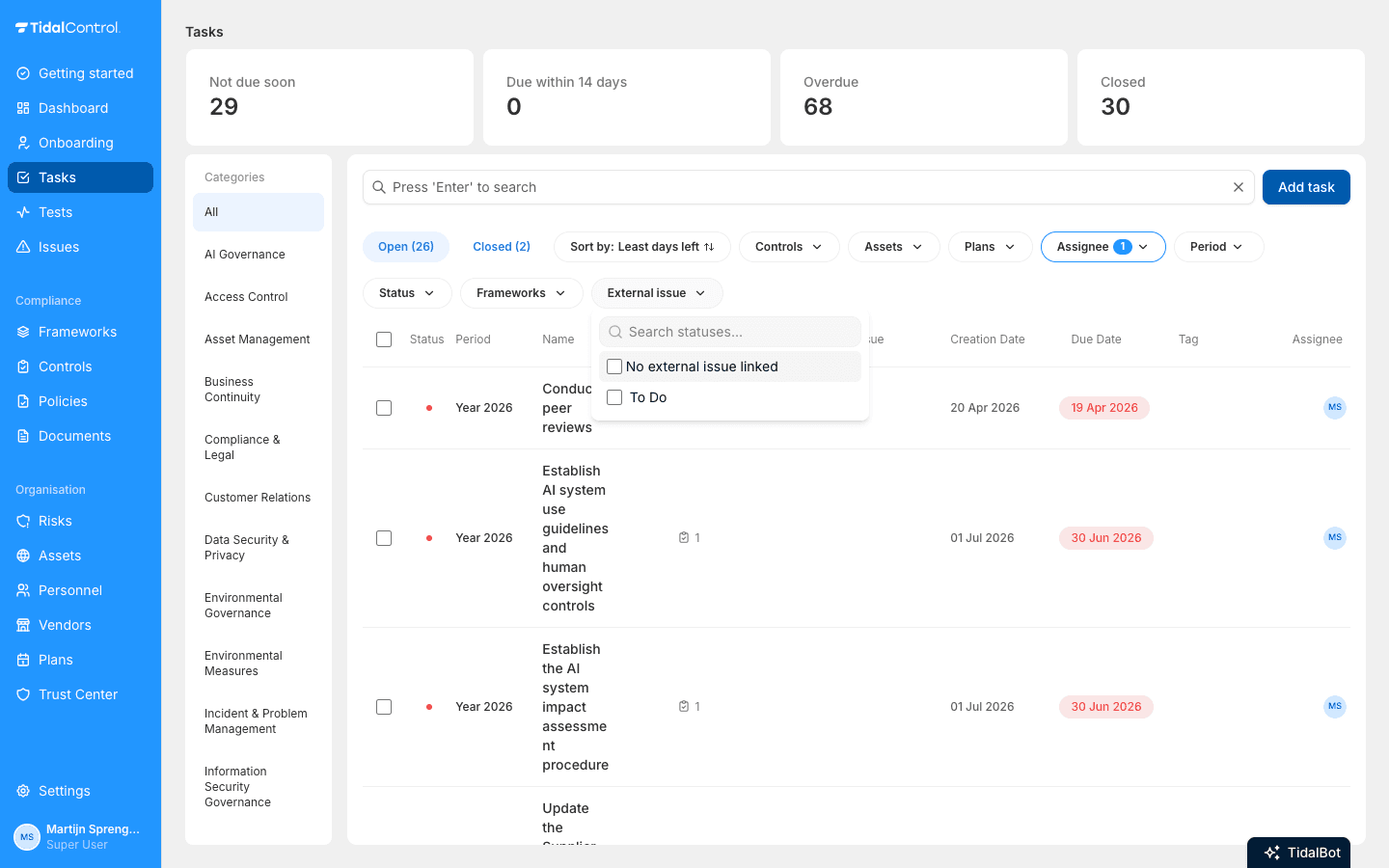
You can also filter the overview with the External issue filter in the toolbar, for example to find every task that still has no linked work item, or every task whose work item is To Do.
Keep first and second line aligned: Because the status is synced back from the issue tracker, second-line users can track progress from the Tidal task overview while first-line engineers keep updating the work item in their own tool.
Still can't figure it out?
Send an email to support@tidalcontrol.com, and we'll get back to you as soon as possible.
Gathering support info: Note which browser you're using, exact error messages, which steps you've already tried, and screenshots of the problem. This significantly speeds up the solution.
- Previous
- DigitalOcean
- Next
- GitHub