Integrations
Azure DevOps
The Azure DevOps integration connects Tidal Control to your Azure DevOps organisation using a Personal Access Token (PAT). It is a two-way integration:
- Azure DevOps → Tidal Control: Tidal periodically reads your repositories and work items to run automated compliance and security tests (for example branch-protection rules and bug-handling SLAs).
- Tidal Control → Azure DevOps: from a Tidal task or issue you can create (or link) an Azure DevOps work item. This lets your first line keep working in Azure DevOps while your second line works in Tidal Control, with both sides staying in sync.
Requirements
- Super User role in Tidal Control
- An Azure DevOps organisation with at least one project
- Permission to create a Personal Access Token in Azure DevOps
How the integration works
Both directions run over a single Personal Access Token. Nothing is deleted in Azure DevOps; Tidal only reads data and, when you explicitly ask it to, creates or links work items.
| Direction | What happens |
|---|---|
| Azure DevOps → Tidal Control | On a recurring schedule, Tidal reads repositories and work items and evaluates them against Azure DevOps compliance tests. Results appear in the Tests section. |
| Tidal Control → Azure DevOps | When you add an external issue to a task or issue, Tidal creates a work item in the selected Azure DevOps project (or links an existing one). A status badge on the Tidal task then reflects the work item. |
Configuration step-by-step plan
We'll create a Personal Access Token (PAT) in Azure DevOps and use it to connect your organisation to Tidal Control. A PAT is an Azure DevOps mechanism that lets an external application (Tidal) securely access your Azure DevOps resources on your behalf.
Configuration steps:
- Create a Personal Access Token
- Add the integration in Tidal Control
Step 1: Create a Personal Access Token
- Sign in to your Azure DevOps organisation at
https://dev.azure.com/{your-organization} - Click your profile icon (top right) →
Personal access tokens - Click
+ New Token - Token configuration:
- Name:
Tidal Control Integration - Organization: select the organisation you want to monitor
- Expiration: choose a validity period according to your security policy
- Scopes: select the scopes below
- Name:
- Click
Create - Copy the token value immediately. It is no longer visible after you close the dialog
Required scopes:
| Scope | Access | Why we need it |
|---|---|---|
| Code | Read | Read repository settings for the repository and branch-protection tests (Azure DevOps → Tidal). |
| Work Items | Read & write | Read work items for the bug/SLA tests (Azure DevOps → Tidal) and create work items when you push a task or issue from Tidal (Tidal → Azure DevOps). |
Read-only monitoring only? If you only want the compliance tests (Azure DevOps → Tidal) and do not need to create work items from Tidal, a PAT with Code (Read) and Work Items (Read) is enough. Work item creation will then be unavailable.
Save the token securely: The PAT is shown only once. Store it in a safe place. You'll need it again if you ever reconfigure the integration.
Step 2: Add the integration in Tidal Control
- Go to Settings → Integrations in Tidal Control
- Under Available Integrations, click the plus icon next to Azure DevOps
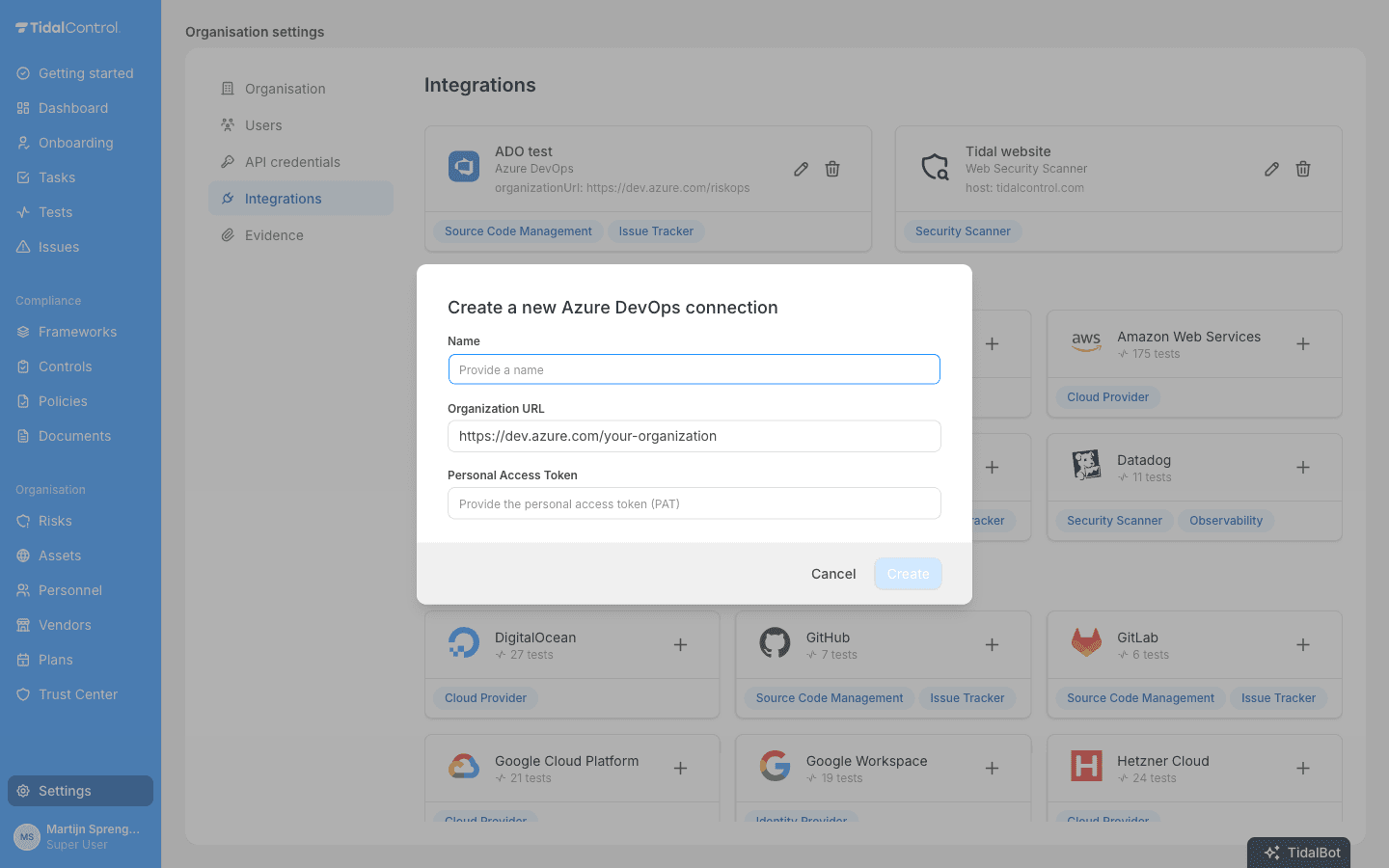
- Fill in the configuration:
- Name: a recognisable name, e.g.
Azure DevOps Production - Organization URL: your organisation URL in the format
https://dev.azure.com/your-organization - Personal Access Token: the token value you copied in step 1
- Name: a recognisable name, e.g.
- Click
Createto save the integration
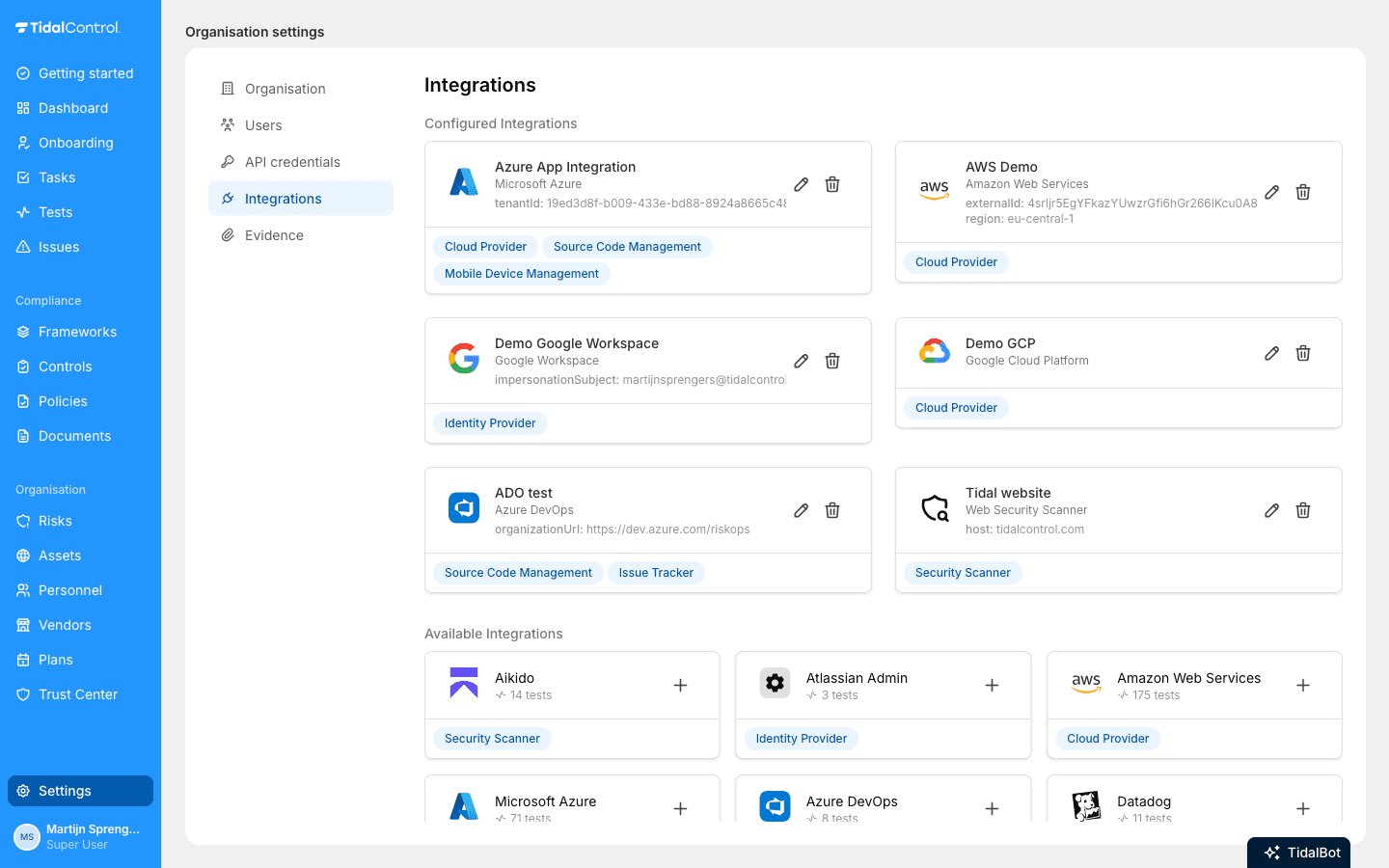
After saving, the connection appears under Configured Integrations.
Compliance tests (Azure DevOps → Tidal Control)
Once connected, Azure DevOps tests become available in the Tests section. Tidal runs them automatically on a recurring schedule and reports the result. Examples include:
- Default branch requires pull request reviews
- Default branch requires designated reviewers
- Projects are private
- Repositories are active
- High priority bugs have an assignee
- High priority bugs are resolved within 3 days (SLA)
- No high priority bugs are abandoned without recent activity
You can filter the Tests overview by the Azure DevOps integration to see all of them.
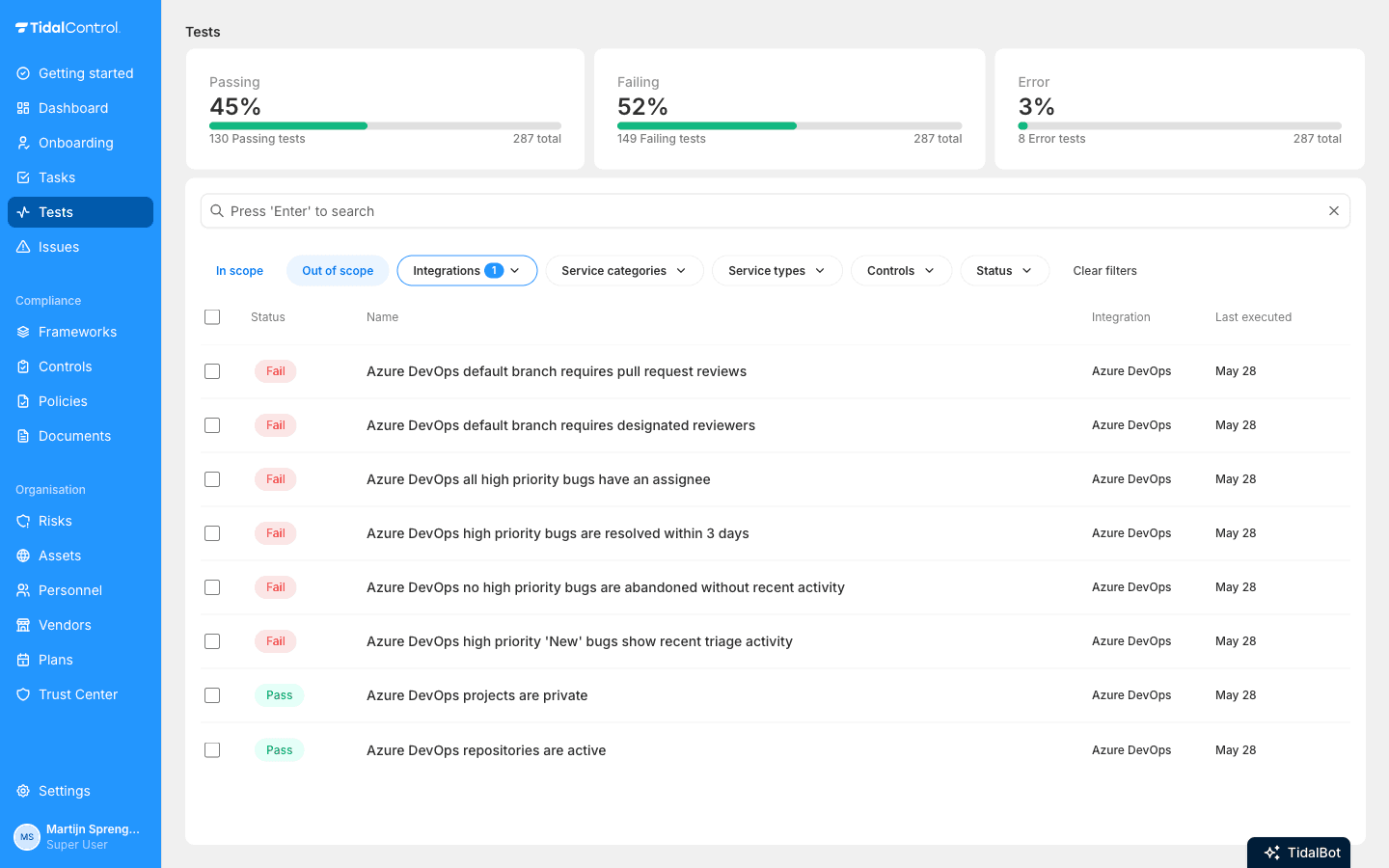
Bring tests in scope: Link an Azure DevOps test to a control to make it count towards your compliance posture. Until then it shows under Out of scope.
Sending tasks and issues to Azure DevOps (Tidal Control → Azure DevOps)
From any Tidal task or issue you can create an Azure DevOps work item (or link an existing one), and Tidal keeps the work item's status in sync in the task overview. When adding an external issue, select your Azure DevOps connection, the Project, and the Issue type; the rest of the flow is the same for every issue tracker.
See External issues for the full create / link / sync workflow and the task-overview status column.
Verification
The integration is working when all of the following are true:
- Settings → Integrations shows Azure DevOps under Configured Integrations
- Azure DevOps tests appear in the Tests section and refresh without authentication errors
- The "Add external issue" icon is available on tasks and issues
Troubleshooting
If the integration does not connect, check the following:
- Verify the Organization URL uses the format
https://dev.azure.com/your-organization - Confirm the PAT is copied correctly (no extra spaces) and has not expired
- Check that the PAT has the required scopes (Code: Read, Work Items: Read & write)
- If work item creation is unavailable, confirm the PAT includes Work Items: Read & write
- Make sure the token owner has access to the Azure DevOps project(s) you want to use
For more information about Azure DevOps Personal Access Tokens: See the official Microsoft documentation
Still can't figure it out?
Send an email to support@tidalcontrol.com, and we'll get back to you as soon as possible.
Gathering support info: Note which browser you're using, exact error messages, which steps you've already tried, and screenshots of the problem. This significantly speeds up the solution.
- Previous
- Atlassian Admin