Integrations
Cloudflare
Tidal Control's Cloudflare integration reads the configuration of your Cloudflare account and zones for compliance purposes. It authenticates with a bearer API token against the Cloudflare API (https://api.cloudflare.com/client/v4), and covers both account access hygiene and the TLS and DNS posture of every zone you run.
What this integration monitors
- Members: MFA enforcement across account members, and pending invitations left open
- API tokens: Whether tokens carry an expiry, whether they are IP restricted, and whether any have gone stale
- Zones: Whether each zone is active rather than paused or stuck in development mode
- TLS: Minimum TLS version, Always Use HTTPS, and whether SSL mode is Full or Strict
- DNS: Whether DNSSEC is enabled per zone
Requirements
- Super User role in Tidal Control
- A Cloudflare account, and permission to create account API tokens
- Your Cloudflare Account ID
Configuration step-by-step plan
We'll copy your Account ID, create a read-only API token with two policies, then add the connection in Tidal Control.
Configuration steps:
- Find your Account ID
- Create a read-only API token
- Configure the integration in Tidal Control
Step 1: Find your Account ID
- Log in to the Cloudflare dashboard
- Select your account, then open any zone's Overview
- Copy the Account ID from the right-hand panel
Step 2: Create a read-only API token
This integration only reads, so create a custom token with two policies: one for account-scoped data and one for zone-scoped data.
- Select the account you want to connect, then go to
Manage account→Account API tokens - Click
Create tokenand enter a descriptiveToken name, for exampleTidal Control - Under
Permission policies, clickStart from scratch - Configure the account policy for members, roles and the token inventory:
- Leave the resource selector set to
Entire Account. This scopes the policy to the selected account - Use
Search for permission groupsto findAccount SettingsandAccount API Tokens, and selectReadfor each - Close the policy editor to return to the policy summary
- Leave the resource selector set to
- Click
Add policyto configure zone inventory, TLS settings and DNSSEC:- Change the resource selector from
Entire AccounttoAll Domains, or chooseSpecified Domainsand select the domains you want covered. Zone permissions appear after selecting a domain scope - Find
Zone,Zone SettingsandDNS, and selectReadfor each - Close the policy editor. The summary shows the selected zone scope and three read permissions
- Change the resource selector from
- Choose a
Token expirationand plan to replace the token in Tidal Control before it expires.No expirationleaves the token valid until revoked - If using
Client IP address filtering, allow the outbound IP addresses used by Tidal Control. Confirm these with support before setting a restriction; leaving the filter empty allows all IP addresses - Click
Review tokenand check the account, both policies, expiration and IP filtering - Click
Create tokenand copy it immediately
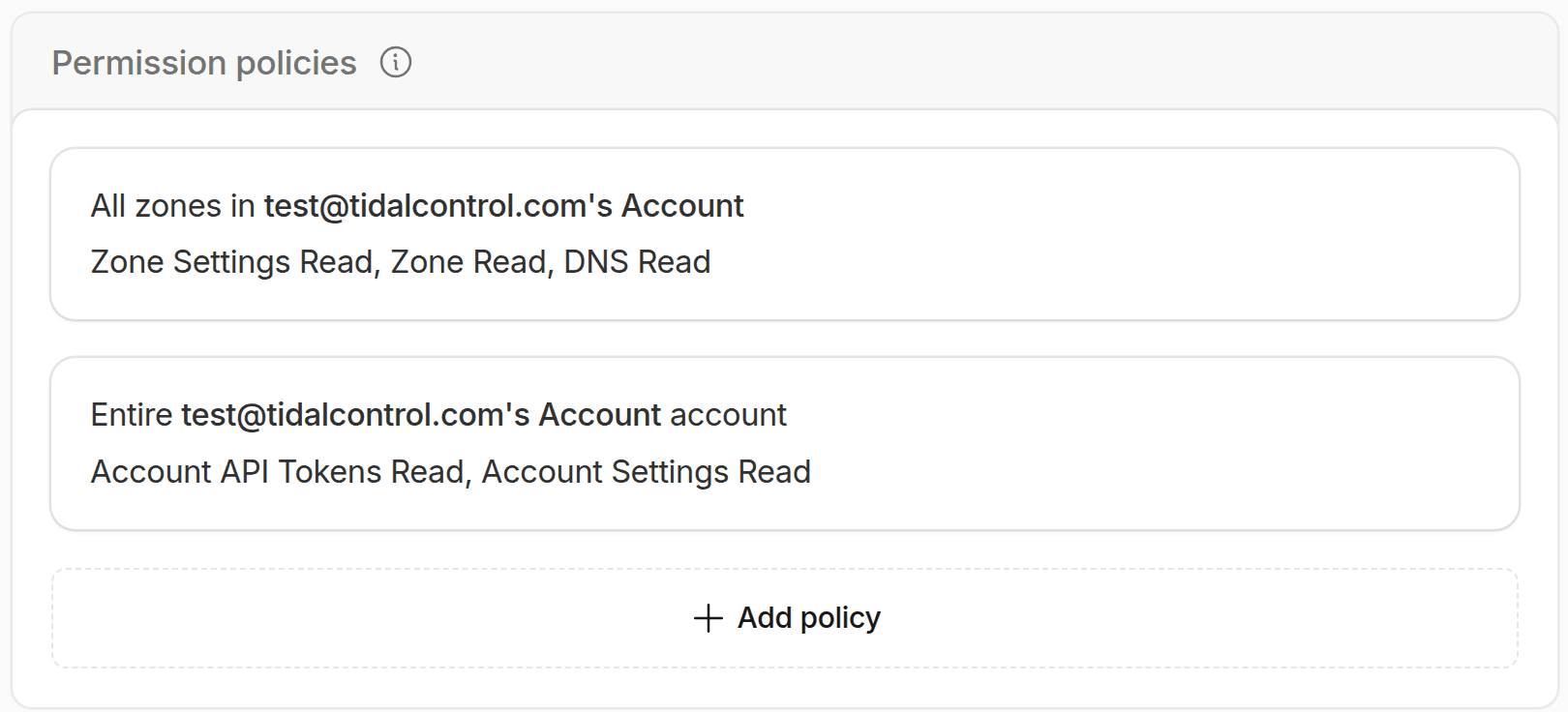
Both policies are needed. An account-only token cannot read TLS or DNSSEC settings, and a zone-only token cannot read members or the token inventory. A token with one policy leaves half the checks unable to evaluate.
Step 3: Configure the integration in Tidal Control
- Go to Settings → Integrations in Tidal Control
- Click the plus icon next to Cloudflare
- Fill in the configuration:
- Name: A descriptive name, for example
Cloudflare - Account ID: The identifier from step 1
- API token: The token from step 2
- Name: A descriptive name, for example
- Click "Create" to save the integration
Configuration fields explained
The integration dialog asks for the following values:
Name:
- A descriptive name for this connection
- For example:
Cloudflare
Account ID:
- The unique identifier of your Cloudflare account
- Required, and found in step 1
API token:
- The custom read-only token from step 2
- Required, and stored as a secret
Verification
The integration is working when all of the following are true:
- Settings → Integrations shows Cloudflare under Configured Integrations
- Cloudflare tests are available in the Tests section
- Test refresh delivers results without authentication errors, for both account and zone checks
Frequently asked questions
Can I use a Global API Key instead? Use a scoped API token. A global key carries full account write access, which this integration neither needs nor should hold.
Should the token be account-owned or user-owned?
Account-owned, created under Manage account → Account API tokens. A user-owned token stops working when that person's access is removed.
Why does Tidal Control read our API token inventory? Because a token without an expiry, without IP restrictions, or unused for months is an access risk in itself. The integration reads token metadata, never token values.
Common problems
Member or token checks return nothing, zone checks work
- The token is missing the account policy. Add
Account Settings→ Read andAccount API Tokens→ Read
TLS or DNSSEC checks return nothing, member checks work
- The token is missing the zone policy. Add
Zone,Zone SettingsandDNS→ Read
Some zones are missing from results
- The zone policy is scoped to specific zones. Set it to
All Domains, or add the missing ones underSpecified Domains
Authentication fails
- Confirm the Account ID matches the account the token was created in
Still can't figure it out?
Send an email to support@tidalcontrol.com, and we'll get back to you as soon as possible.
Gather support info: Note which browser you're using, exact error messages, and which steps you've already tried. This speeds up the solution considerably.
- Previous
- Claude Enterprise