Vendors
Vendor assessments
Assess each vendor's risk, and keep that assessment current as the relationship evolves. This article covers completing an assessment, re-assessing periodically, and the history Tidal keeps for each vendor.
How vendor assessments work
A vendor assessment captures the risk a vendor poses to your organisation: five questions, a resulting risk rating (Low, Medium or High), and an optional comment. An assessment starts as a draft and becomes approved once someone with administration rights on the vendor approves it. Tidal keeps every assessment, so you build up a history of how the vendor's risk profile changed over time.
A vendor can have at most one draft at a time. New vendors start with an empty draft, so you can begin assessing right away.
Completing an assessment
- Go to Vendors via the main menu and click the vendor to open the detail panel.
- Open the "Assessment" tab.
- Click "Continue Assessment" (or "New Assessment" if there is no open draft) at the top of the panel. If the browser window is too narrow to fit it, the button sits in the three-dot menu ("Vendor options") next to the panel title instead.
- Answer the questions. Each question has five answer levels, ordered from lowest to highest risk:
- What level of access does the vendor have to our systems and data?
- What type of data will the vendor process, store, or transmit on our behalf?
- How critical is this vendor's service to our core business operations?
- In which regulatory jurisdictions does the vendor operate that may impact our data?
- What is the scope and scale of the vendor relationship?
- Add a comment (optional) to record context for the rating, such as which certificates you reviewed.
- Your answers are saved as you pick them. The footer shows "Saving..." while Tidal stores a change, then "All changes auto-saved". Click "Close" and the draft keeps everything you entered.
- Click "Approve Assessment" once the assessment is complete. That saves and approves in one go.
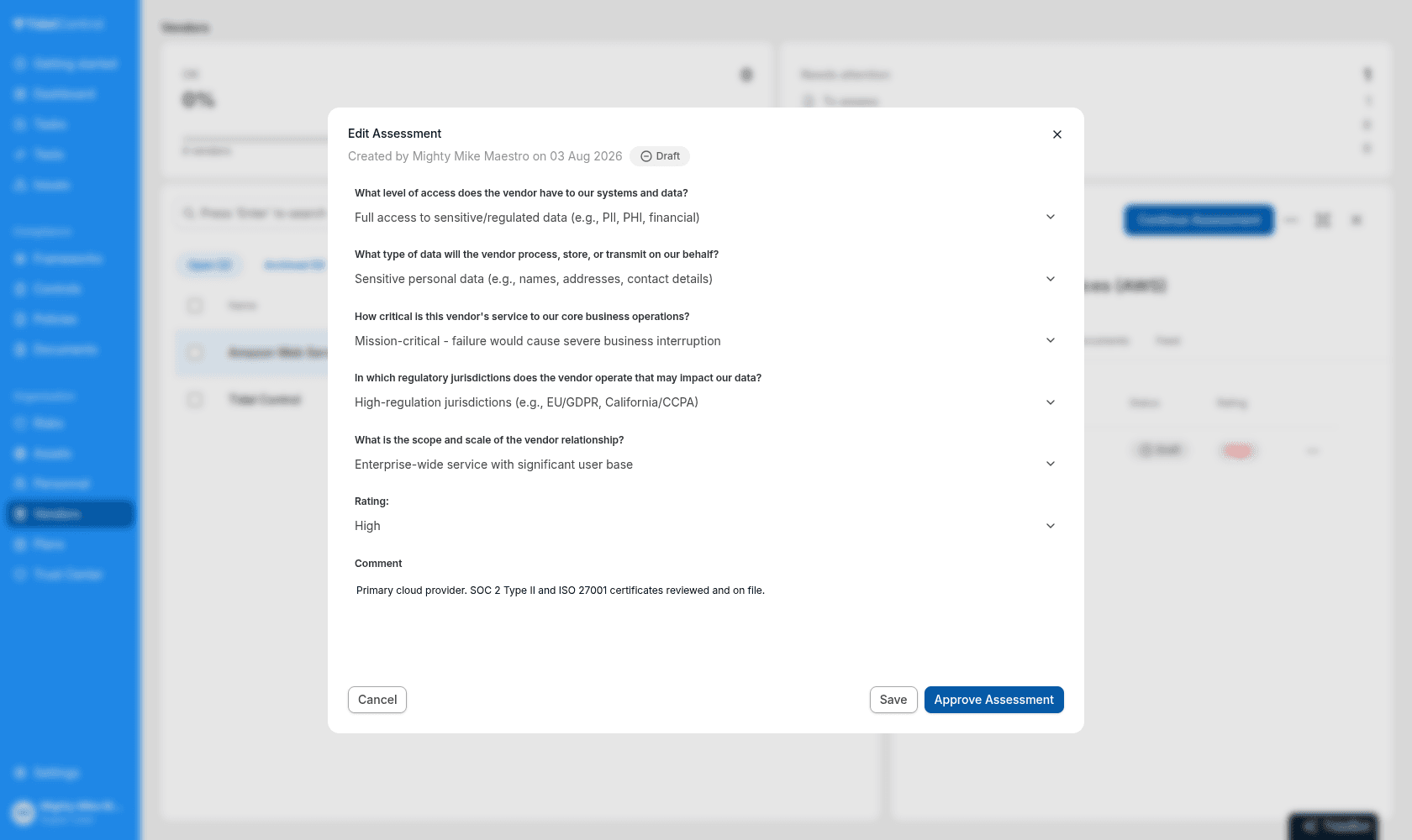
Tidal derives the rating from your answers while you work: the highest selected level determines whether the vendor is Low, Medium or High risk. The first three questions (access, data type and criticality) all need an answer before a rating appears, after which jurisdiction and scope can raise it further. You can override the rating manually in the same dialog; a manual choice always wins.
An assessment can only be approved once it has a rating. Until then "Approve Assessment" is greyed out, so answer the first three questions or pick a rating yourself. Approving stamps the approval date and approver, and sets the vendor's status to Approved.
Periodic re-assessment
An approved assessment is considered current for one year. After that, the vendor's status changes from Approved to To be reviewed: the vendor list shows an orange tag, the "To review" counter on the Vendors page increases, and the "All vendors are assessed" test starts failing.
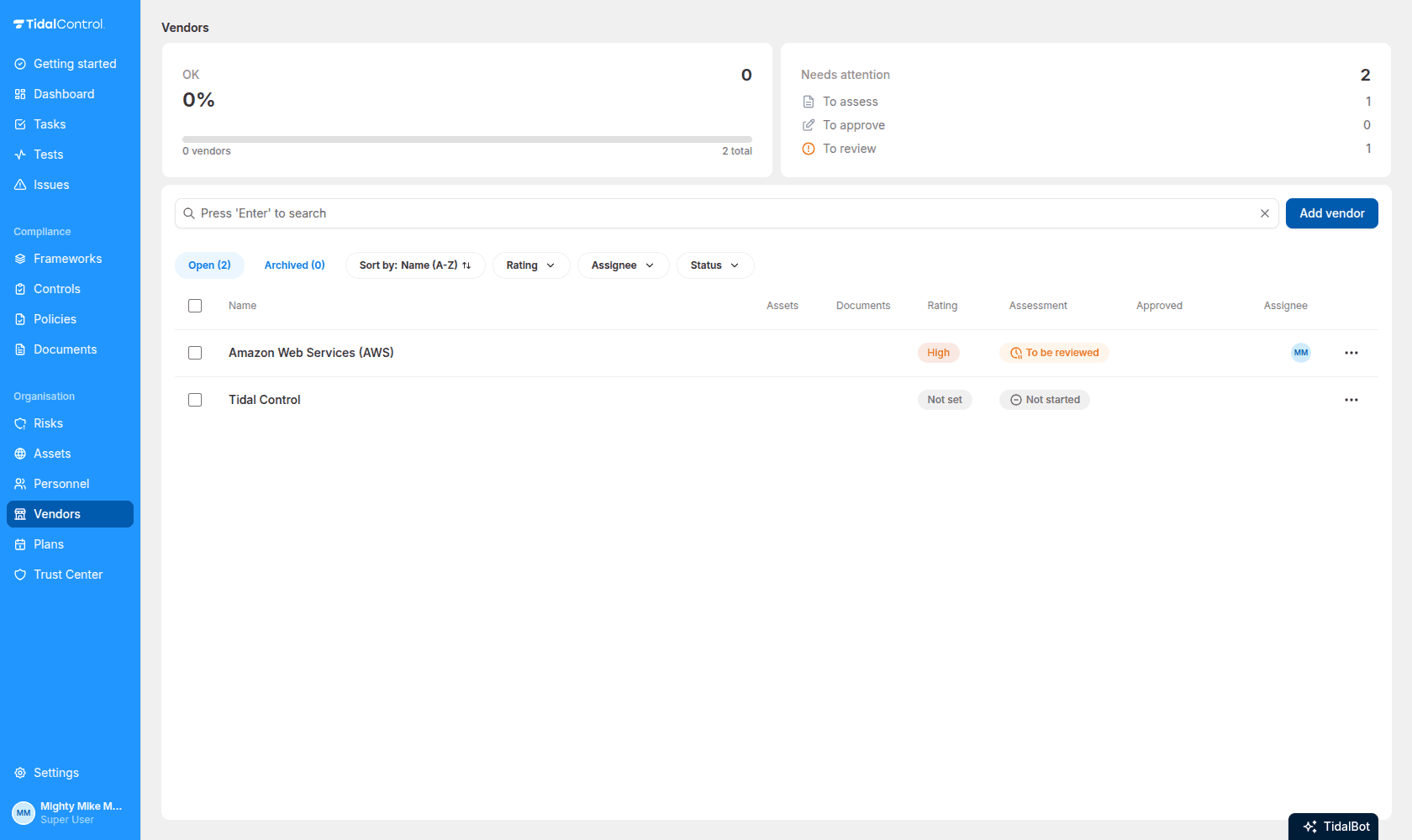
To re-assess, open the vendor's Assessment tab and click "New Assessment". The new draft is pre-filled with the answers and rating of the latest approved assessment, so you only change what is different this year. The vendor keeps its current rating and status until the new draft is approved.
Assessment history
The Assessment tab lists all assessments of the vendor, newest first, with their date, status (Draft, or Approved with date and approver) and rating. Click any row to view it, or to edit it if it is still a draft.
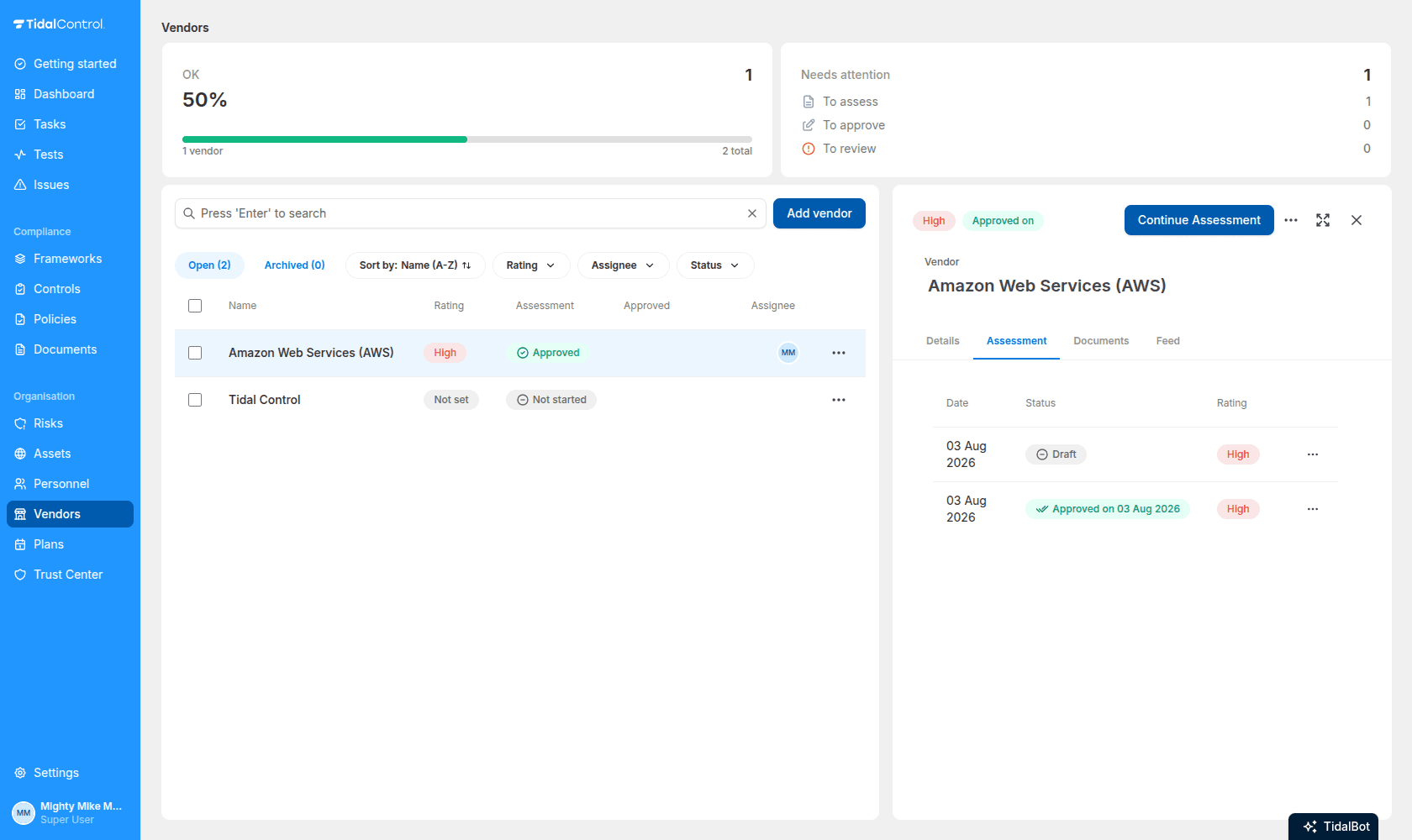
Each row has an actions menu (three dots) for users with administration rights on the vendor:
- Approve Assessment: approves the newest assessment. Only shown when it is a draft with a rating.
- Revoke Approval: withdraws the approval of the newest assessment, for example when it was approved by mistake. Only shown when the newest assessment is approved.
- Delete: removes an assessment from the history, after a confirmation. Available on every row.
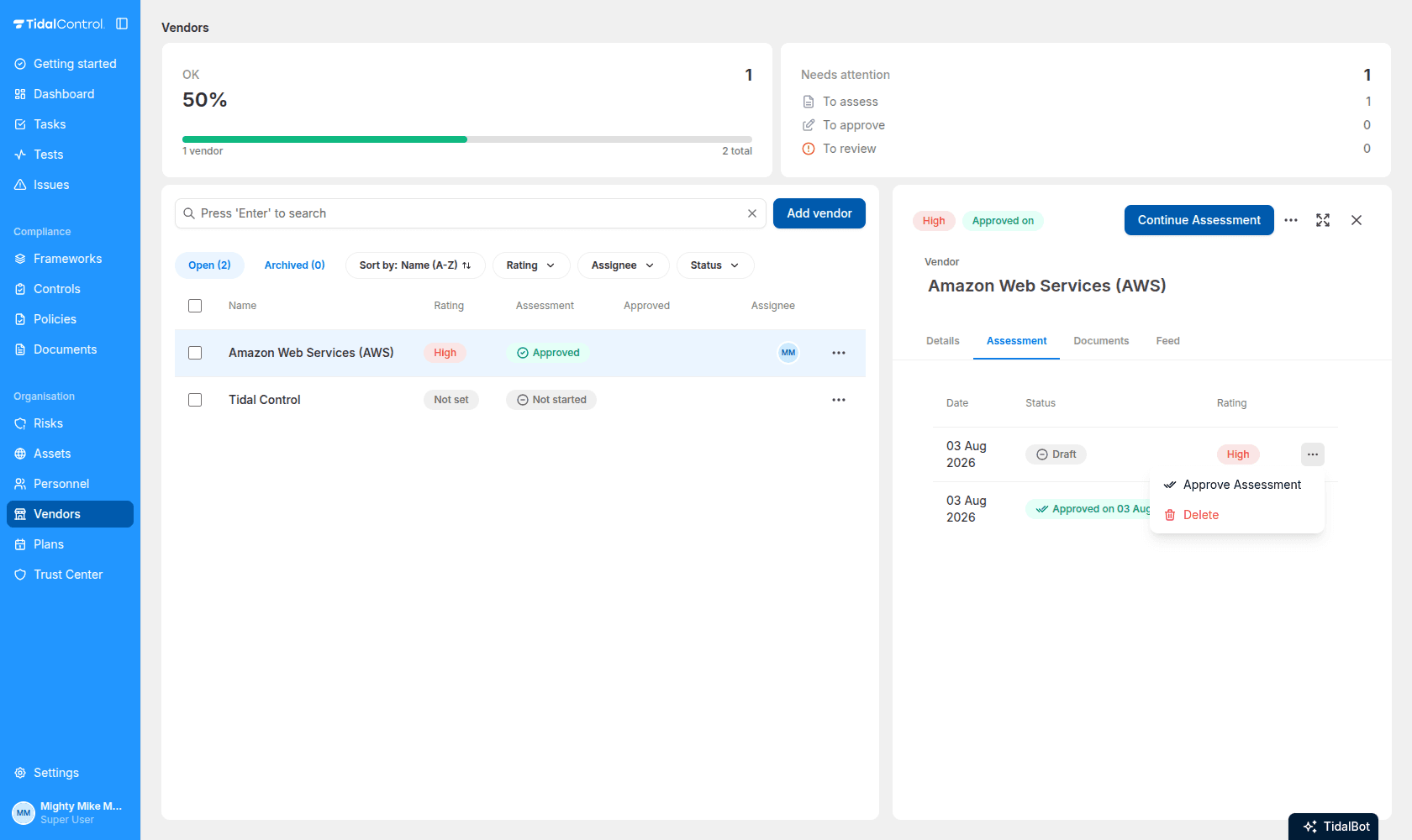
Deleting an assessment cannot be undone. Deleting an approved assessment also removes it from the vendor's approval history.
Archived vendors are read-only: their assessments can be viewed but not created, changed or deleted. Unarchive the vendor first if you need to update its assessment.
- Previous
- Creating and managing vendors