Vendors
Vendor questionnaires
Vendor questionnaires help you assess and manage the security posture of your vendors with questions tailored to your organisation. The built-in Vendor risk assessment includes five fixed questions.
You can add your own questions to it or create separate questionnaires for different types of vendor. Collect answers and supporting evidence, then review the completed assessment before approving a vendor. This article explains how to build a questionnaire, start it for a vendor and finish the assessment.
Getting started
A questionnaire is a named set of questions for assessing a vendor. You can get started in two ways:
- Use Vendor risk assessment, the existing questionnaire used by the standard vendor assessment. It contains the five standard questions.
- Add a questionnaire to create a new set of questions for a particular type of vendor.
All questionnaires in your organisation are listed here. Use the search field to find a questionnaire by name.
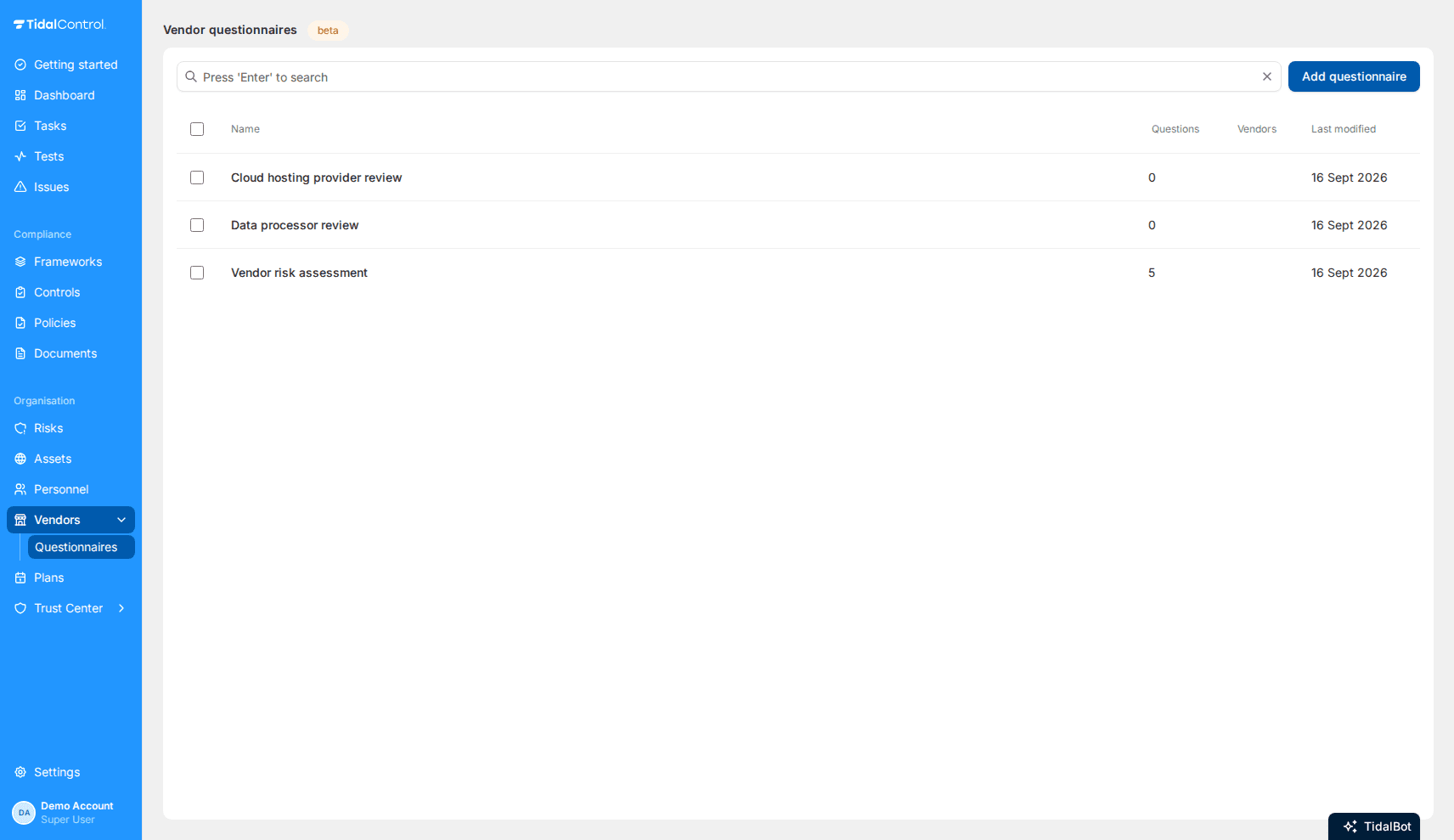
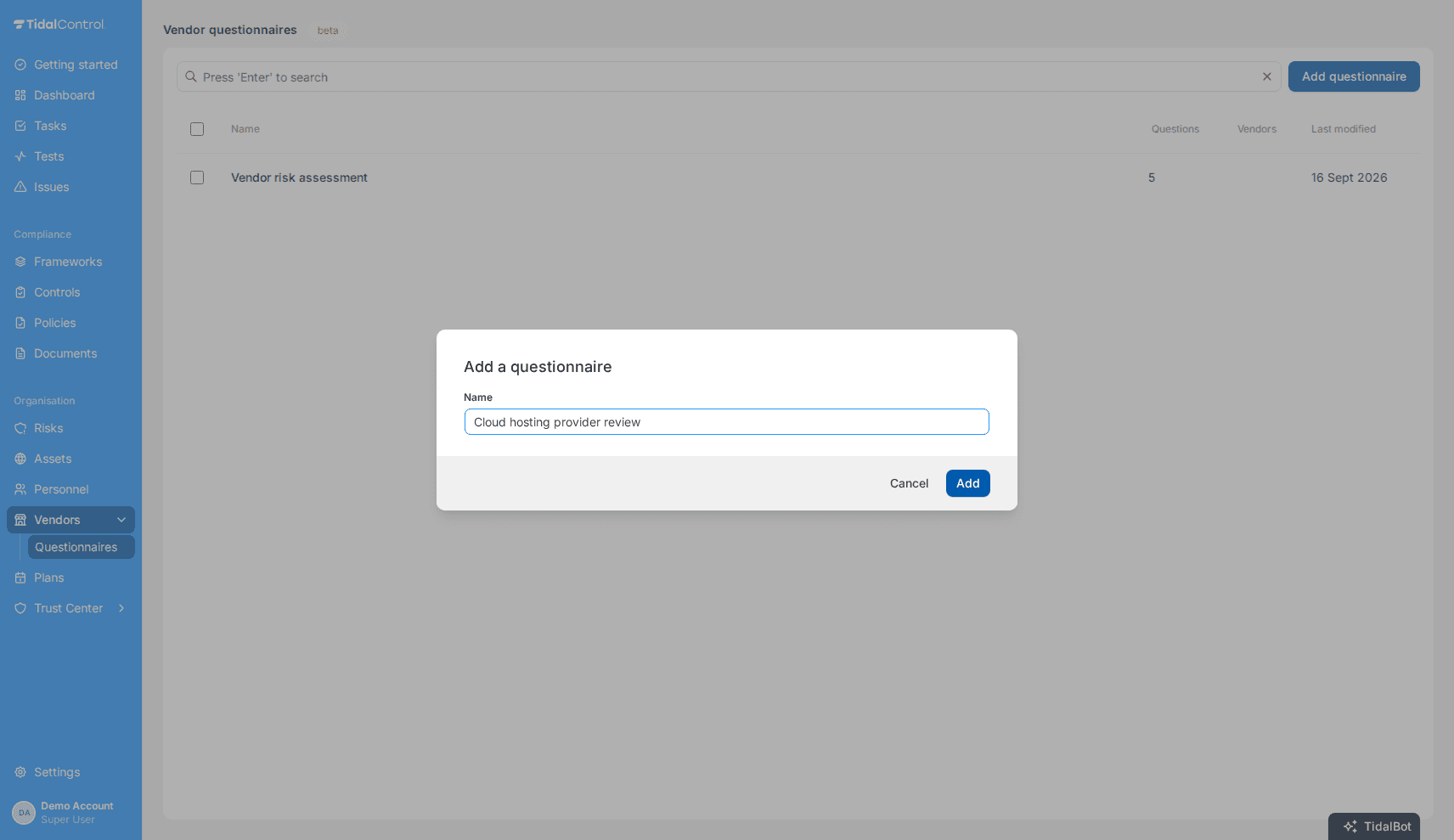
Only Super users can use Add questionnaire or delete a questionnaire. Adding one creates an empty questionnaire that you can fill with questions for a particular type of vendor.
Writing questions
Open a questionnaire to see its questions in the order they will be answered.
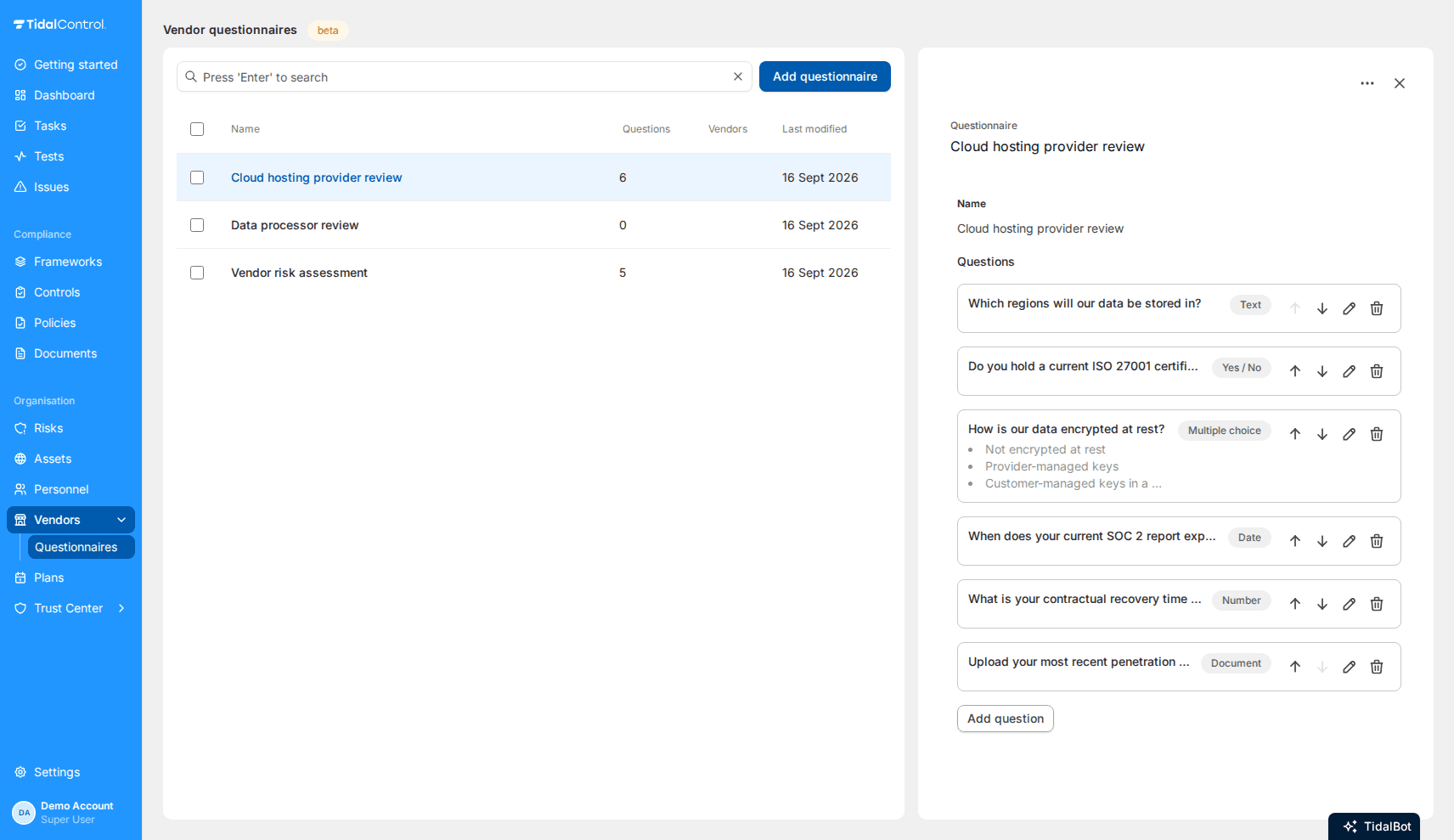
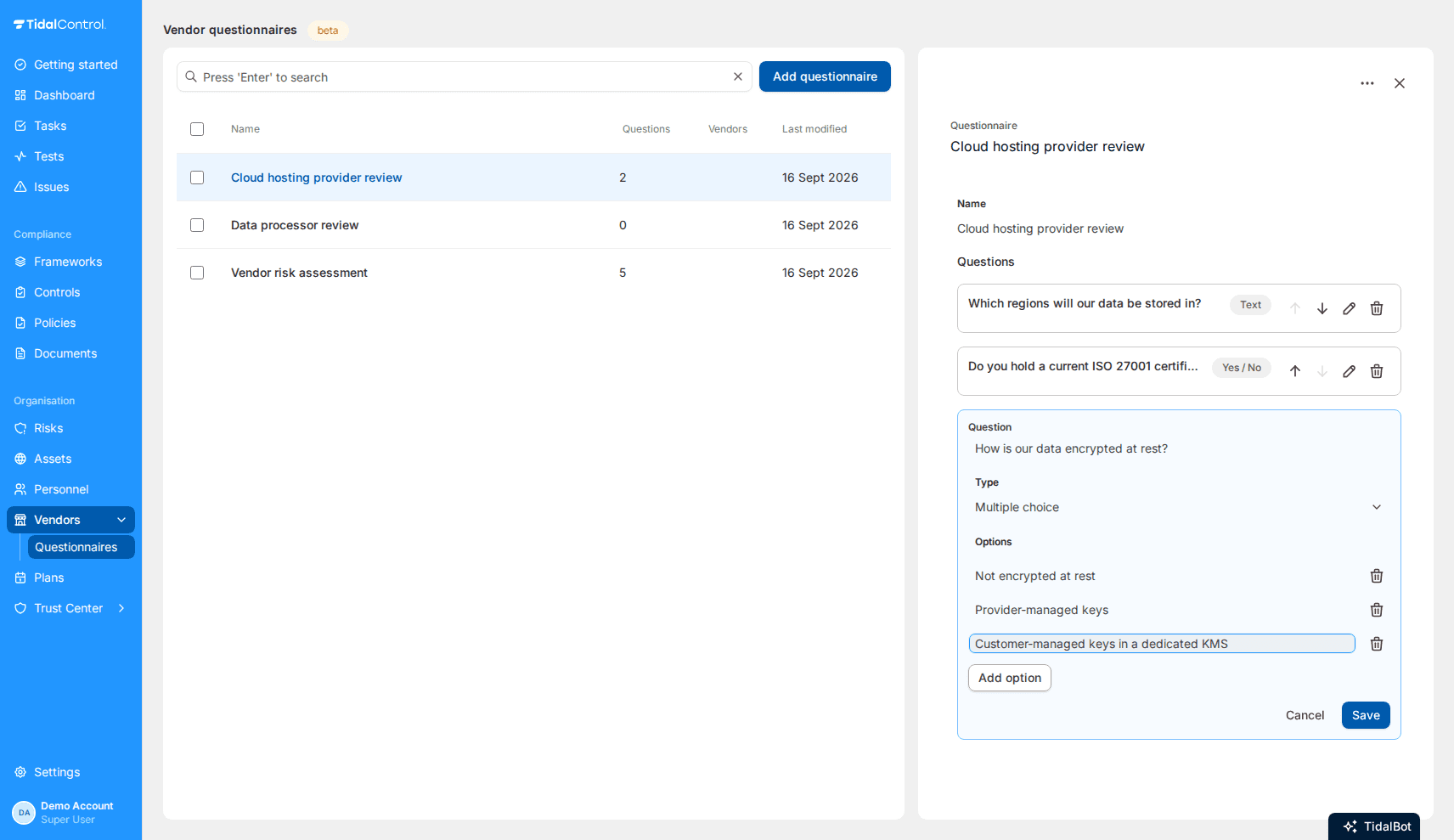
Select Add question, enter the question, choose a type and save it.
Six types are available:
- Text for a free-form written answer
- Yes / No for a straight declaration
- Date for a certification expiry or an audit date
- Number for a count or a duration
- Single choice for a fixed set of answers you define, with 2 to 20 options
- Document for evidence, which is uploaded and filed in your documents
The built-in Vendor risk assessment contains the five standard questions. You can reorder them, but their wording and type are fixed. Only questions you add can be edited or deleted.
Starting a questionnaire for a vendor
Once you customise a questionnaire, every vendor has a Questionnaires tab next to Assessment, Details, Documents and Feed.
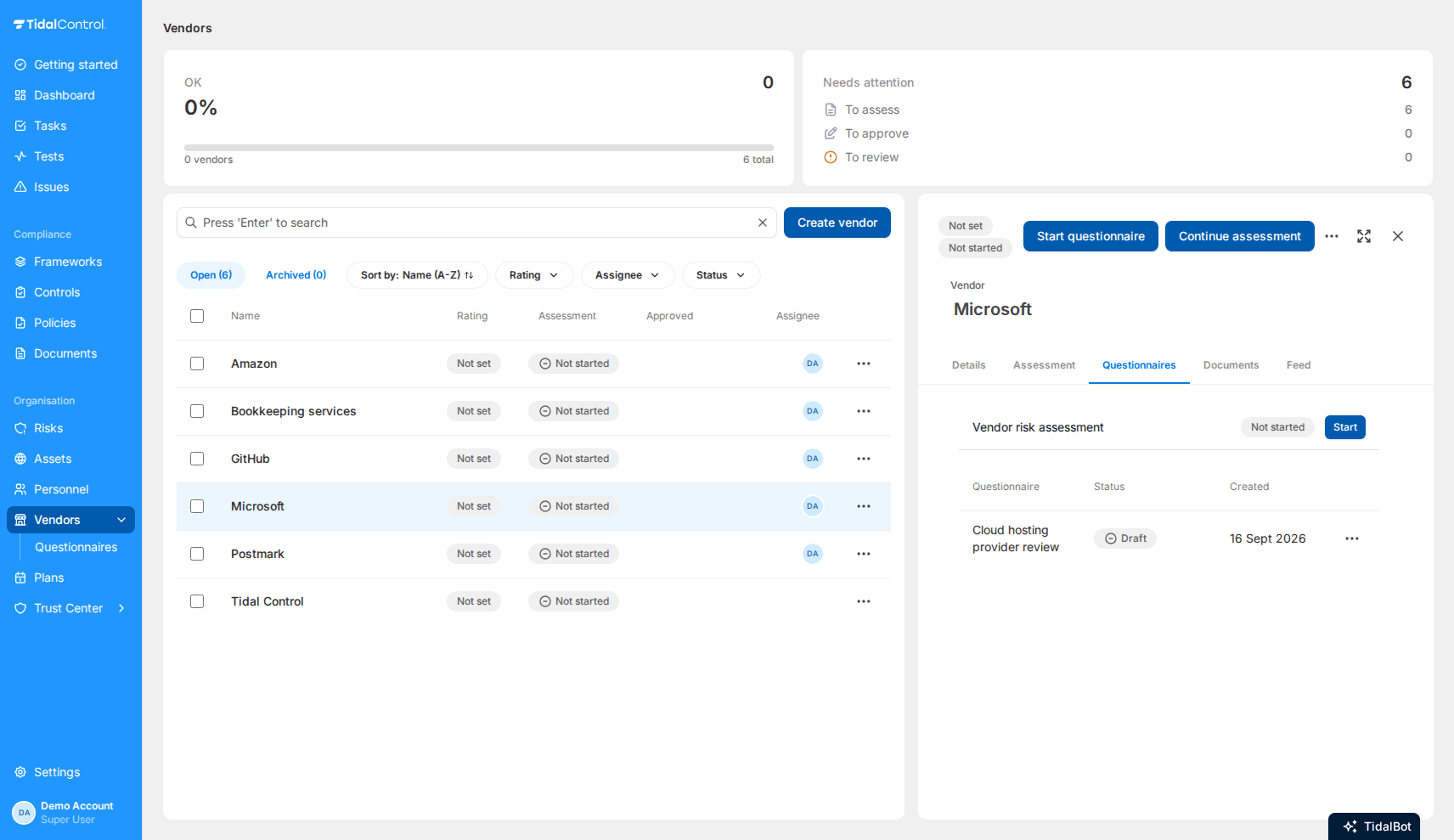
If your organisation has one questionnaire, its questions appear directly on the vendor's Questionnaires tab. Answers save automatically, and Finish questionnaire completes it. If your organisation has more than one questionnaire, the tab lists those already started for the vendor. Select Start questionnaire to choose one and create an assessment. If the built-in questionnaire has not been started yet, select its Start button directly.
Starting a questionnaire creates a copy for that vendor. The copy keeps the questions, wording, types and options as they were when you started it, even if the original questionnaire changes later.
Answering and finishing
Open a questionnaire to answer its questions. Add a comment when an answer needs context.
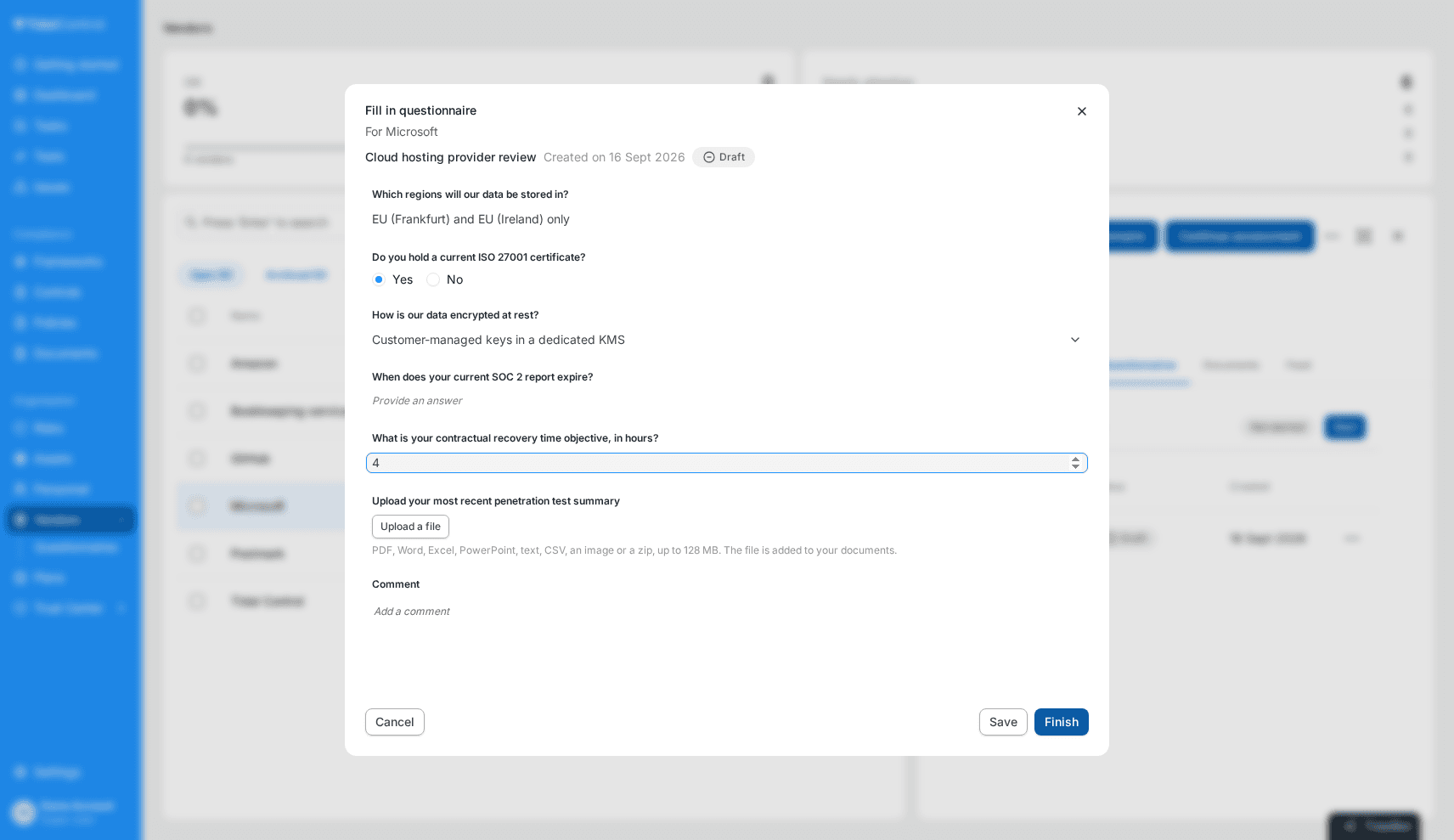
Save keeps the questionnaire as a draft. Finish records who completed it and when, then locks it. Finished questionnaires cannot be edited. To correct an answer, start a new questionnaire for the vendor.
A questionnaire can have three statuses:
- Not started, available but not opened
- Draft, opened and still editable
- Finished, locked, with completion details
- Previous
- Vendor assessments