Policies
Writing and editing policies
There are four ways to get a policy into Tidal: start from the Tidal template for that policy, write it in the built-in editor, upload an existing file, or link to one held elsewhere. This article covers all four, plus the formatting, ownership, and version history that apply once the policy exists.
Starting from a Tidal template
Most policies ship with a template we wrote: the whole document, structured and worded, with the parts only you can answer marked for you to fill in. Choosing Start with template copies it into a new draft, and from that point it is an ordinary policy in the editor.
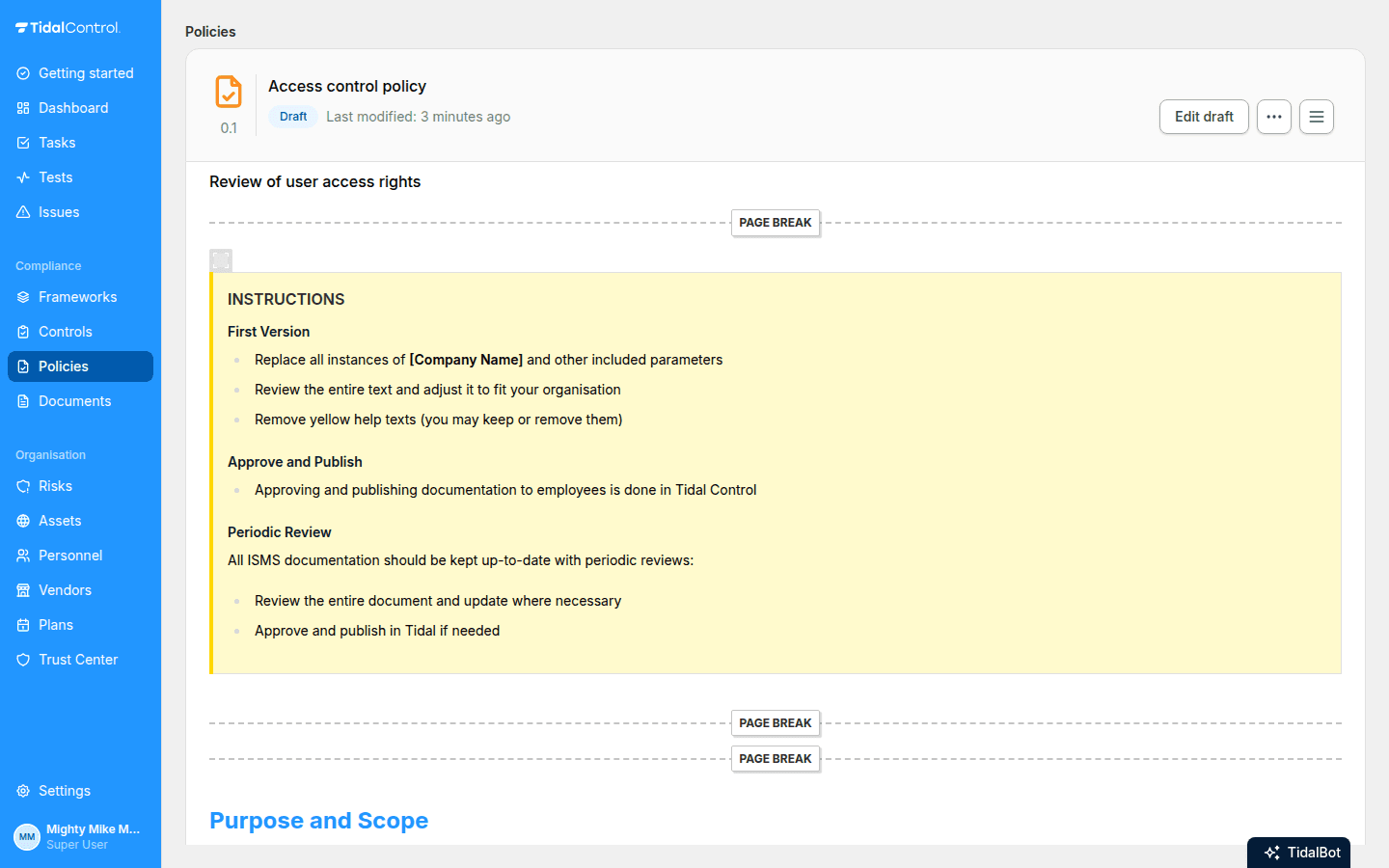
Every template opens with a yellow INSTRUCTIONS box. It tells you what to replace on the first version, what approving the document proves, and how often to review it afterwards.
The yellow box is guidance for you, not part of your policy. Delete the whole block before approving, or it ships into the document your auditor reads. The same goes for the yellow highlights in the body once you have answered them.
Work through it in this order:
- Replace
[Company Name]and any other bracketed placeholder. Nothing fills these in for you, and the templates use them heavily. - Read the whole document and adjust it to how your organisation actually works. A template that describes something you do not do is worse than no template.
- Remove the yellow help texts as you answer them.
- Delete the INSTRUCTIONS box, then approve.
A few required documents are spreadsheets rather than pages, such as the authorisation matrix and the record of processing activities. Those arrive as a workbook you download, fill in and upload again, so they do not open in the editor.
Not every policy has a template. The option appears only where one exists. On a free trial you can start three of them; the rest are still listed, and say they need an upgrade rather than quietly disappearing.
Using the Policy Editor
The Policy Editor is our built-in editor that allows you to create and edit professional policy documents. When you choose "Create with editor", you'll be taken to the editor.
First steps in the editor
Initially, the editor is loaded with a standard template that gives you a good starting point:
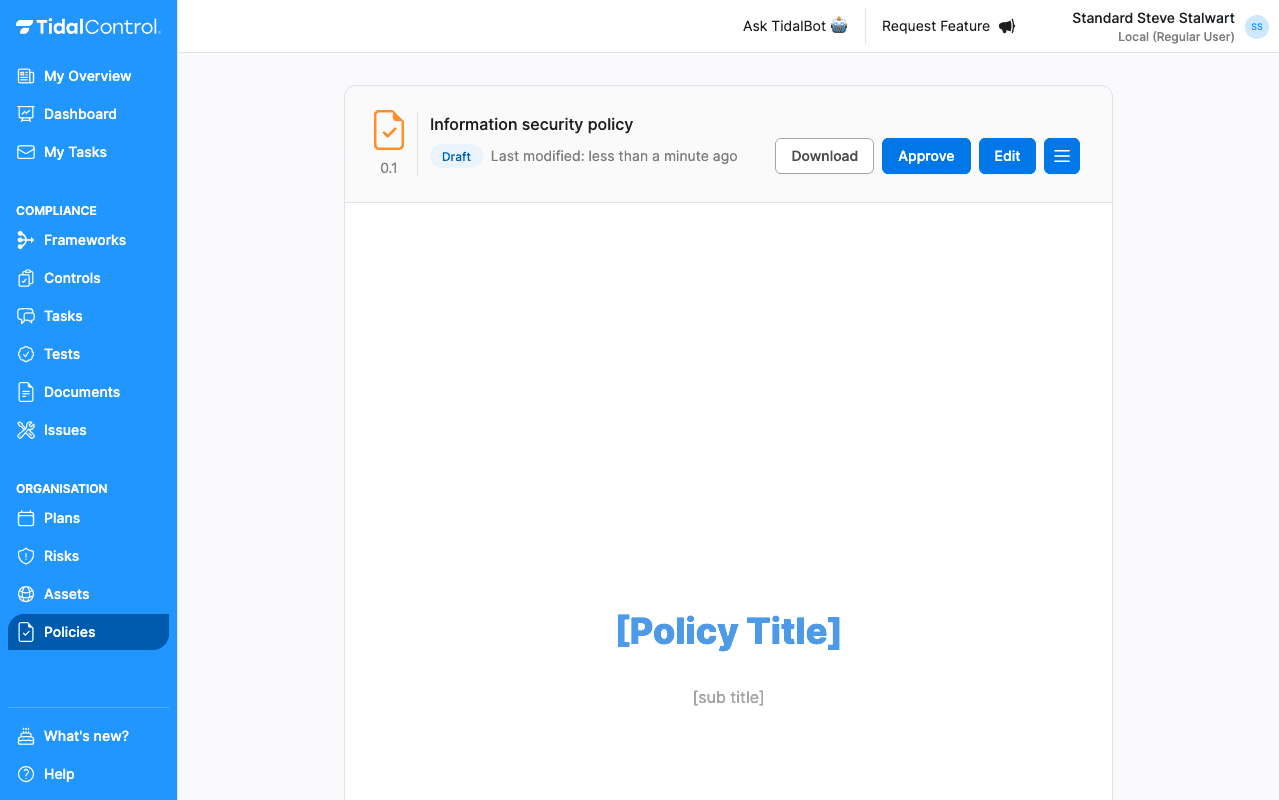
In the editor you see:
- Policy title - Automatically filled in based on your policy
- Document status - Approved or Draft
- Policy version number - For version control
- Document content - Your actual policy text
- Action buttons - For editing, approving, downloading etc.
- Menu button (three horizontal lines) - Opens the sidebar with more information and version history
When you first open the editor, you are in view mode. The document can only be edited after you click the "Edit draft" button.
Editing documents
When you click the "Edit draft" button, the editor toolbar appears with all editing capabilities:
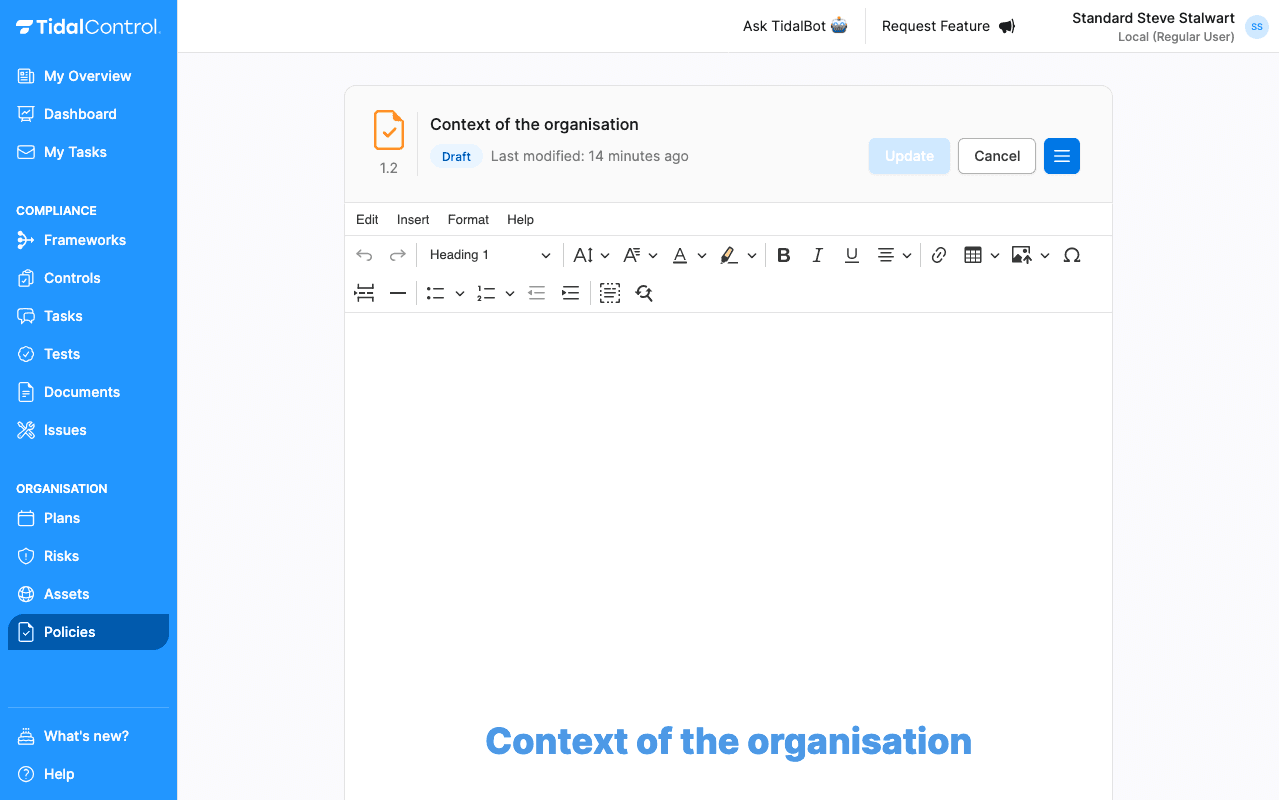
The editor contains a complete set of word processing functionalities:
- Text formatting - Bold, italic, underlined
- Lists - Numbered and bullet points
- Headings - Different levels for structure
- Tables - For structured information
- Links - To external sources or internal documents
- Images - For visual support
Some options are not visible in the toolbar but can be found in the menu bar. Explore the different menus to discover all functionalities.
Templates and structure
Standard template
The standard template contains typical sections for policy documents:
- Purpose and scope - Why does this policy exist?
- Responsibilities - Who does what?
- Procedures - How is the policy applied?
- Compliance and monitoring - How is compliance controlled?
Creating your own structure
You are not bound to the standard template. You can:
- Add or remove sections
- Create your own heading structure
- Add specific content that fits your organisation
Watch out with approved policies! When you click "Create new draft" in an approved policy, a new draft is automatically created with the same content as the approved document.
The current approved document will only be replaced on the main page when you approve this new draft.
Uploading existing documents
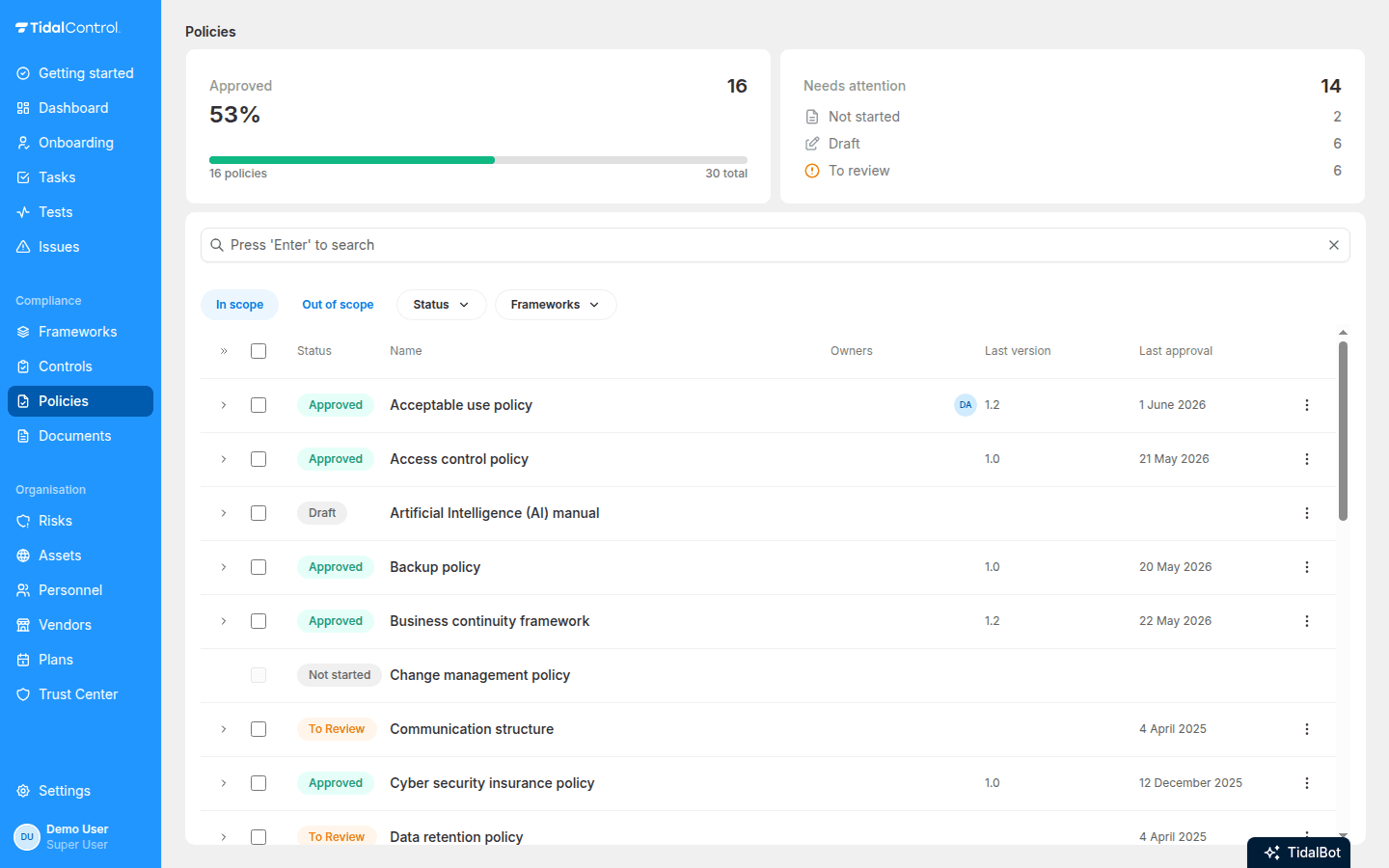
If the policy already exists as a file, upload it instead of rewriting it in the editor. Uploaded policies are recognisable by a paperclip icon.
Upload process
When you choose "Upload file or use already uploaded document", you get an upload interface:
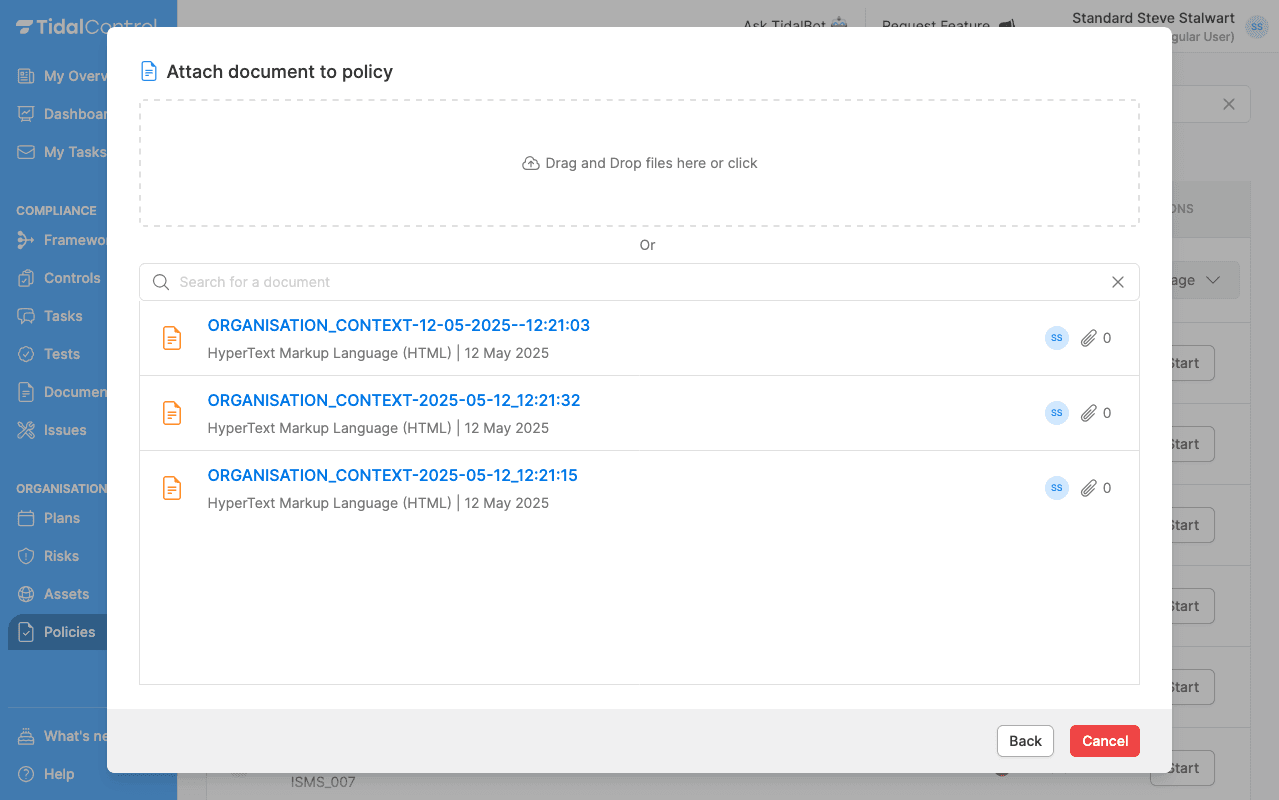
You can upload files by:
- Drag & Drop - Drag files directly to the upload box
- Click - Opens a new File Explorer selection screen
- Search for a document - Select a document that is already in Tidal
Supported file formats:
- PDF documents
- Microsoft Word documents (.doc, .docx)
- Microsoft Excel documents (.xls, .xlsx)
- ...and many more
Upload management
After upload, you see in the overview that uploaded files are recognisable by the paperclip icon:
Uploading new versions
When you have a new version of your document ready:
- Go to the "Policy Options" menu of the policy
- Click on "Link other document"
- Upload your new file
When uploading a new version, the approval status is automatically reset. Your new document has "Draft" status and must be approved again.
Advantages and limitations
Uploading keeps your existing workflow intact, but editing that document still has to happen outside Tidal.
Advantages of uploaded documents:
- Maintain your current workflows and templates
- No retraining of your team needed
- Familiar software and formatting options
Limitations:
- Limited editing capabilities within Tidal
- Manual version management
- No integrated collaboration features
Linking external policies
If your policies live in another system, link to them by URL and Tidal will track their status without holding the content.
URL-based management
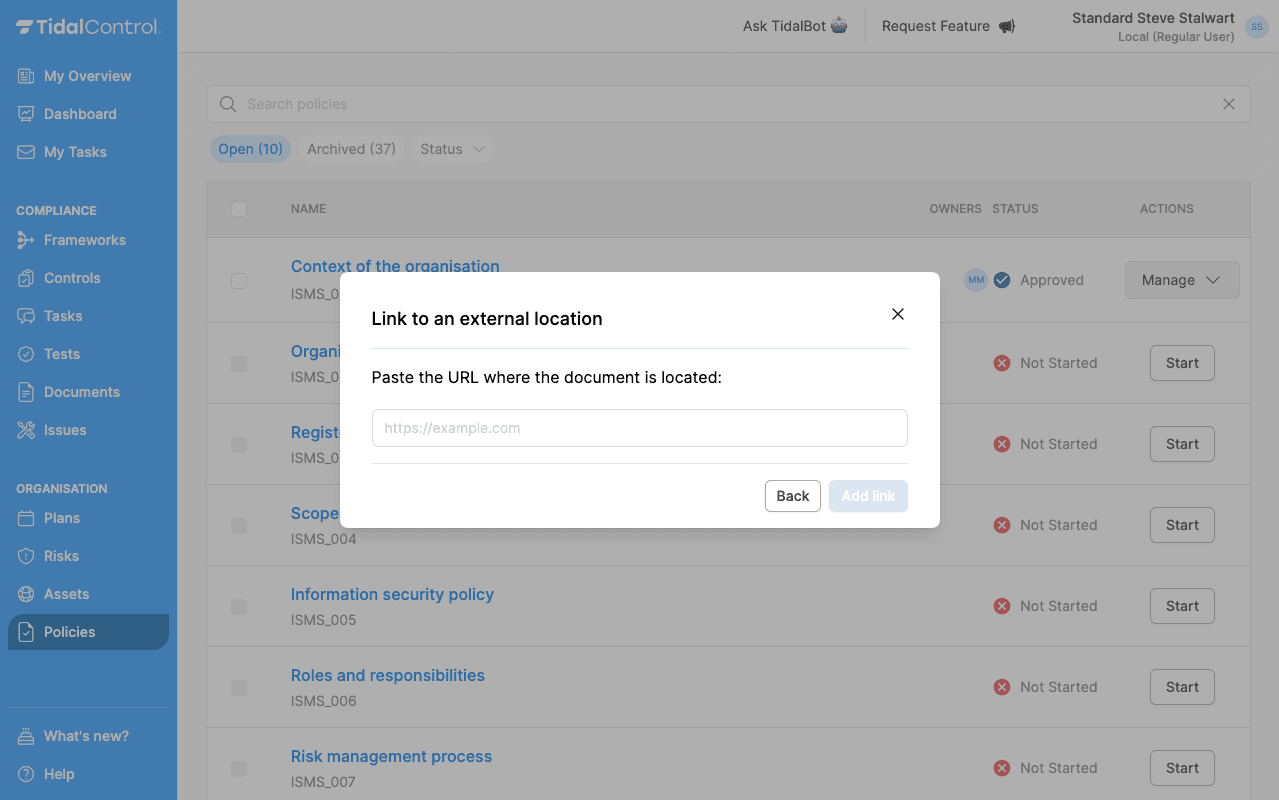
For organisations that manage their policy documents elsewhere, Tidal offers the possibility to link external URLs:
Setup process
- Choose "Link to an external location" in the start menu
- Enter the URL of your external policy document
- Click "Add link" to save the url
URL management
The URL is stored in a file within Tidal, allowing you to still use:
- Approval workflows
- Review cycles
- Compliance tracking
Version history in Tidal for external policies: You can still maintain version history within Tidal by manually editing the URL in the policy editor when a new version is available.
Best practices for external policies
An external policy is only as reliable as its URL, so keep that link stable and accessible to everyone who needs it.
Documentation:
- Keep track of which URL refers to which version, or;
- Ensure stable URLs that don't change
Accessibility:
- Check that URLs are accessible to all relevant users
- Set proper permissions in your external system
- Test links regularly for validity
Externally managed policies are not indexed in Tidal, so their content is not known to our AI assistance.
Content formatting and styling
The editor supports the formatting a policy actually needs: headings, tables, and internal and external links.
Structuring text
Effective heading structure
Use a logical hierarchy of headings:
- H1 - Chapter titles
- H2 - Section titles
- H3 - Paragraph titles
Lists and enumerations
Use the list type that matches the content: ordered for a sequence, unordered for options.
- Bullet points for unordered items
- Numbered lists for procedures and steps
- Nested lists for hierarchical information
Using tables
Tables are ideal for:
- Roles and responsibilities overviews
- Procedure steps with actors
- Compliance requirements with deadlines
- Contact information displayed in structured format
Links and references
Internal links
Link to other Tidal content directly, using the article's own URL.
- Link to other policies within Tidal
- Refer to related controls
- Link to relevant frameworks
External links
Link out to legislation or standards this policy is based on.
- Reference legislation and standards
- Link to external procedures
- Refer to additional documentation
Preventing broken links: Check external links regularly and update them if necessary. Broken links can cause compliance problems and confusion for users.
Policy detail page and sidebar
The sidebar is where a policy's metadata lives: its owners, its version history, and its changelog.
Opening the sidebar
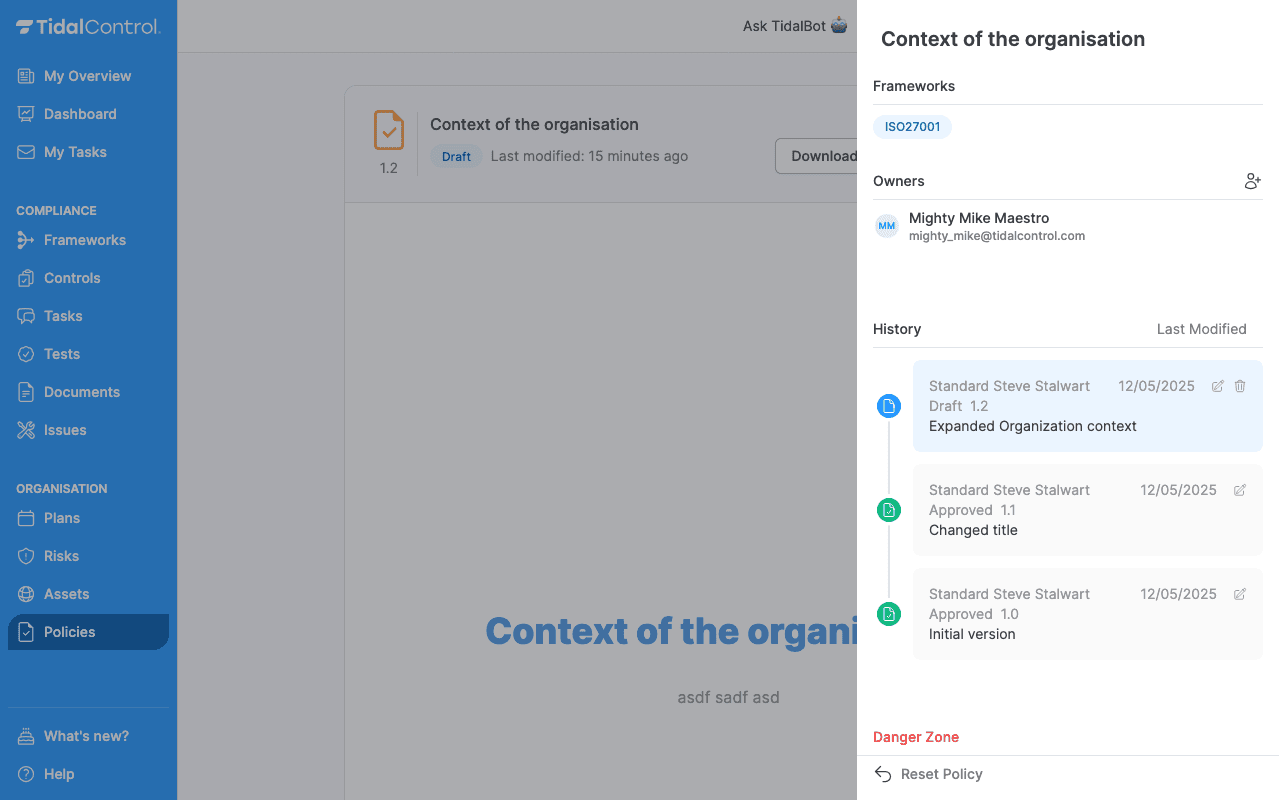
When you are in the Policy Editor, you can find additional information and functions via the sidebar:
- Click the menu button (three horizontal lines) at the top right of the editor
- The sidebar slides open on the right side of your screen
- Here you find ownership, version history, frameworks and more details
Assigning owner(s) via the Policy detail page
To assign owners to a specific policy:
- Go to a specific policy by clicking on the title
- Click the menu button (three horizontal lines) to open the sidebar
- Find the "Owners" section in the sidebar
- Click the user icon to add an owner
- Select users from the available list
You can assign multiple owners to one policy. This is useful when different departments are responsible for different aspects of the policy.
Navigating version history
In the policy editor sidebar (three horizontal lines) you find the complete version history:
- Active version is marked in blue
- Click on a version to view it
- Draft versions can still be edited
- Approved versions are read-only
This function is useful to:
- Compare changes between versions
- Go back to an earlier version
- Check which version is currently active
Updating policy information
In the sidebar you can also check:
- Next review date - When the policy needs to be reviewed
- Frameworks - Which compliance frameworks are linked
- History - Complete audit trail of changes
Automatic review reminders: Tidal automatically sends notifications when policies are due for review. Set realistic review cycles to avoid overloading your team.
Editing changelog
For each version in the history you can:
- Click the pencil icon next to a version
- Edit the change comment to explain changes
- Adjust the version number if desired
- Save the changes
Editing changelog information does not affect the approval date or author of the document. It only helps in maintaining clear version information.
Best practices for policy writing
A policy is read by people who did not write it, so structure and plain language matter more than completeness.
Structure and flow
- Start with context - Why does this policy exist?
- Define scope - Who and what does it apply to?
- Describe procedures - How is it executed?
- Specify responsibilities - Who does what?
- (optional) Explain monitoring - How is compliance controlled? - often not needed because Tidal handles compliance.
Language use
A policy written in active voice, without jargon, is one people actually read and follow.
Clear and unambiguous:
- Use active instead of passive sentences
- Avoid jargon and technical terms where possible
- Define important concepts
Actionable content:
- Use verbs that indicate clear actions
- Specify deadlines and frequencies
- Give concrete examples where useful
Template consistency: If you manage multiple policies, develop a standard template with consistent sections and formatting. This makes it easier for users to find information and ensures professional appearance.
- Previous
- Getting started with Policies