Assets
Getting started with Assets
The Assets page is where you register the business resources you want to protect, and where you see the risks, controls, and owners attached to each one. This article covers finding your way around that overview: what the columns mean, and how to search, filter, and sort it.
Navigating the Assets page
You don't need to open an asset to see its compliance status: the overview shows its links and impact rating directly.
Opening the Assets page
Go to the Assets section via the main menu. You'll arrive at an overview page showing all assets from your organisation.
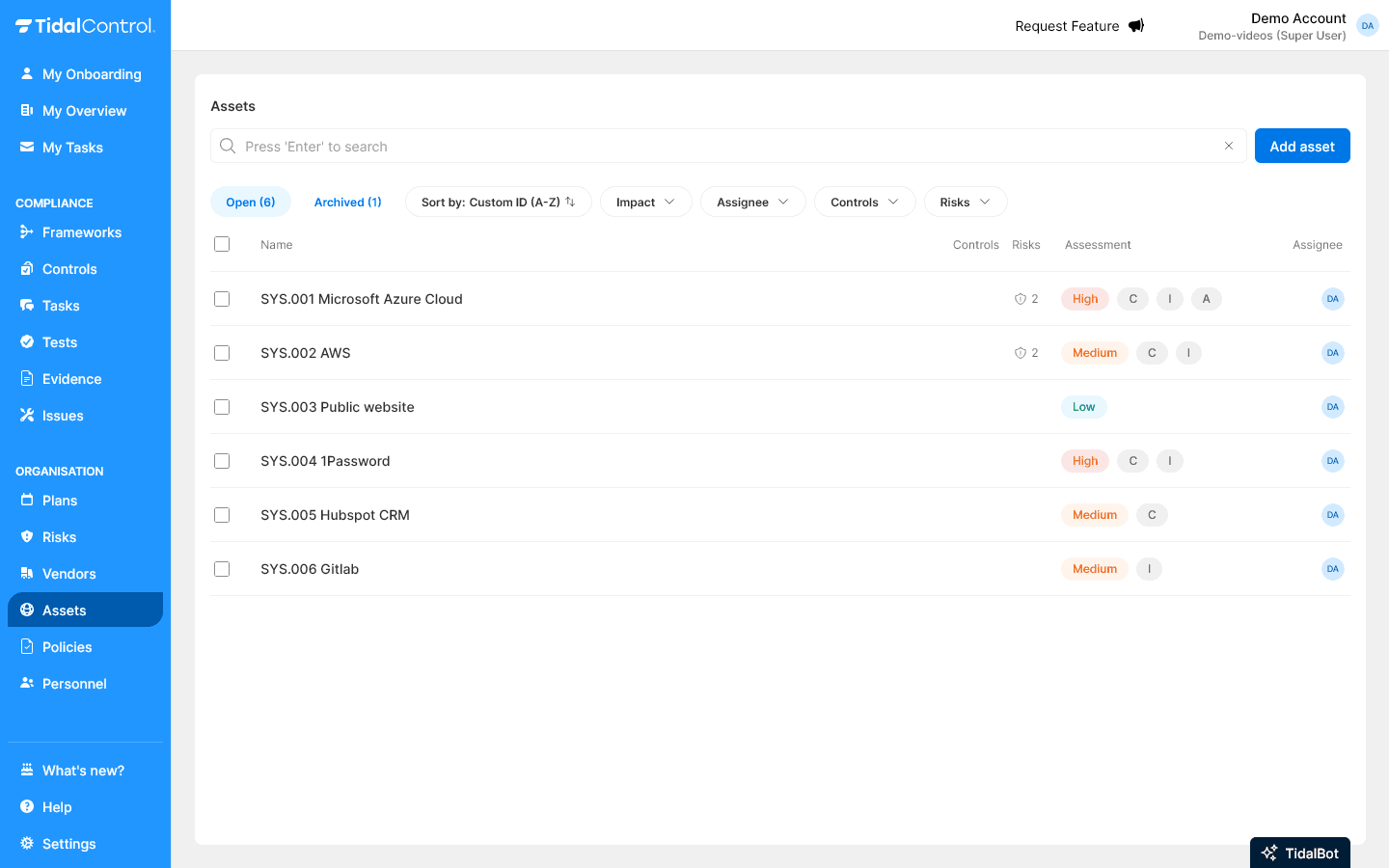
What you see in the overview
The assets overview shows:
- Name - The title of the business resource
- Custom ID - Your own reference number (optional)
- Controls - Which controls are relevant for this asset
- Risks - Which risks are relevant for this asset
- Assignee - The person(s) responsible for this asset
- Status indicators - How risky this asset is
- C I A rating - Which quality criteria (Confidentiality, Integrity, and/or Availability) this asset scores high on
Archived Assets
At the top of the overview, you see two tabs:
- Open contains the current active assets
- Archived contains assets that are no longer in use
Archive assets when they are no longer actively used. They are kept in the archive for audit trails and historical reference, and you can always restore assets from the archive later.
Use archiving to keep your overview organized. Archived assets disappear from daily workflows but remain available for reporting and compliance.
What counts as an asset
Assets in Tidal Control are all business resources that are important to your organisation. These can include:
- IT systems - Servers, applications, databases
- Software - SaaS solutions, internal tools, licences
- Hardware - Laptops, network equipment, printers
- Vendors - External parties that provide services
- Locations - Offices, data centers, production facilities
By registering assets in Tidal, you gain insight into risks, compliance status, and responsibilities for each business resource.
You can link Assets to risks, controls, and tasks. This allows you to split tasks across 5 different Business Units, or assign specific controls to high-risk software.
Read more about this in Creating and managing assets
Search and filtering
Search matches names and custom IDs; the filters narrow the list by attribute, by linked risks and controls, and by the people assigned to an asset.
Search functionality
Nothing filters until you press Enter; there is no live-as-you-type result.
Using the search bar:
- Click in the search bar at the top of the overview
- Type asset names or custom IDs
- Press 'Enter' and your search results will be shown
Filter options
Use the filter dropdown menus to find specific assets:
Filter by attribute:
- Select from predefined attributes
- For example: "Critical", "Cloud", "Vendor"
- You can add attributes to Assets yourself. Read more about this in Creating and managing assets
Filter by risks and/or controls:
- Filter assets based on their linked risks and/or controls
The filters contain options "No risk assigned" or "No control assigned" that allow you to quickly identify missing links in your setup.
Filter by assigned persons:
- Filter by owners, executors, or assessors
- See directly which assets fall under your responsibility
Combining multiple filters: You can use different filters simultaneously to find very specific asset sets. For example: all critical IT assets with high risk assigned to you.
Sorting and organising
Sorting reorders the list you already have; it doesn't narrow it, so combine it with a filter rather than using it alone.
Sort options
Click the sort dropdown to order assets:
By date:
- Oldest - Oldest assets first
- Newest - Most recent assets first
By identification:
- Custom ID (A-Z) - Alphabetical by your reference numbers
- Custom ID (Z-A) - Reverse alphabetical
- Name (A-Z) - Alphabetical by asset name
- Name (Z-A) - Reverse alphabetical by name
By impact:
- Impact (High-Low) - Critical assets first
- Impact (Low-High) - Least critical assets first
Efficient working: Combine sorting with filters for optimal workflow. For example: filter on your assigned assets and sort by impact level to quickly see priorities.
Interpreting results
An empty result is almost always a filter or the archive, not missing data.
Empty results:
- Check if your filters aren't too restrictive
- Look in the "Archived" tab
- Possibly no assets have been created yet
Too many results:
- Add additional filters to refine
- Use the search function for specific terms
- Sort by relevance (e.g., impact level)
Next steps
Now that you know how to find and filter assets, you can:
- Add assets for new business resources
- Perform assessments to map risks
- Create links with controls, plans, and risks
No assets visible? This may mean that no business resources have been registered in your Tidal environment yet. Start by adding your first asset via the "Add asset" button.
- Previous
- Troubleshooting & FAQ