Tasks
Getting started with tasks
The Tasks page collects all the compliance work assigned to you, most of which arrives automatically from plans rather than being created by hand. This article covers reading that overview: the status counters, the two task types, and how to filter down to what is yours.
Navigating the Tasks page
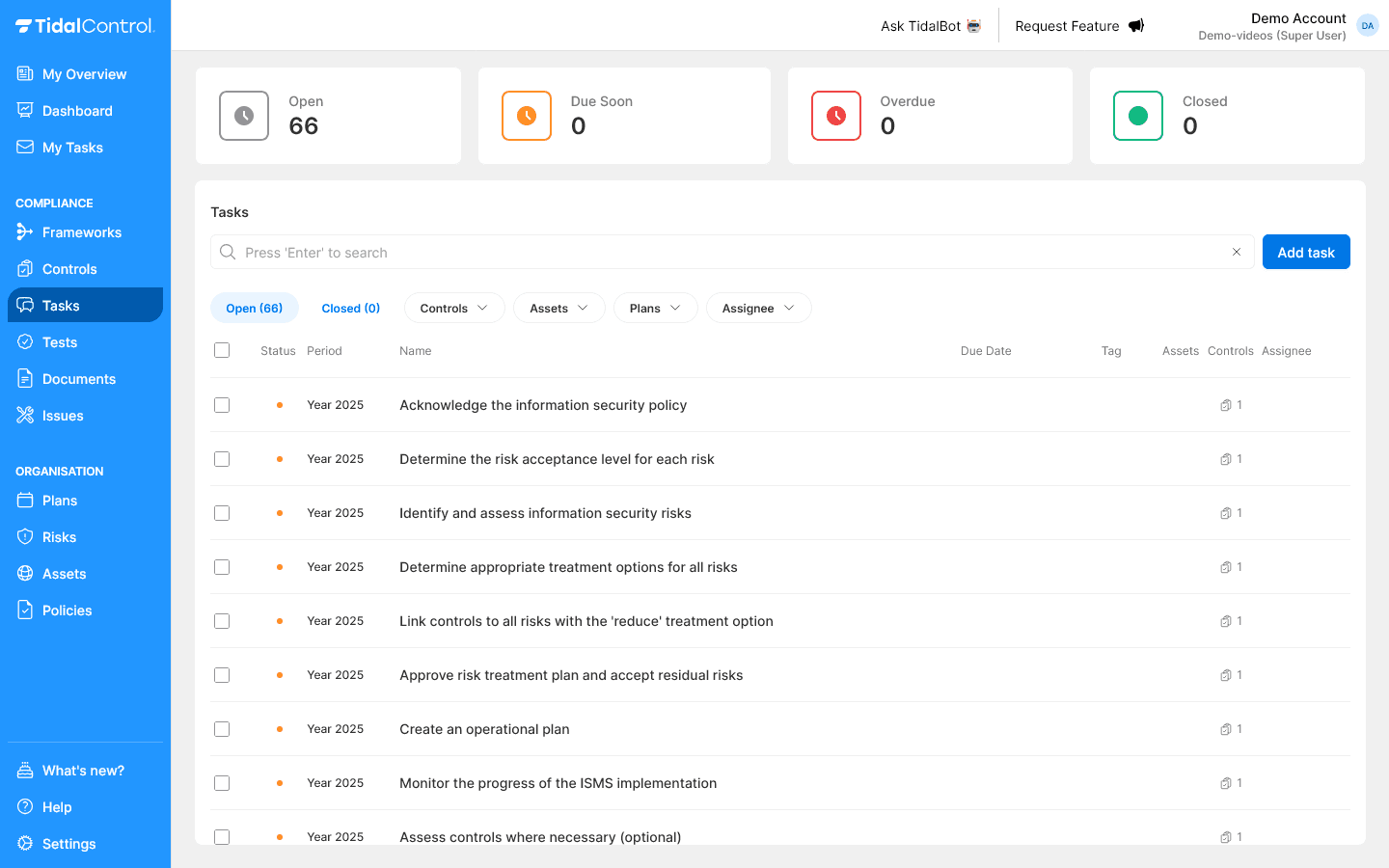
The overview opens on the tasks relevant to you, with four status counters above the table.
Opening the Tasks page
Go to the Tasks section via the main menu. You'll arrive at an overview page with all tasks relevant to you.
Understanding status indicators
At the top of the page you see four important status categories:
Not due soon - Gray:
- Active tasks that need to be executed
- Unfinished work
- Main focus for daily work
Due within 14 days - Orange:
- Tasks that expire soon
- Require priority and attention
- Preventive warning for deadlines
Overdue - Red:
- Tasks that have missed their deadline
- Immediate action required
- Impact on compliance status
Closed - Green:
- Completed and approved tasks
- Available for audit and reporting
- Evidence of performed work
What you see in the overview
The tasks overview shows important information per task:
- Status - Visual indicator of task status (orange dot for open)
- Period - Time period in which task falls (e.g. "Year 2025")
- Name - Descriptive title of the task
- Due Date - Deadline for completion (if set)
- Tag - Label for cycle phase for which the task was created (see Plans)
- Assets - Number of linked business assets (📄)
- Controls - Number of linked controls
- Assignee - Assigned person for execution
Understanding task types
Tidal distinguishes different types of tasks:
Execution
When to use: Concrete implementation work Examples:
- "Configure new firewall"
- "Provide employee security training"
- "Test backup procedure" Characteristics: Practical activities that are executed
Assessment
When to use: Evaluation and control work Examples:
- "Assess effectiveness of access controls"
- "Conduct internal audit"
- "Hold management review" Characteristics: Assessment of existing measures and processes
Task categorization: Assessment tasks often require independent evaluation, while Execution tasks can be performed by implementation teams.
Task reviews vs. Assessments: Task reviews offer a simpler alternative to Assessments. Read more about this in Creating and managing tasks
Searching and filtering
Search matches task names, and the filters narrow by status, type, owner, and the control or asset a task belongs to.
Search functionality
Nothing filters until you press Enter; there is no live-as-you-type result.
Using the search bar:
- Click in the search bar at the top of the overview
- Type task names or keywords (e.g. "backup", "review", "training")
- Press 'Enter' and your search results are displayed
Filter options
Use the filter dropdown menus to find specific tasks:
Open vs Closed:
- Open (66) - Active tasks requiring attention
- Closed (0) - Completed tasks for historical overview
Filter by Controls:
- Show tasks linked to specific controls
- Useful for control-based planning
Filter by Assets:
- Show tasks related to specific business assets
- Useful for asset-focused work
Filter by Plans:
- Show tasks generated by specific plans
- Perfect for periodic cycle monitoring
Filter by Assignee:
- Show tasks assigned to specific people
- Essential for personal work lists
Create personal work list: Filter on your name as Assignee to see only your own tasks. This gives you a clear overview of your priorities.
Combining multiple filters
You can use different filters simultaneously for very specific results:
- Example: Filter on "Open" + your name + specific Plan to see your active cyclical tasks
- Reset filters: Click away individual filters or refresh the page
Task planning and automation
Most tasks are not created by hand: plans generate them on a schedule, and their due dates are what drive the overdue counters.
Automatic task generation
A plan generating tasks on a schedule is what keeps compliance activities from being forgotten.
Plans generate tasks automatically:
- Monthly cycles - Regular controls and monitoring
- Quarterly reviews - Periodic evaluations
- Annual audits - Compliance assessments
- Ad-hoc triggers - Event-based activities
Benefits of automation:
- Consistency - No forgotten compliance activities
- Efficiency - Less manual planning
- Traceability - Complete audit trail of work
- Compliance - Guaranteed execution of mandatory tasks
Tasks are often automatically created by Plans linked to Controls (or Assets). This gives you an ongoing cycle of compliance activities without manual planning.
Read more about this in Creating and managing plans
Deadline management
Most due dates are set automatically by a plan, and only the first missed deadline gets reported by email.
Understanding due dates:
- Automatically set by Plans according to schedule
- Manually adjustable for specific circumstances
- Reported once in the daily summary email after a deadline has passed
- Dashboard warnings for approaching due dates
What counts as a task
Tasks in Tidal Control are concrete work activities that must be performed for compliance and risk management. The system helps you manage these systematically by:
- Organising work - Collect and prioritise all tasks in one place
- Tracking progress - Monitor status and deadlines per task
- Facilitating collaboration - Team communication and evidence collection
- Supporting compliance - Tasks linked to controls and assets
- Automation - Automatically create periodic tasks via plans
By systematically executing and documenting tasks in Tidal, you gain insight into compliance progress and can demonstrate that controls are effective.
Next steps
Now that you know how to navigate and interpret tasks, you can:
- Compile personal work list with filters
- Set priorities based on deadlines and importance
- Collaborate via conversation features
- Track progress of compliance activities
No tasks visible? This may mean that no plans are active yet or no tasks are assigned to you. Check with your administrator if Plans need to be configured.
- Previous
- Troubleshooting & FAQ