Users
Getting started with user management
The Users page in Settings lists everyone with access to Tidal Control and the role each of them holds. Three roles decide what people can do, authentication runs through Keycloak, and nobody can log in until they have been invited.
Navigating the Users overview page
The Users page in Settings shows all team members with their roles and access rights in a clear table.
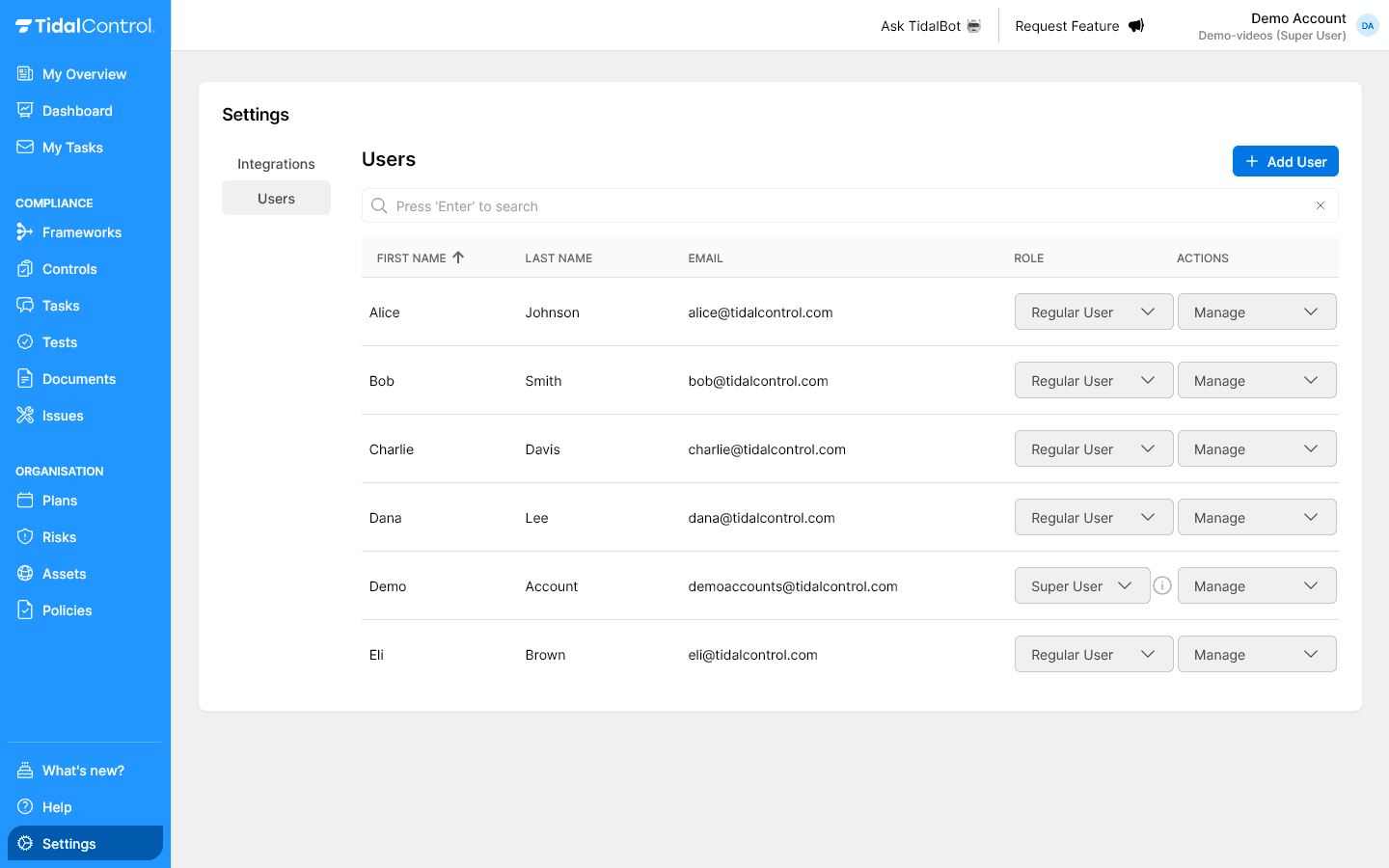
What you see in the overview:
- User table - All team members with basic information
- Search functionality - Quickly find specific users
- Add User button - Add new team members
- Manage menu - User actions per person
- Role management - Adjust rights per user
Understanding the user table
Each row shows the person's name, login email, current role, and an actions menu.
Column information:
- First Name / Last Name - First and last name of user
- Email - Login email address and communication
- Role - Current access rights level (dropdown for changes)
- Actions - Menu with user actions (dropdown for selection)
Example user information:
Alice Johnson | alice@tidalcontrol.com | Regular User | [Actions ⋮]
Bob Smith     | bob@tidalcontrol.com   | Regular User | [Actions ⋮]
Demo Account  | demo@tidalcontrol.com  | Super User   | [Actions ⋮]
Manage menu options
The Manage menu is where you invite, reset, or remove a user.
Available actions per user:
- Send invite - Send invitation for account activation
- Reset password - Send password reset email
- Delete user - Permanently remove user from system
Understanding user roles
Tidal Control uses three main roles for access control, each with specific rights and limitations.
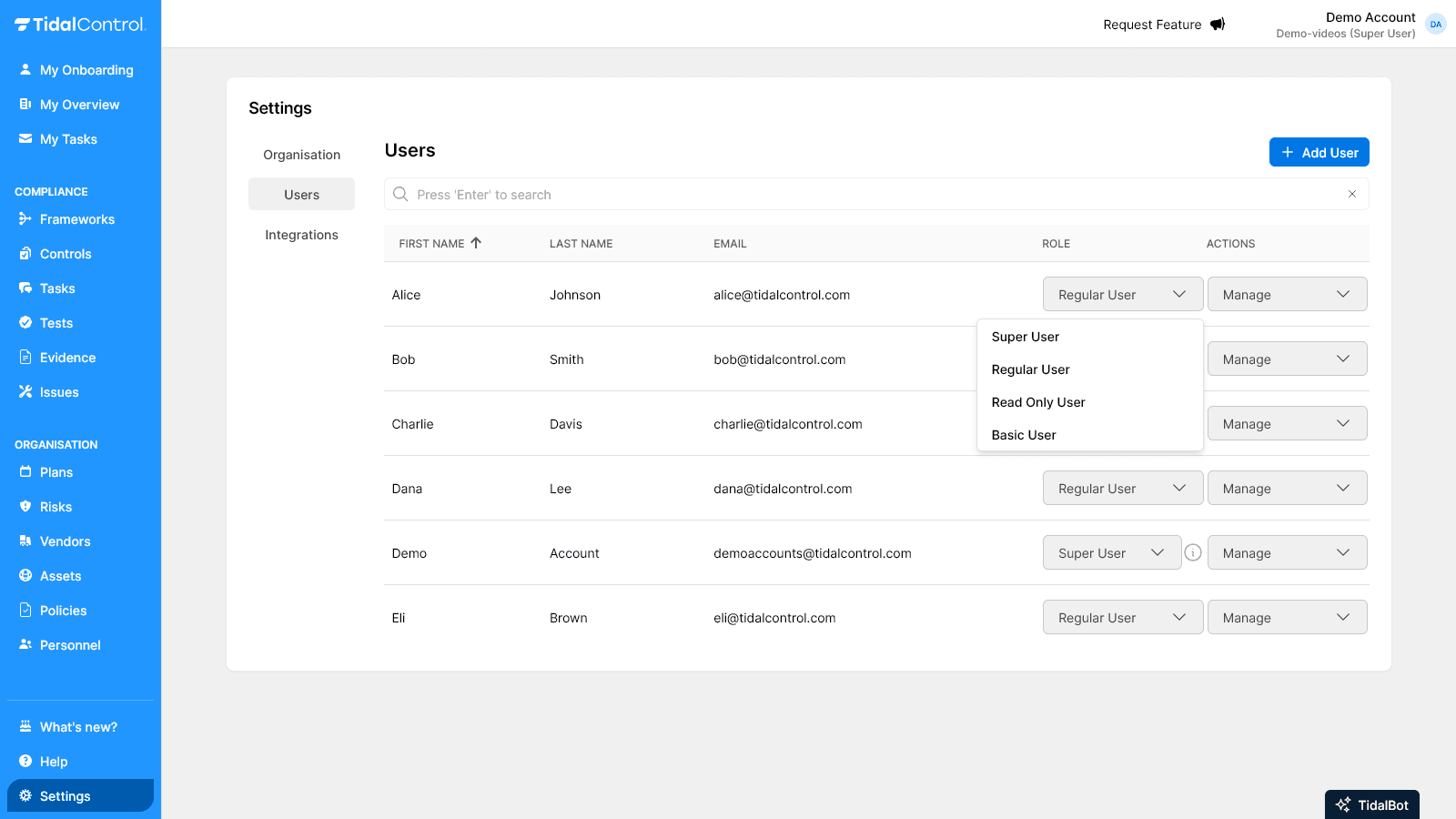
Read Only User
A Read Only User can see everything but cannot create, modify, or execute anything.
Access rights:
- View all compliance data (controls, assets, risks)
- Dashboard and reports access
- Audit trails and history consultation
Cannot:
- Create, modify controls, assets or risks
- Participate in control tests or assessments
- Be assigned as owner of compliance objects
- Execute tasks or upload evidence
Use for:
- External auditors who only need access
- Management wanting overview without execution rights
- Consultants for reporting and analysis
Regular User
A Regular User can do everything a Read Only User can, plus actually execute the work: tests, evidence, and ownership.
Access rights:
- Everything from Read Only User plus execution rights
- Participate in control tests and assessments
- Upload evidence and execute tasks
- Be assigned as owner of controls and assets
- View reports and contribute to compliance activities
Cannot:
- Create, modify or delete other users
- Adjust global settings
- Change system-wide configuration
Use for:
- Compliance staff working daily with the system
- Control owners responsible for implementation
- Team members executing tests and collecting evidence
Super User (Administrator)
A Super User has full administrative rights on top of everything a Regular User can do.
Access rights:
- Everything from Regular User plus administrative rights
- Create, modify and delete users
- Configure global settings
- Manage integrations and system configuration
- Full access to all functionalities
Use for:
- IT administrators maintaining the system
- Compliance managers with full responsibility
- Implementation specialists during setup
Every environment must have at least one Super User. The last Super User cannot be deleted.
Role selection strategy
Base the role on what the person actually does day to day, not on seniority.
Determine role based on:
- Daily work - What tasks does the person perform?
- Responsibility level - How critical is their contribution?
- Security principle - Minimum rights for function execution
- Organisation hierarchy - Does role fit position and authorities?
If your organisation uses Strict Mode (see indicator top right of screen) then Regular Users ONLY have access to controls, risks, tasks etc. that they are directly or indirectly linked to.
Read more about this in Using Strict Mode.
Recognising login mechanisms
Tidal Control supports different login methods visible via labels in the user table. Each user has standard username/password authentication, but may have additional security layers configured.
Two-Factor Authentication (2FA):
- What: Second verification step besides your password via authenticator app
- How: After password entry, scan a code from Google Authenticator or similar app
- Use: User can set this up themselves, but this can also be centrally enforced.
Single Sign-On (SSO):
- What: Single login gives access to all business applications
- How: Via organisation identity provider (Azure AD, Google Workspace, LDAP)
- Benefit: Users only need to remember one password, IT has central control
- Use: This must be configured centrally.
Send an email to support@tidalcontrol.com and we'll set it up for you. Additional licence costs apply to using Single Sign-On.
The use of 2FA and SSO can be monitored via the users overview:
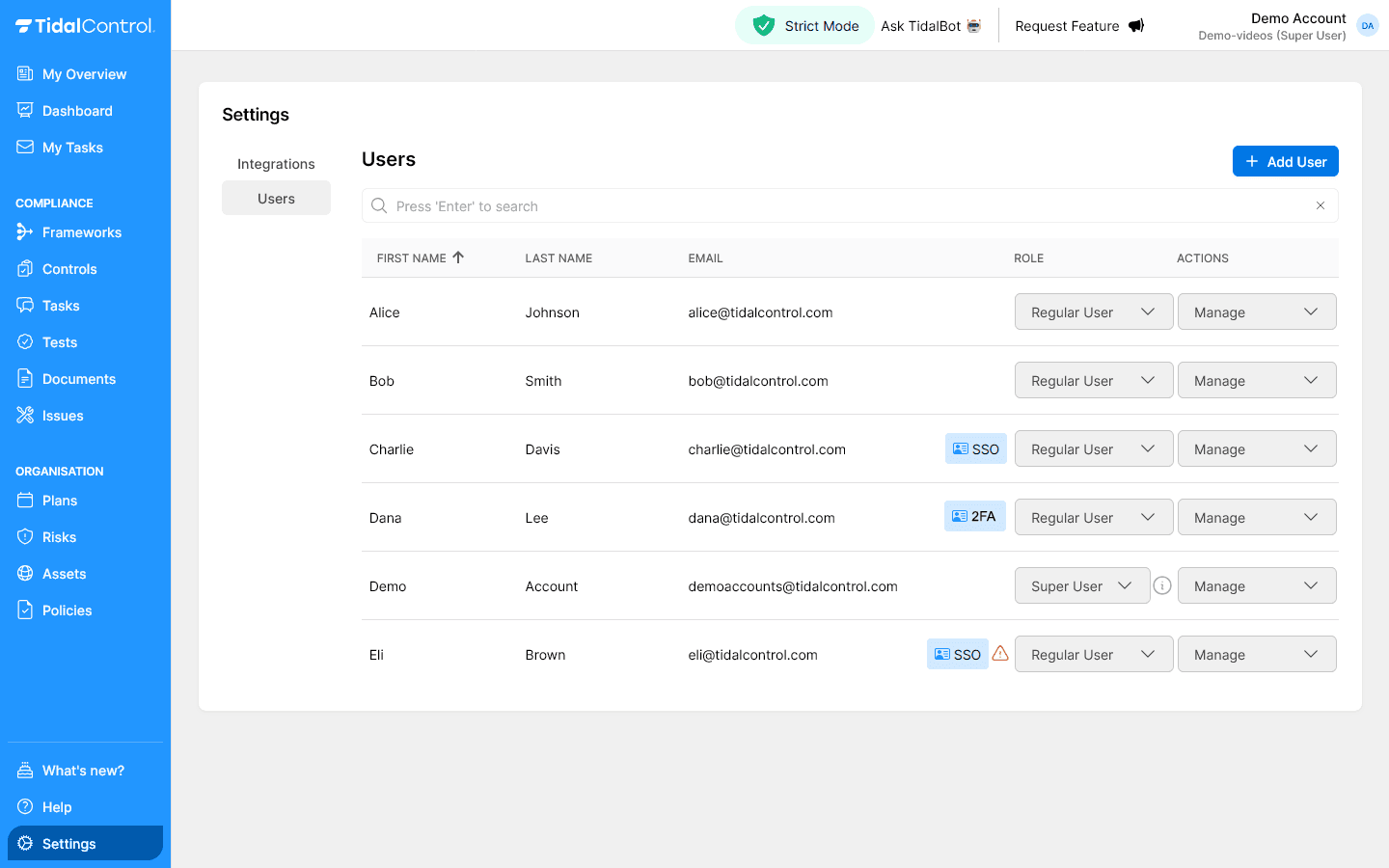
The following labels are possible:
- No label - Standard username/password login via Keycloak (sufficiently secure)
- 2FA label - Two-factor authentication active besides username/password (optimally secured)
- SSO label - Single Sign-On configured for organisation-wide access (optimally secured)
- SSO + exclamation mark (⚠️) - Both methods active, user can still login with username/password despite SSO configuration (sufficiently secure)
Security recommendation: When implementing SSO, it's wise to disable local username/password access to enforce consistent security policy.
Managing your own profile
Tidal Control uses Keycloak for secure authentication and personal profile management. Users can manage their own account data via the integrated Keycloak interface.
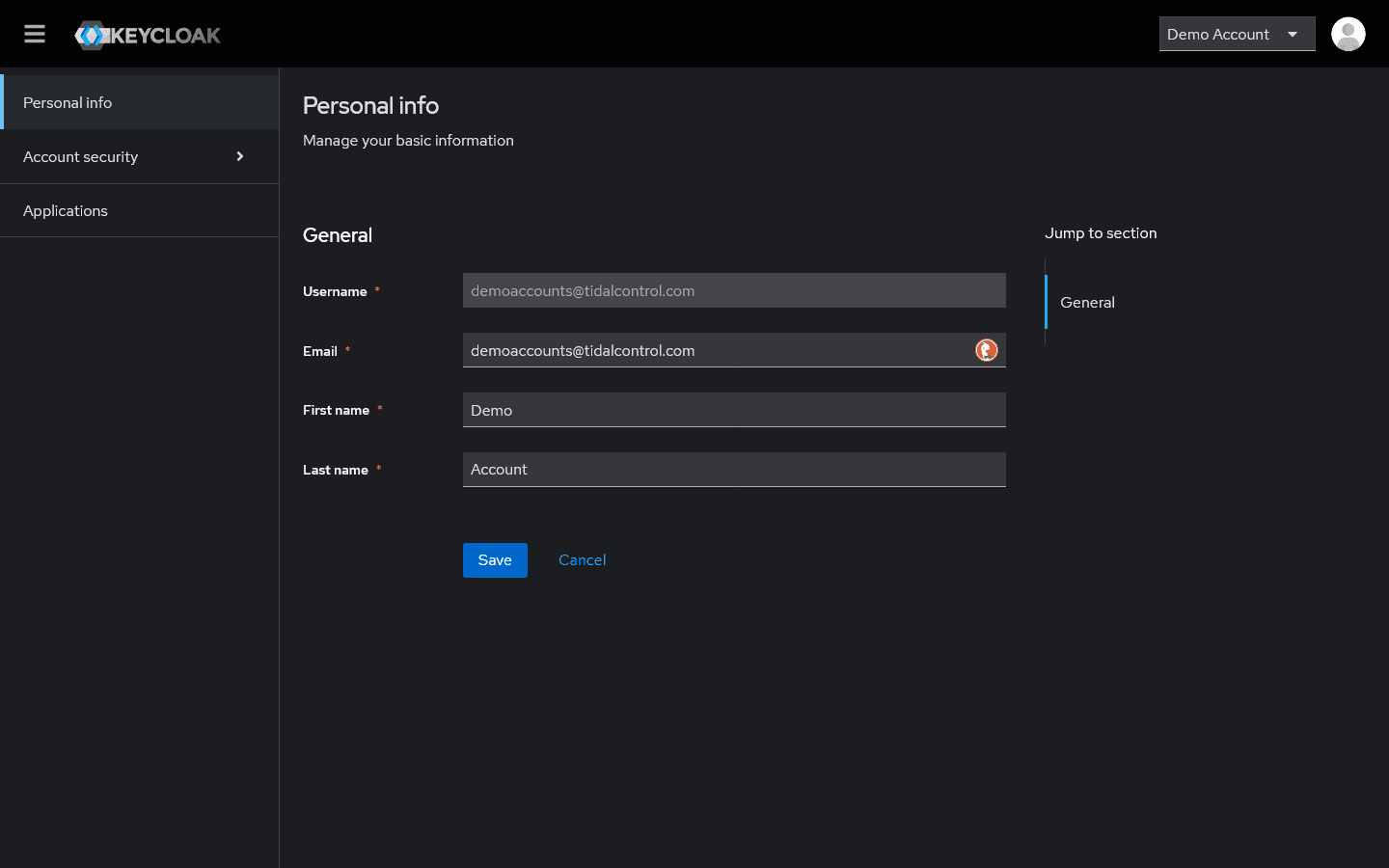
Personal information
Users manage most of their own profile directly; only the username stays fixed.
Users can adjust themselves:
- Email - Contact email address
- First name / Last name - First and last name
- Personal preferences - Language and notification settings
Not adjustable
- Username - Login username
Authentication settings
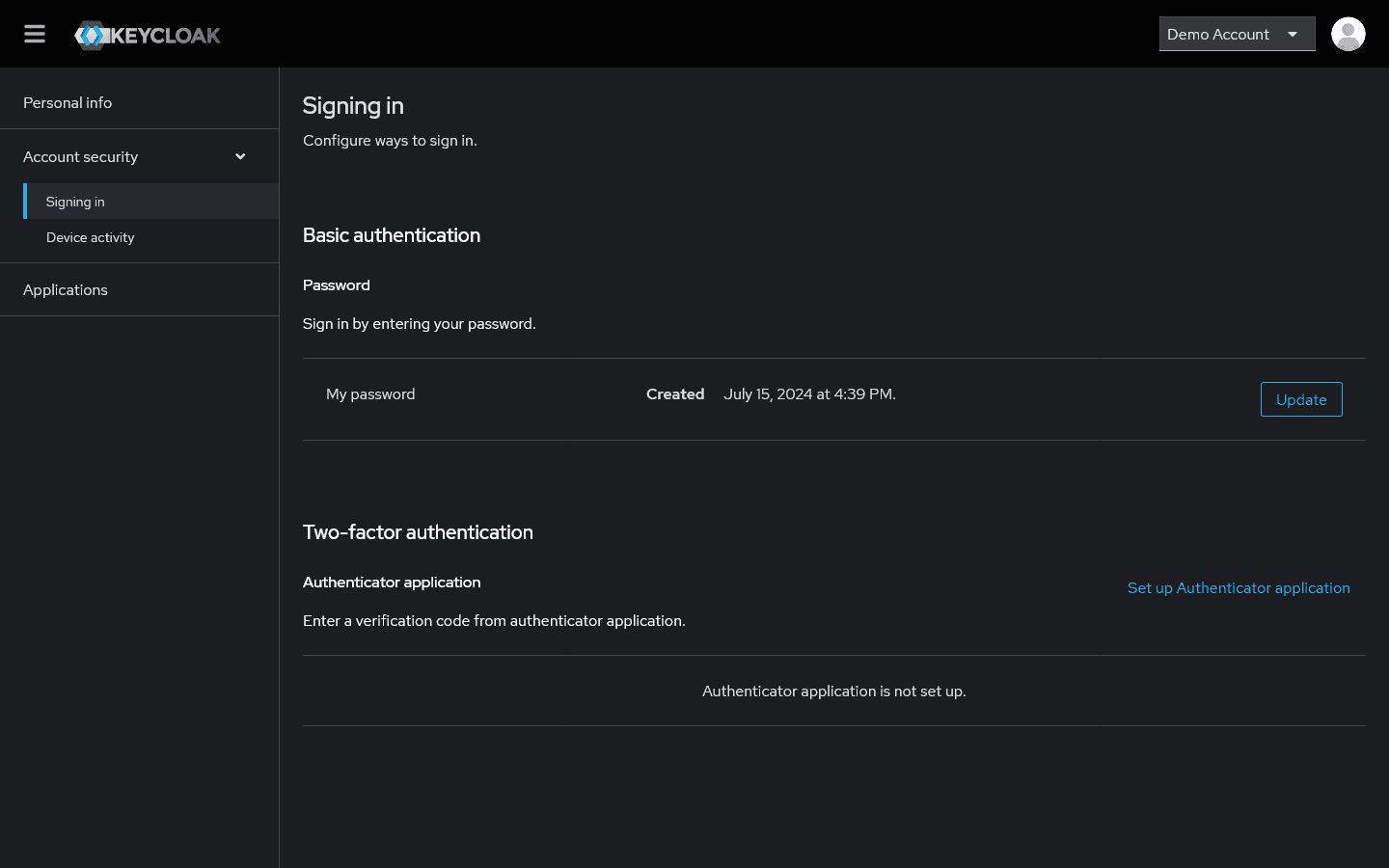
Available security options:
- Password management - Change password and strength
- Two-factor authentication - Authenticator app configuration
- Device activity - Overview of login sessions
- Login history - Audit trail of access
Two-factor authentication benefits:
- Extra security layer - Protection against password compromise
- Compliance requirement - Often mandatory for compliance frameworks
- Authenticator app - Use your favorite Authenticator app
Searching and organising users
Search matches names and email addresses, and the table can be sorted by name, role, or access.
Using search functionality
- Click in search bar "Press 'Enter' to search" at top of Users page
- Type name or email of desired user
- Click 'Enter' to filter results
- Clear search (X) to show all users
Sorting users
Sort the table by first name, last name, or email, and click any column header to flip the order.
Sort options:
- First Name - Alphabetical by first name (default with arrow ↑)
- Last Name - Alphabetical by last name
- Email - Alphabetical by email domain
Click column header to change sort order between ascending and descending.
Access rights in practice
What each role means day to day is easier to see as work than as a permission list.
Regular User daily tasks
A Regular User's day-to-day work is executing tasks, uploading evidence, and reporting status on their own controls.
Typical work:
- Execute assigned control tasks
- Upload evidence as input for periodic assessments
- Provide status updates on controls
- View reports for own responsibilities
Super User management tasks
A Super User's work is administrative: onboarding, roles, settings, and troubleshooting access.
Administrative work:
- Onboard new team members
- Adjust roles for function changes
- Configure system settings
- Troubleshoot user access
Read Only User analysis tasks
A Read Only User's work is analysis and reporting, not execution.
Access work:
- View compliance status reports
- Support audit preparations
- Perform trend analyses
- Compile executive overviews
What user management covers
User management in Tidal Control enables you to add team members, assign roles and manage access rights for your compliance organisation.
Core functionalities:
- Central user administration - Manage all team members from one place
- Role-based access control - Different rights per user type
- Integrated authentication - Keycloak for secure login and profile management
- Invitation system - Invite users via email with account activation
- Ownership assignment - Link controls, assets and risks to users
Next steps
Now that you know the user management interface:
- Identify team members who need access to Tidal Control
- Determine correct roles based on responsibilities
- Invite team members or plan gradual team rollout
- Previous
- STACKIT